App Login Not Working: Common Causes and Solutions

Md Al Amin
Md Al Amin is the Founder and Lead…
In this article
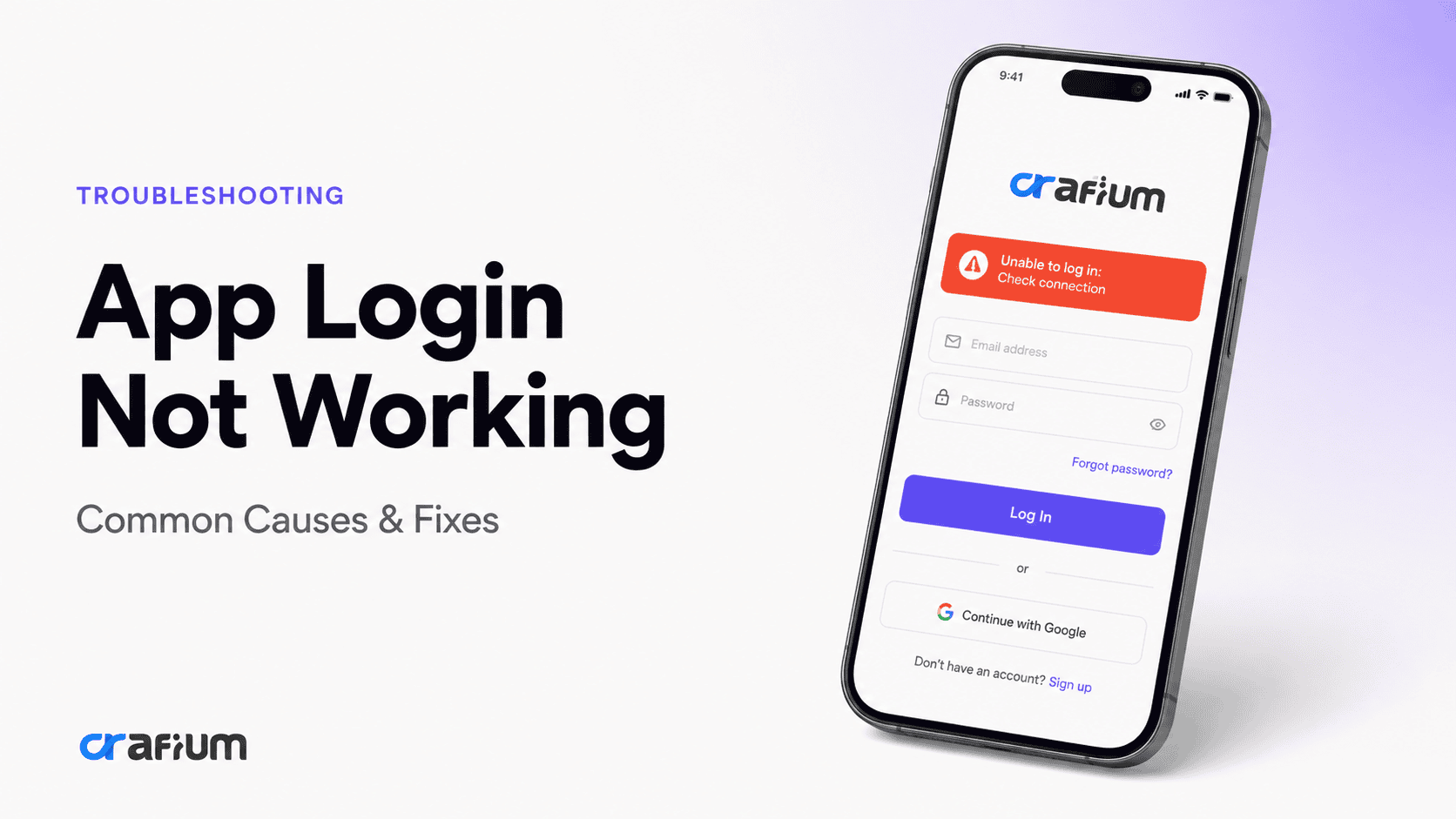
You enter the correct email and password, tap Log In, and nothing happens. Maybe the app shows an error, keeps loading, rejects your credentials or sends you back to the login screen.
When app login is not working, the problem is not always your password. Network problems, outdated apps, incorrect device settings, authentication failures, server issues, corrupted app data and problems with third-party login providers can all prevent a successful sign-in.
The good news is that most login problems can be narrowed down by checking a few specific areas.
In this guide, we’ll explain why app login stops working, how to fix common login problems on iPhone and Android, and what developers should investigate when users cannot sign in.
Common Causes of App Login Not Working
An app login can fail for many reasons. The problem may be located on your device, inside the application, in the authentication service or on the backend server.
The most important first step is to identify where the login process is failing.
Incorrect email, username or password
The most obvious cause is incorrect login information.
Check that you are using the correct email address or username and that your password is entered exactly as expected.
Remember that passwords are usually case-sensitive. An extra space, incorrect capitalization or an autofill error can prevent authentication.
If you are confident that the credentials are correct, avoid repeatedly guessing the password. Too many failed attempts can trigger temporary security restrictions on some services.
The app is not connected to the internet
A login request usually needs to communicate with a remote authentication server.
If your Wi-Fi or mobile connection is unstable, the request may time out before the app receives a response.
Google recommends restarting the device and switching between Wi-Fi and mobile data when troubleshooting Android connectivity problems.
Try opening another website or app to confirm that your internet connection is working.
The authentication server is down
Sometimes there is nothing wrong with your phone or credentials.
The application’s authentication service may be experiencing an outage, maintenance or an unexpected server-side problem.
If the login suddenly stops working for many users at the same time, a service-side issue becomes much more likely.
Check the company’s official status page, website or support channels when available.
The app is outdated
An outdated app can have compatibility problems with newer authentication systems.
This is particularly important when the service changes its login technology, security requirements or third-party authentication provider.
Google also recommends updating an app when troubleshooting problems with an Android application.
Open the App Store or Google Play and check whether a newer version is available.
Your operating system is outdated
The application may depend on operating system components that have changed or received security updates.
An old iOS or Android version can therefore create compatibility problems with a newer application release.
If the app recently received a major update, check whether your device still meets its minimum operating system requirements.
The app’s cache or data is corrupted
Applications store temporary files and local data to improve performance and preserve settings.
Sometimes that local information becomes corrupted or incompatible with the current version of the app.
This can result in login screens that freeze, repeatedly reload or reject an otherwise valid sign-in attempt.
On Android, Google recommends clearing an app’s cache or data as part of troubleshooting when an installed app is not working correctly.
Keep in mind that clearing app data is different from clearing cache and may remove locally stored information.
Your device date and time are incorrect
Incorrect date and time settings can interfere with some authentication systems, particularly those that depend on time-sensitive security mechanisms.
If your device clock is significantly wrong, authentication requests or security tokens may not behave as expected.
Set your device to automatically determine the date, time and time zone.
Google includes synchronizing device time among its troubleshooting steps for Android problems.
Two-factor authentication is failing
Some applications require an additional verification step after entering your password.
The login can fail if:
- The verification code expired
- The code was entered incorrectly
- SMS delivery is delayed
- An authenticator app is out of sync
- Push approval did not arrive
- The recovery method is unavailable
If the password works but the login fails during verification, focus your troubleshooting on the second authentication factor rather than changing your password repeatedly.
The account is locked or restricted
A service may temporarily restrict an account after suspicious activity, too many failed login attempts or other security events.
In this situation, entering the correct password may still not allow access.
Look for an email, notification or recovery message from the service explaining whether your account requires verification or recovery.
Your password has expired or was changed
Some organizations require passwords to be changed periodically.
A login can also fail because the password was recently changed through another device or through the website.
Try signing in through the service’s official website if one is available.
If the website also rejects the credentials, the problem is probably related to the account rather than the mobile application.
The app’s login API is returning an error
Modern apps usually communicate with a backend API during authentication.
The login process may involve several requests:
Login request → credential validation → token creation → session establishment → user profile request
If any of these steps fails, the app may display a generic login error.
From the user’s perspective, it may simply look like “Login failed.”
A third-party login provider is failing
Many applications allow users to sign in with Google, Apple, Facebook or another identity provider.
That means authentication can involve several systems instead of just the app’s own server.
For example, Firebase’s current authentication troubleshooting documentation notes that Google sign-in failures can involve provider configuration, OAuth clients or outdated application configuration files.
If Sign in with Google or Sign in with Apple is failing while regular email login works, investigate the specific authentication provider.
VPN, proxy or network filtering is interfering
A VPN, corporate network, firewall, DNS filter or security application can sometimes interfere with authentication requests.
This is more likely when the login works on mobile data but fails on a particular Wi-Fi network.
Temporarily switching networks can help determine whether the connection is responsible.
The app does not support your device anymore
Developers sometimes stop supporting older operating system versions or device configurations.
The application may still be installed, but newer authentication features may no longer function correctly on an unsupported environment.
Check the app’s current system requirements.
How to Fix App Login Not Working
If app login is not working, start with simple checks and move toward more advanced troubleshooting.
The following steps work across many common login scenarios.
1. Check your email and password
Re-enter your credentials manually.
Make sure:
- Your email address is correct
- Your username is correct
- Caps Lock is not affecting the password
- There are no accidental spaces
- Your password has not recently changed
If you use password autofill, try entering the credentials manually once.
2. Try logging in through the website
This is one of the most useful troubleshooting steps.
If the service has a website, open it in your browser and try logging in with the same credentials.
If the website works but the app does not, the problem is more likely related to the app, its local data, compatibility or authentication integration.
If the website also fails, investigate the account or authentication service.
3. Check your internet connection
Open another website or app that requires an internet connection.
If it does not load, fix the connection first.
On Android, Google recommends restarting the device and switching between Wi-Fi and mobile data when troubleshooting connection problems.
If possible, test the login on both Wi-Fi and mobile data.
4. Restart the app
Completely close the application and open it again.
Temporary application states can sometimes interfere with a login attempt.
On Android, you can also force-stop an application through device settings. Google includes force-stopping among its troubleshooting steps for apps that are not working properly.
5. Restart your phone
A device restart can clear temporary system states and background processes.
It is simple, but it is worth trying before moving to more disruptive troubleshooting.
6. Update the app
Check the App Store or Google Play for a newer version.
If the login problem started after an update, another release may already contain a fix.
Google specifically recommends checking for app updates when troubleshooting Android applications.
7. Update your operating system
Check for available iOS or Android updates.
An outdated OS can cause compatibility problems when an app adopts newer system APIs or authentication technologies.
8. Check your date and time settings
Enable automatic date and time on your device.
Also make sure the correct time zone is selected.
This is especially worth checking when you see errors involving expired codes, invalid sessions or authentication tokens.
9. Disable your VPN temporarily
If you use a VPN, temporarily disconnect it and try logging in again.
If the login works without the VPN, the network route or security configuration may be contributing to the problem.
You can also test a different Wi-Fi network to narrow down the cause.
10. Clear the app cache on Android
On Android, clearing an application’s cache can remove temporary files that may have become corrupted.
The exact menu differs by device manufacturer and Android version.
Avoid clearing app data immediately because it can remove local settings and information.
11. Clear app data if necessary
If clearing the cache does not work, clearing application data can provide a more complete reset.
However, this will usually sign you out and may remove locally stored information.
Make sure you know your login credentials before doing this.
Google warns that clearing an app’s data can affect information stored by the application.
12. Reinstall the app
Uninstalling and reinstalling the application creates a fresh installation.
This can resolve corrupted application files, incompatible local data and some update-related problems.
Before reinstalling, make sure important data is synchronized with your account.
Google also lists uninstalling and reinstalling an app among the troubleshooting steps for Android apps that are not working correctly.
13. Reset your password
If you cannot log in through either the app or website, use the service’s password recovery process.
Create a new password and try again.
If you receive a password reset email or code that you did not request, treat it as a potential security issue rather than simply another login problem.
14. Check your two-factor authentication
If your password is accepted but the second step fails, verify your authentication method.
Try the available recovery option if the verification code is not arriving.
For SMS-based authentication, make sure your phone can receive messages.
For authenticator apps, make sure the device’s time is synchronized.
15. Check whether the service is experiencing an outage
If the same login problem appears across multiple devices, the service may be experiencing an authentication outage.
Check its official status page or support channels.
There is little value in repeatedly reinstalling the app if the authentication server itself is unavailable.
How Developers Diagnose Login Problems
When users report that app login is not working, developers need to determine which stage of the authentication flow failed.
A login screen alone does not provide enough information.
The application may have successfully sent the credentials but failed to process the server response.
i. Check the authentication request
Start by confirming whether the login request actually reaches the backend.
Review:
- Request URL
- HTTP method
- Request headers
- Authentication parameters
- Response status
- Response body
- Network timeout
- TLS or certificate errors
Do not log passwords, access tokens or other sensitive credentials during troubleshooting.
OWASP recommends secure error handling and warns against exposing sensitive information through user-facing messages or logs.
ii. Check the HTTP response
Different response types can point toward different problems.
A 401 Unauthorized response generally indicates an authentication problem.
A 403 Forbidden response can indicate that the request was understood but access is not allowed.
A 429 Too Many Requests response may indicate rate limiting.
A 5xx response points toward a server-side failure.
The exact meaning depends on the application’s API design, but the response status can immediately narrow the investigation.
iii. Check token generation
A successful credential check is not necessarily the end of login.
The backend may need to generate an access token, session identifier or other authentication state.
If token creation fails, the app may appear to reject the login even though the credentials were correct.
OWASP’s mobile authentication guidance emphasizes secure authentication architecture, HTTPS communication and server-side session validation.
iv. Check token storage
After successful authentication, the application needs to store the necessary authentication state securely.
Developers should verify that the token or session information is:
- Stored successfully
- Retrieved successfully
- Available after app restart
- Not accidentally overwritten
- Not deleted unexpectedly
- Protected from unauthorized access
OWASP recommends using secure mechanisms for authentication information rather than insecure permanent storage.
v. Check session restoration
A common bug occurs when login succeeds but the session is lost when the application restarts.
Test this sequence:
Install app → sign in → close app → reopen app → access protected screen
If the user is unexpectedly treated as logged out, investigate local session restoration.
vi. Check refresh-token behavior
Many applications use short-lived access tokens and a mechanism for obtaining new tokens.
If the refresh process is broken, users may successfully log in but lose access later.
Developers should investigate expired tokens, refresh failures, revoked sessions and race conditions around multiple simultaneous requests.
vii. Check authentication provider configuration
For social login, configuration errors can prevent authentication even when the app itself is working correctly.
Google’s Firebase documentation, for example, identifies configuration files, enabled sign-in providers and OAuth client configuration as potential causes of Google sign-in failures.
When a social login stops working, verify both the application configuration and the provider configuration.
viii. Check backend logs
Client-side logs show what the application experienced.
Backend logs show what the server received and why it rejected or accepted the request.
Look for:
- Invalid credentials
- Expired sessions
- Invalid tokens
- Rate limits
- Account restrictions
- Provider errors
- Database failures
- API errors
- Server exceptions
This is often the fastest way to distinguish a client problem from a server problem.
Why Login Can Work on the Website but Not in the App
This is a common source of confusion.
A website and mobile application may use the same account but different authentication implementations.
The website might use browser cookies and web sessions.
The mobile app might use access tokens, refresh tokens and a mobile authentication SDK.
Therefore, a successful website login does not guarantee that the mobile authentication flow is working.
If the website works but the app does not, developers should compare the two authentication flows rather than assuming the account is at fault.
Why Social Login Can Fail When Password Login Works
Social authentication introduces additional dependencies.
A user may tap Continue with Google, but the authentication process can involve:
Mobile app → identity provider → authorization → token exchange → backend → user session
A problem at any stage can stop the login.
Firebase’s authentication documentation provides examples where Google sign-in failures are linked to provider configuration and OAuth client setup.
If email and password login works but social login does not, developers should isolate the provider-specific flow.
Why App Login Stops Working After an Update
An app update can change authentication behavior even when the login screen looks exactly the same.
Developers may have changed:
- Authentication SDKs
- API endpoints
- Token handling
- Security requirements
- OAuth configuration
- Local storage
- Network libraries
- Minimum OS requirements
Google notes that some third-party Google Account sign-ins can be blocked when the app or service does not provide enough information to verify the user’s identity and recommends using the latest version of an app.
This is one reason authentication should be part of regression testing for every major app release.
How to Prevent Mobile App Login Problems
A reliable login experience requires more than a working username and password form.
Authentication should be tested across the complete application lifecycle.
Test different authentication methods
Test email and password, social login, passkeys, biometrics and multi-factor authentication where supported.
Each authentication method has different failure conditions.
Test poor network conditions
Test login on:
- Slow Wi-Fi
- Mobile data
- Intermittent connections
- Offline mode
- High latency
- Connection changes
The app should provide a useful error rather than appearing frozen.
Test expired sessions
Force access tokens and sessions to expire during testing.
Verify that the app handles expiration correctly instead of producing a generic login failure.
Test app restarts
Sign in, close the app, restart the device and reopen the app.
Authentication state should behave according to the application’s intended session policy.
Test operating system updates
Authentication flows should be tested across supported iOS and Android versions.
Pay particular attention to major OS releases and devices that use different security or biometric capabilities.
Test account recovery
Password reset and account recovery are part of the login experience.
A user who cannot remember a password still needs a reliable path back into the account.
Monitor authentication failures
Developers should monitor login failures after every significant application release.
A sudden increase can reveal:
- Broken API endpoints
- SDK problems
- Configuration mistakes
- Server failures
- Token issues
- Device-specific bugs
Use secure error messages
Users need enough information to understand what to do next, but error messages should not expose sensitive authentication details.
OWASP recommends generic user-facing error messages and careful handling of sensitive information in logs.
For example, “Unable to sign in. Check your connection and try again” is generally safer than exposing internal authentication or database details.
A Simple App Login Troubleshooting Checklist
When app login is not working, check these areas in order:
Check your credentials
Confirm the email, username and password are correct.
Check your internet connection
Switch between Wi-Fi and mobile data to rule out connectivity problems.
Restart the app
Close the application completely and try again.
Restart your device
Clear temporary system conditions that could interfere with the app.
Update the app
Install the latest available version.
Update the operating system
Check whether your device has a pending iOS or Android update.
Check date and time
Use automatic date and time settings.
Disable VPN temporarily
Test the login without a VPN or restrictive network.
Clear cache
On Android, clear the app’s cache and try again.
Reinstall the app
Use a clean installation if the previous steps do not work.
Reset your password
If the login also fails through the website, recover your account credentials.
Check for an outage
Look for an official service status update.
Contact the developer
If the problem affects only one application, provide the developer with the exact error and device information.
When Should You Contact the App Developer?
If other apps work normally but one specific application refuses to let you sign in, contacting the developer is often the right next step.
Google also recommends contacting an app’s developer when troubleshooting does not resolve a problem with a particular Android application.
Include useful information such as:
- App name
- App version
- Device model
- Operating system version
- Login method
- Exact error message
- Whether website login works
- Whether another device works
- When the problem started
- Whether it started after an update
Avoid sending your password, authentication codes or access tokens to support.
Frequently Asked Questions
Why is my app login not working even though my password is correct?
The problem may be caused by an internet connection, expired session, server outage, account restriction, outdated application, corrupted local data or authentication provider failure.
Why can I log in through the website but not the app?
The website and mobile application may use different authentication systems. If the website works but the app does not, the problem is more likely related to the app’s authentication flow, local data, API integration or configuration.
Why does my app keep saying login failed?
A generic login failure can result from incorrect credentials, network problems, server errors, expired tokens, account restrictions or authentication configuration problems.
Can an outdated app cause login problems?
Yes. Authentication systems and security requirements can change. An outdated application may no longer communicate correctly with the service’s current authentication infrastructure.
Can poor internet prevent app login?
Yes. The app may need to communicate with a remote authentication server. An unstable or unavailable connection can cause the request to fail or time out. Google recommends checking connectivity and switching between Wi-Fi and mobile data when troubleshooting Android connection problems.
Why does Google login not work in my app?
Google sign-in can fail because of provider configuration, OAuth client configuration, outdated app configuration or other authentication integration problems. Firebase’s current troubleshooting documentation covers several configuration-related causes.
Should I clear app data when login is not working?
Clearing app data can help with corrupted local information, but it can also remove settings and locally stored data. Try less disruptive troubleshooting, such as restarting and clearing cache, first.
Should I reinstall an app if I cannot log in?
Reinstalling can fix corrupted local files or data. Make sure you know your credentials and that important information is synchronized before uninstalling.
Why does login work on one phone but not another?
The devices may have different operating system versions, network configurations, stored app data, security settings or application versions. Comparing those differences can reveal the cause.
How do developers troubleshoot app login failures?
Developers should trace the complete authentication flow, including the login request, server response, token generation, token storage, session restoration and authentication provider configuration. Backend logs should also be checked to identify server-side failures.
How can developers make app login more reliable?
Developers should use secure authentication architecture, test network and session failures, monitor authentication errors, handle token expiration properly, test app updates and use secure platform storage for sensitive authentication information. OWASP recommends secure authentication protocols, server-side session validation and appropriate session termination.
Final Thoughts
When app login is not working, the password is only one piece of the puzzle.
The real problem could be your internet connection, outdated software, corrupted app data, incorrect device settings, account restrictions, authentication provider issues or a server-side failure.
Start with the simplest fixes. Check your credentials, test your internet connection, restart the app and device, update the app and operating system, and try clearing cache or reinstalling when appropriate.
If the website login works but the mobile app does not, the problem is more likely to be within the app’s authentication flow. Developers should then investigate the API request, server response, token generation, secure storage, session restoration and third-party authentication configuration.
For businesses building mobile apps, login should never be treated as just another screen. Authentication is a core part of the user experience and needs to remain reliable across updates, devices, operating systems and real-world network conditions.
If you’re turning an existing WordPress website into a mobile app, AppNatively helps you build native iOS and Android apps from your existing website without starting the entire mobile experience from scratch. For WooCommerce stores, directories, booking platforms, restaurants and LMS websites, a reliable login experience can help users move seamlessly from the website to the mobile app.
Tags:
Share this blog:

About Md Al Amin
Md Al Amin is the Founder and Lead Developer at Crafium, where he leads product architecture and technical innovation. With more than 6 years of experience in software development within the tech industry, he specializes in building scalable, high-performance digital solutions. Outside of work, Al Amin enjoys researching emerging technologies, with a strong interest in AI and next-generation software trends.