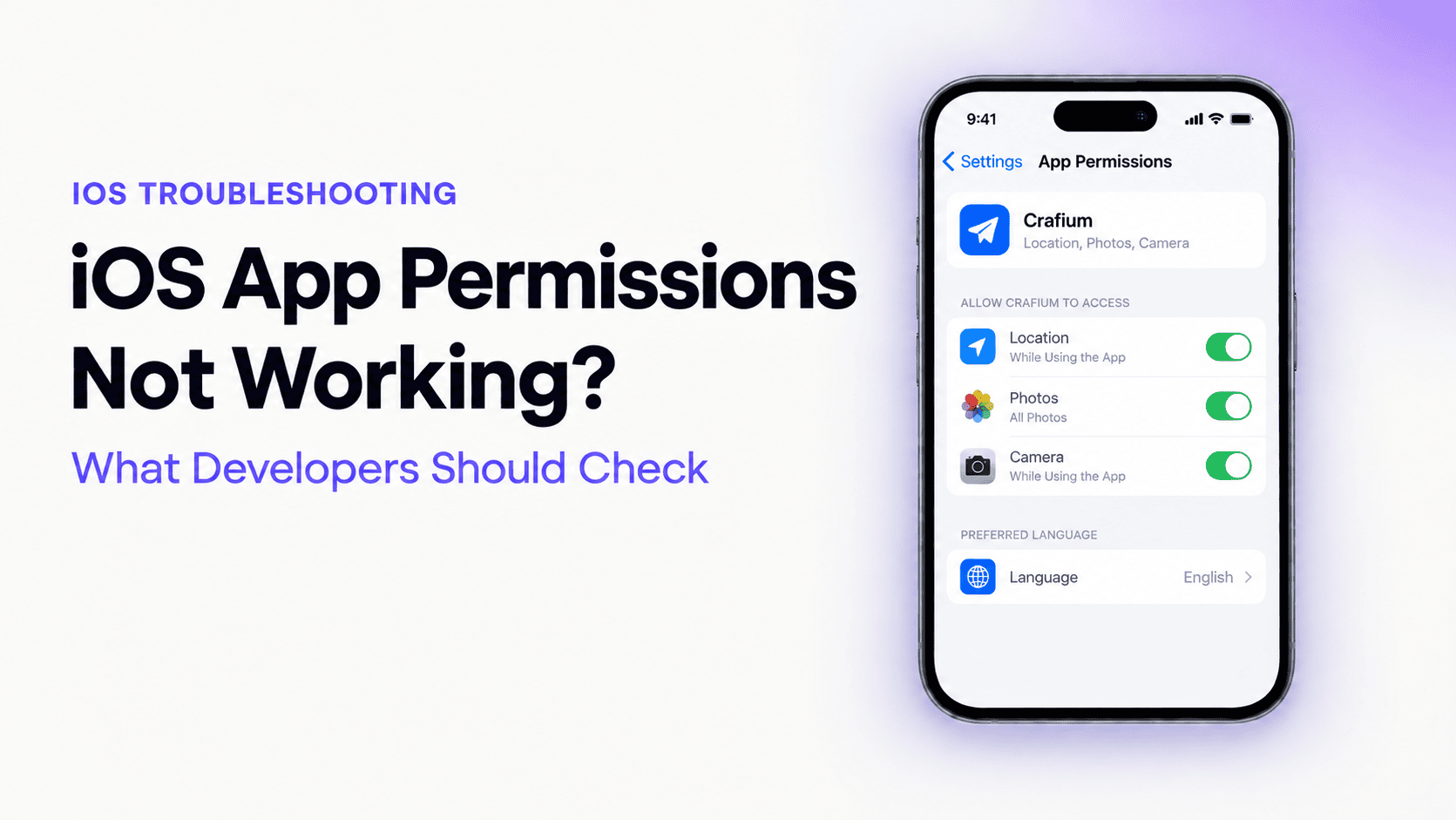
iOS App Permissions Not Working: What Developers Should Check

Team Crafium
Team Crafium is a passionate team of marketers…
In this article
When users install an iPhone app, they expect every feature to work immediately.
They expect the camera to open when scanning a QR code. They expect location tracking to work during deliveries. They expect notifications to arrive instantly. They expect photos to upload without errors.
When permissions fail, those expectations are broken.
A food delivery app can’t track drivers. A social media app can’t upload images. A fitness app can’t access motion data. A messaging app can’t send voice notes.
From the user’s perspective, the app is broken.
From the developer’s perspective, permission failures can be among the most frustrating issues to diagnose because they often involve multiple layers of Apple’s privacy system.
The problem might be:
- An Info.plist configuration issue
- A missing entitlement
- An iOS version change
- A background execution limitation
- A denied permission state
- An API implementation mistake
- A device-specific behavior
In this guide, we’ll take a developer-first approach to troubleshooting iOS permission issues and explore exactly what should be checked before an app reaches production.
Why Permission Issues Have Increased in Recent iOS Versions
Apple has spent the last several years strengthening user privacy.
Features introduced across recent iOS releases include:
- App Tracking Transparency
- Limited photo access
- Approximate location sharing
- Privacy nutrition labels
- Microphone indicators
- Camera indicators
- Enhanced notification controls
- Background location restrictions
While these improvements benefit users, they also introduce new challenges for developers.
A permission flow that worked perfectly on iOS 13 may behave differently on iOS 17 or newer.
That’s why permission testing can no longer be treated as a one-time task.
Start Here: Identify Which Permission Is Failing
Before making code changes, determine exactly which permission is causing the issue.
Common categories include:
i. Camera permissions
Used by:
- QR scanners
- Barcode scanners
- Video recording
- Profile photo uploads
- Augmented reality features
ii. Microphone permissions
Used by:
- Voice messaging
- Audio recording
- Voice search
- Video conferencing
iii. Photo permissions
Used by:
- Image uploads
- Gallery selection
- Photo editing
- Content sharing
iv. Location permissions
Used by:
- Maps
- Delivery tracking
- Geofencing
- Nearby search features
v. Notification permissions
Used by:
- Order updates
- Chat alerts
- Marketing campaigns
- Security notifications
vi. Contacts permissions
Used by:
- Social apps
- Referral systems
- Friend discovery features
vii. Bluetooth permissions
Used by:
- Wearables
- IoT devices
- Medical devices
- Smart home integrations
Knowing which permission is failing dramatically reduces troubleshooting time.
The First Developer Check: Info.plist Configuration
Most permission failures begin here.
Every sensitive capability requires a corresponding usage description in the app’s Info.plist file.
Apple uses these descriptions to explain permission requests to users.
Without them, iOS may:
- Refuse the request
- Prevent the permission dialog from appearing
- Crash the application
Common examples include:
Camera usage description
Required for:
- Taking photos
- Recording video
- QR code scanning
Microphone usage description
Required for:
- Audio recording
- Voice messaging
- Voice chat
Photo library usage description
Required for:
- Image selection
- Media uploads
- Saving images
Location usage descriptions
Required for:
- Foreground location access
- Background location access
- Geofencing
Many permission-related crashes originate from missing or incorrectly configured descriptions.
Check Whether the Permission Dialog Appears
This step immediately narrows the investigation.
1. If the dialog never appears
The issue is often:
- Missing Info.plist entries
- Incorrect API calls
- Logic errors preventing execution
- Permission previously denied
2. If the dialog appears but functionality still fails
The issue may involve:
- Authorization handling
- API implementation
- System restrictions
- Platform-specific bugs
Understanding where the process breaks is critical.
Verify Every Permission State
Many developers only test the happy path.
Users rarely behave that way.
iOS permissions can exist in multiple states.
Not determined
The user has never been asked.
Authorized
Permission granted successfully.
Denied
The user explicitly rejected the request.
Restricted
System restrictions prevent access.
Examples include:
- Parental controls
- Enterprise restrictions
- Managed devices
Limited access
Available for photo library permissions.
Users may grant access to only selected photos.
Apps that ignore limited access often appear broken.
Why Camera Permissions Fail Even When Granted
Developers frequently assume that permission approval guarantees functionality.
That’s not always true.
Camera-related issues can also result from:
Session initialization failures
Permission may be granted, but camera sessions fail to start.
Hardware conflicts
Other applications may be actively using the camera.
Unsupported device features
Certain camera capabilities vary by iPhone model.
Simulator limitations
The iOS simulator cannot replicate every camera scenario.
Always test on physical devices.
Why Location Permissions Cause So Many Problems
Location access has become increasingly complex.
Developers must handle:
Allow once
Access granted temporarily.
While using the app
Location available only during active usage.
Always allow
Background access permitted.
Each option produces different behavior.
A delivery app expecting background tracking will fail if only foreground access is granted.
Approximate location
Users can choose reduced location accuracy.
Apps expecting precise coordinates must account for this possibility.
Notification Permissions: The Most Misunderstood Category
Developers often assume that notification permission approval guarantees delivery.
It doesn’t.
Notification delivery depends on multiple systems.
User authorization
Permission must be granted.
APNs configuration
Apple Push Notification Service must be configured correctly.
Device token registration
Tokens must be generated and stored properly.
Backend infrastructure
Servers must send notifications correctly.
Notification settings
Users may disable specific notification categories.
When notifications stop working, permissions are only one piece of the puzzle.
The Growing Challenge of Photo Permissions
Photo access changed significantly beginning with iOS 14.
Users can now choose:
- Full library access
- Selected photos only
- No access
Many older apps assume complete access.
When users select limited access, those assumptions break.
Developers should:
- Detect limited access
- Explain the limitation
- Allow users to update permissions
- Support partial-library workflows
Ignoring limited access creates a poor user experience.
Hidden Permission Problems Developers Often Miss
Some permission issues are not obvious.
Background modes not enabled
Features may work in the foreground but fail in the background.
Entitlement configuration problems
Certain capabilities require additional entitlements.
Device management restrictions
Corporate devices may override app permissions.
Regional privacy requirements
Permission behavior can vary based on country-specific regulations.
Third-party SDK conflicts
Some SDKs request permissions automatically.
Unexpected permission requests can confuse users and create review issues.
A Practical Permission Testing Checklist
Before every release, verify the following:
Test fresh installations
Delete the app completely and reinstall.
Test denied permissions
Ensure the app handles rejection gracefully.
Test limited access scenarios
Especially for photo libraries.
Test upgraded users
Verify behavior after app updates.
Test across iOS versions
Check supported versions individually.
Test physical devices
Never rely exclusively on simulators.
Test background functionality
Especially for location and notifications.
Test accessibility settings
Large text sizes and accessibility features can affect permission flows.
How AppNatively Helps Reduce Permission Issues
Permission handling becomes significantly easier when apps are built using native mobile frameworks and platform-specific best practices.
AppNatively helps businesses create native iOS applications that align with Apple’s latest privacy standards and permission requirements.
Benefits include:
- Native iOS architecture
- Better platform compatibility
- Improved permission workflows
- Enhanced device integration
- Faster performance
- Easier long-term maintenance
This helps reduce common permission-related issues that often appear after major iOS updates.
Frequently Asked Questions
Why isn’t the iOS permission popup showing?
The most common causes are missing Info.plist usage descriptions, incorrect implementation, or a permission that was previously denied.
Why does my app crash when requesting permissions?
Missing privacy usage descriptions frequently cause immediate crashes when protected resources are accessed.
How do I test permission flows properly?
Use physical devices, fresh installations, multiple iOS versions, and every possible authorization state.
What is limited photo access?
It allows users to grant access only to selected images rather than their entire photo library.
Why do notifications fail even when permission is granted?
Notification delivery also depends on APNs configuration, device token management, backend systems, and user notification settings.
Final Thoughts: iOS App Permissions Not Working
When iOS app permissions are not working, the problem is rarely limited to a single configuration mistake.
Modern permission systems involve privacy settings, authorization states, API implementation, device capabilities, operating system behavior, and backend infrastructure.
The most effective approach is to diagnose permissions systematically:
- Confirm Info.plist configuration
- Verify authorization requests
- Test every permission state
- Validate device behavior
- Review platform-specific requirements
- Test across iOS versions
By treating permissions as a critical part of the user experience rather than a technical checkbox, developers can reduce support requests, improve App Store ratings, and create more reliable mobile applications.
Share this blog:

About Team Crafium
Team Crafium is a passionate team of marketers and developers led by Md Hamim Khan, sharing expert insights on software, WordPress plugins, SaaS, and digital tools to help businesses and creators grow smarter.