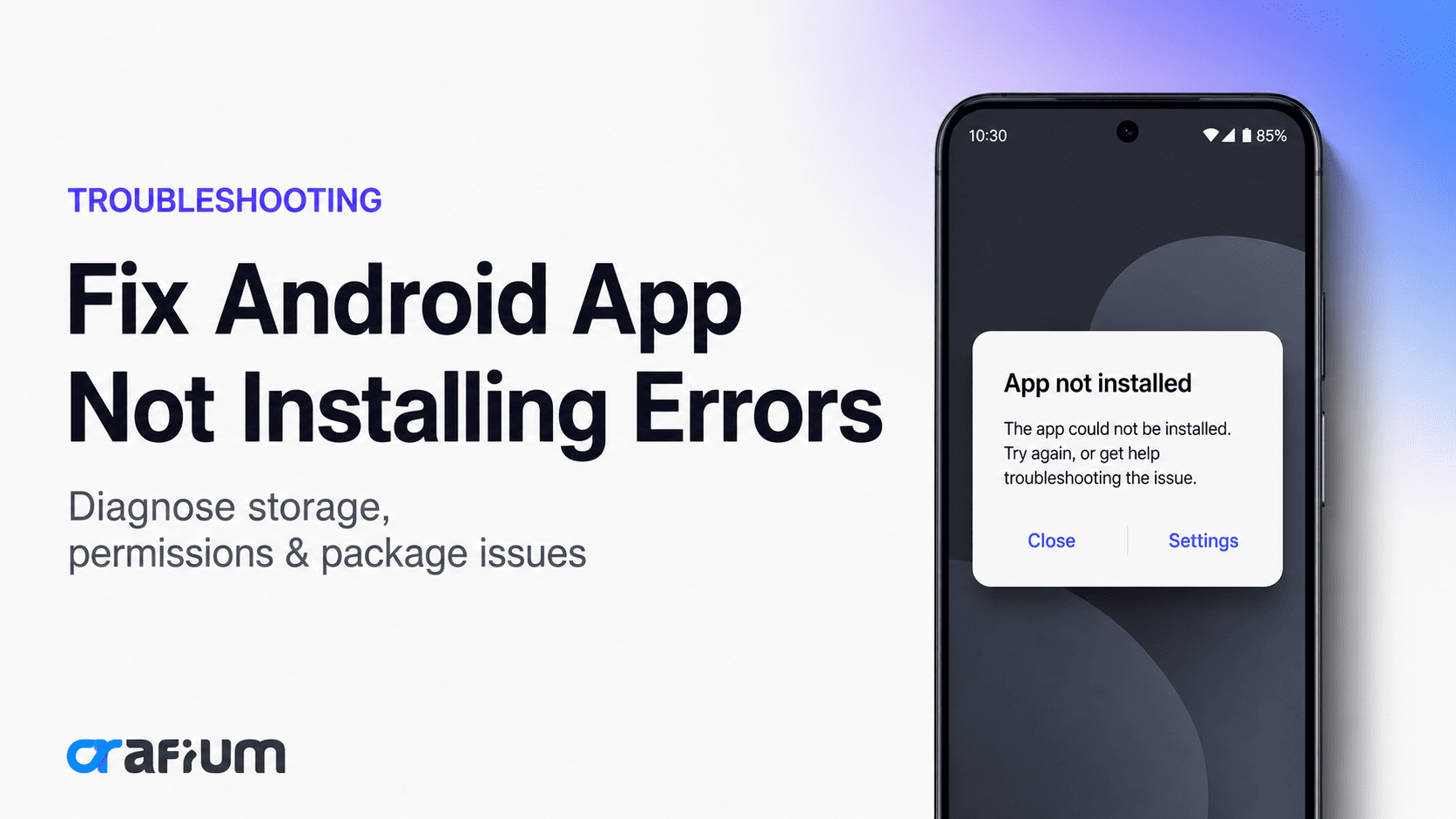
Android App Not Installing? 10 Possible Reasons (And How to Fix Them)

Md Al Amin
Md Al Amin is the Founder and Lead…
In this article
Have you ever tapped the Install button on your Android phone only to see nothing happen? Or perhaps you receive the frustrating “App Not Installed” error without any explanation. Whether you’re downloading an app from the Google Play Store or manually installing an APK, installation failures are among the most common Android issues.
The good news is that the problem is usually easy to fix once you identify the cause. From low storage space to incompatible Android versions, there are several reasons why an app may refuse to install.
In this blog post, we’ll explore the 10 most common reasons why Android apps won’t install and provide step-by-step solutions to get your apps working again.
10 Most Common Reasons Why Android Apps Won’t Install
Here are the 10 most common reasons Android apps won’t install, along with how to fix each one:
1. Insufficient storage space
One of the biggest reasons Android apps fail to install is simply a lack of storage.
Even if an app only requires 100 MB, Android often needs additional temporary space during installation. Google recommends ensuring you have sufficient free storage before installing apps.
Signs
- “Not enough storage” message
- Installation starts but fails midway
- Play Store download gets stuck
How to fix it
- Delete unused apps.
- Remove duplicate photos and videos.
- Clear Downloads folder.
- Empty your Recycle Bin (if available).
- Move files to cloud storage or an SD card.
Pro Tip: Keep at least 1-2 GB of free storage for smoother app installations and system performance.
2. Your Android version is too old
Some apps require newer Android versions to function properly. If your phone is running an outdated operating system, installation may fail.
Example
An app requiring Android 13 won’t install on a phone running Android 10.
Solution
- Open Settings.
- Go to System > Software Update.
- Install any available updates.
- Restart your device.
If your phone no longer receives updates, you may need an older version of the app or consider upgrading your device.
3. Corrupted APK file
If you’re installing an APK downloaded outside Google Play, the file itself may be damaged or incomplete.
Common causes include:
- Interrupted download
- Modified APK
- Fake download source
- File corruption
Fix
- Delete the APK.
- Download it again from a trusted source.
- Avoid unofficial or suspicious APK websites.
- Verify you’re downloading the complete file.
4. App isn’t compatible with your device
Not every Android app supports every phone.
Compatibility depends on:
- Processor architecture
- Screen size
- Android version
- Device hardware
- Country restrictions
If the Play Store says “Your device isn’t compatible with this version,” the app cannot run on your current device configuration.
Solution
- Check the app requirements.
- Update Android if possible.
- Use a compatible device.
- Install an older supported version if available.
5. Google Play Store cache problems
Sometimes the Play Store itself is responsible for installation failures.
Corrupted cache or outdated data can prevent downloads from starting.
Fix
Go to:
Settings > Apps > Google Play Store
Then:
- Force Stop
- Clear Cache
- Clear Storage
Repeat the same steps for:
- Google Play Services
- Download Manager
Restart your phone afterward.
6. Existing app conflict
Android prevents installation when another version of the same app already exists but uses a different developer signature. This commonly happens with APK installs.
Common situations
- Installing a modded APK
- Switching between beta and stable versions
- Installing an app signed by another developer
- Downgrading to an older version
Fix
- Back up app data.
- Uninstall the existing version.
- Restart the device.
- Install the desired version again.
7. “Install Unknown Apps” permission is disabled
If you’re installing apps outside Google Play, Android blocks the installation unless permission has been granted.
Enable permission
Open:
Settings > Security > Install Unknown Apps
Choose the app you’re installing from (Chrome, Files, etc.) and enable:
Allow from this source
Once enabled, try installing the APK again.
8. Google Play protect is blocking the app
Google Play Protect scans apps for malware before installation.
If an APK appears suspicious or comes from an unknown source, Play Protect may prevent installation to protect your device.
What you can do
- Verify the APK comes from a trusted developer.
- Download the latest official version.
- Avoid modified or pirated apps.
Disabling Play Protect is generally not recommended unless you’re absolutely certain the source is safe.
9. Network problems
Poor internet connectivity can interrupt downloads before installation even begins.
Common issues include:
- Weak Wi-Fi
- Mobile data interruptions
- VPN conflicts
- DNS issues
Fix
- Switch between Wi-Fi and mobile data.
- Restart your router.
- Disable VPN temporarily.
- Turn Airplane Mode on and off.
- Restart your phone.
10. Temporary Android system bugs
Sometimes nothing is technically wrong. Android simply encounters a temporary glitch.
This may happen after:
- System updates
- Long uptime
- Background process failures
- Play Store bugs
Quick fixes
- Restart your phone.
- Update Google Play Store.
- Update Google Play Services.
- Install pending Android updates.
- Try installing again after a reboot.
A simple restart often resolves installation issues by clearing temporary system processes.
Bonus Tips
If none of the above fixes work, try these advanced solutions:
- Reset app preferences.
- Remove and re-add your Google account.
- Boot into Safe Mode to identify app conflicts.
- Factory reset your device (after backing up important data).
- Contact the app developer if the issue is specific to one app.
Turn Your WordPress Website into a Native Mobile App in Minutes
Why stop at a website when your audience expects a mobile app? AppNatively is a powerful drag-and-drop native app builder that transforms your WordPress website into a fully functional Android and iOS app, without coding or lengthy development.
Whether you run an eCommerce store, business directory, restaurant, booking platform, blog, LMS, or any other WordPress-powered website, AppNatively keeps your app synced with your site in real time. Customize your app with an intuitive drag-and-drop builder, publish faster, and engage users with native features like push notifications, offline support, and more.
🚀 Ready to launch your mobile app? Build your native Android and iOS app with AppNatively in minutes and deliver an exceptional mobile experience to your customers.
Final Thoughts
When an Android app refuses to install, the issue is usually easier to solve than it first appears. Start with the basics: check your storage, internet connection, Android version, and Play Store status. If you’re installing an APK, verify the file is complete, compatible with your device, and from a trustworthy source.
Working through these ten possible causes methodically will resolve most installation problems without requiring a factory reset. If the issue persists after trying every solution, it may indicate a device-specific software bug or an app-side compatibility limitation, in which case reaching out to the app developer or your device manufacturer is the next best step.
Frequently Asked Questions (FAQs)
Why does Android say “App Not Installed”?
This generic error can be caused by insufficient storage, app signature conflicts, corrupted APK files, incompatible Android versions, or security restrictions.
Can a virus stop apps from installing?
Yes. Malware or security software can interfere with installations. Google Play Protect may also block apps it considers unsafe.
Is it safe to install APK files?
Only if they come from trusted developers or reputable sources. Avoid modified, cracked, or pirated APKs, as they can contain malware.
Share this blog:

About Md Al Amin
Md Al Amin is the Founder and Lead Developer at Crafium, where he leads product architecture and technical innovation. With more than 6 years of experience in software development within the tech industry, he specializes in building scalable, high-performance digital solutions. Outside of work, Al Amin enjoys researching emerging technologies, with a strong interest in AI and next-generation software trends.