Static forms are boring. People love games, and they love winning prizes. Adding a “Spin to Win” wheel can turn a standard signup process into a fun, interactive experience that can double your conversion rates.
Follow this guide to set up your own lucky draw.
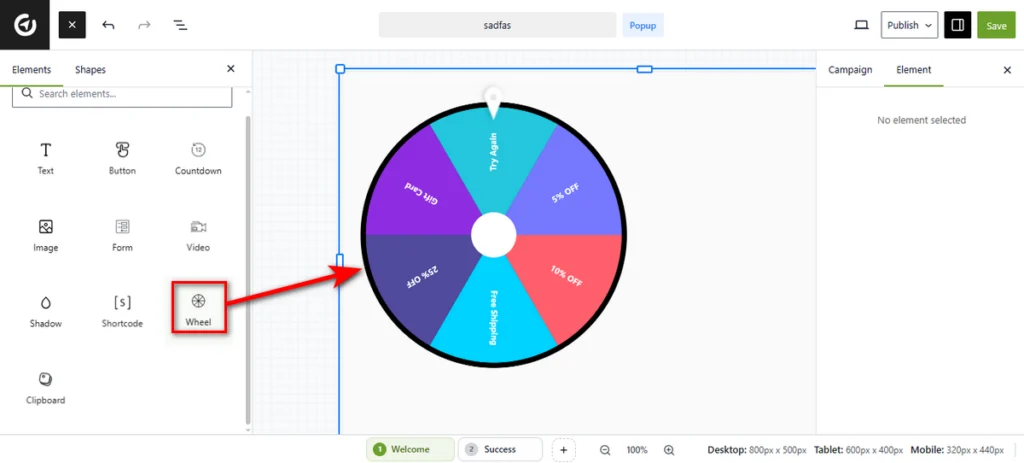
1. Add the Wheel Element
Open the Canvas Builder and look at the Elements panel on the left. Locate the Wheel element and drag it onto your canvas.
2. Customize the Arrow
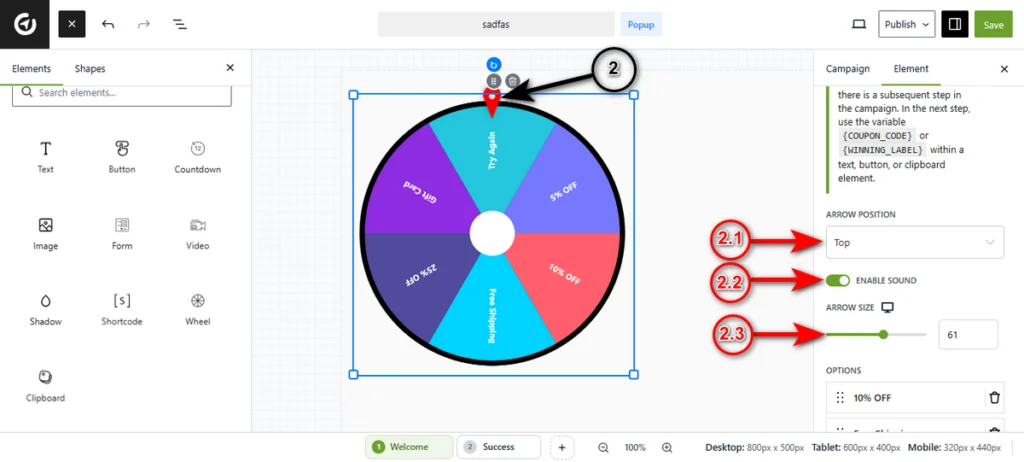
The arrow indicates the winning prize. You can adjust its placement and look to fit your design.
2.1 Arrow Position: In the Element settings sidebar, use the dropdown to place the pointer at the Top, Bottom, Left, or Right of the wheel.
2.2 Enable Sound: Toggle this switch to On to play a clicking sound as the wheel spins, creating a realistic effect.
2.3 Arrow Size: Use the slider to increase or decrease the size of the pointer.
3. Manage Your Prizes (Slices)
This is where you define what users can win.
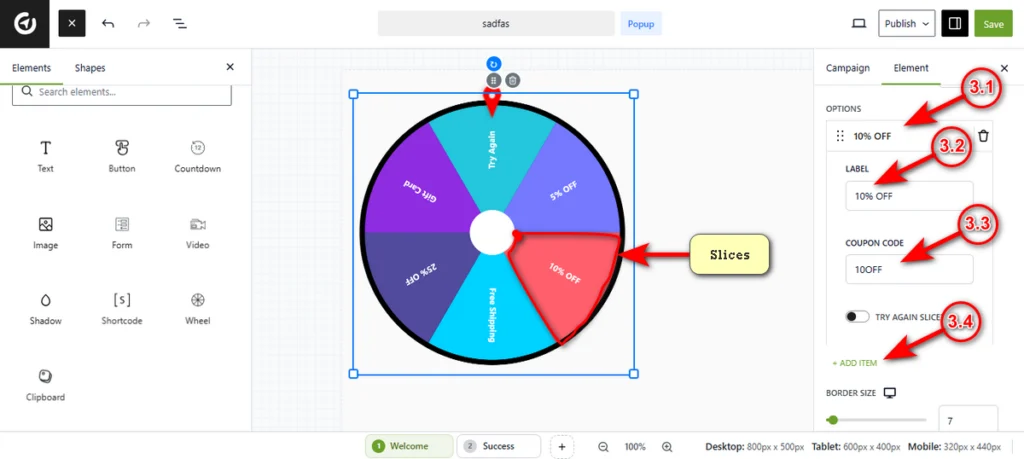
3.1 Edit Slices: Under the Options section, you will see a list of slices. Click on any item (e.g., “10% OFF”) to expand its settings.
3.2 Label: Enter the text displayed on the wheel itself (e.g., “10% OFF”).
3.3 Coupon Code: Enter the actual value or code (e.g., “10OFF”) that will be saved or displayed to the winner.
3.4 Add Item: Click the + Add Item button to create more slices and increase the number of segments on the wheel.
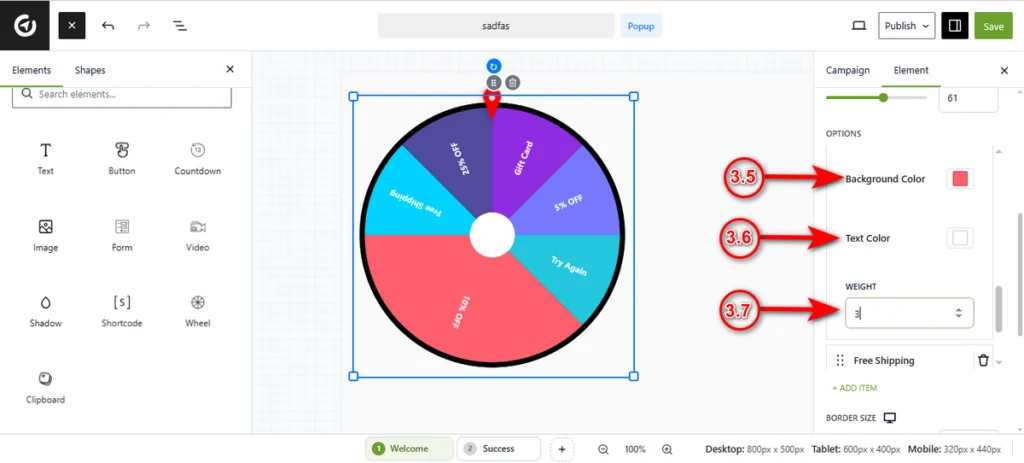
3.5 Background Color: Click the color picker to set a unique background color for this specific slice.
3.6 Text Color: Choose a color for the label text that contrasts well with the background.
3.7 Weight: Enter a number to define the size of the slice relative to others. A higher weight makes the slice larger and more likely to be landed on.
4. Set Up a “Try Again” Slice
You don’t have to give away a prize every time. You can add a losing slice that lets users spin again.
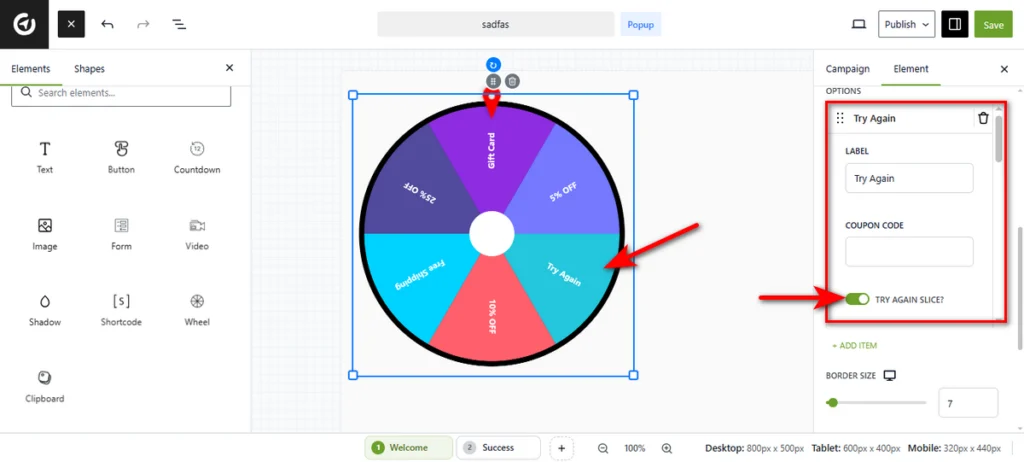
- To do this, add a new slice and label it “Try Again.”
- Toggle the Try Again Slice? switch to On.
- When a user lands on this slice, the wheel resets, allowing them to click and spin one more time.
5. Style the Wheel
Make the wheel match your brand colors.
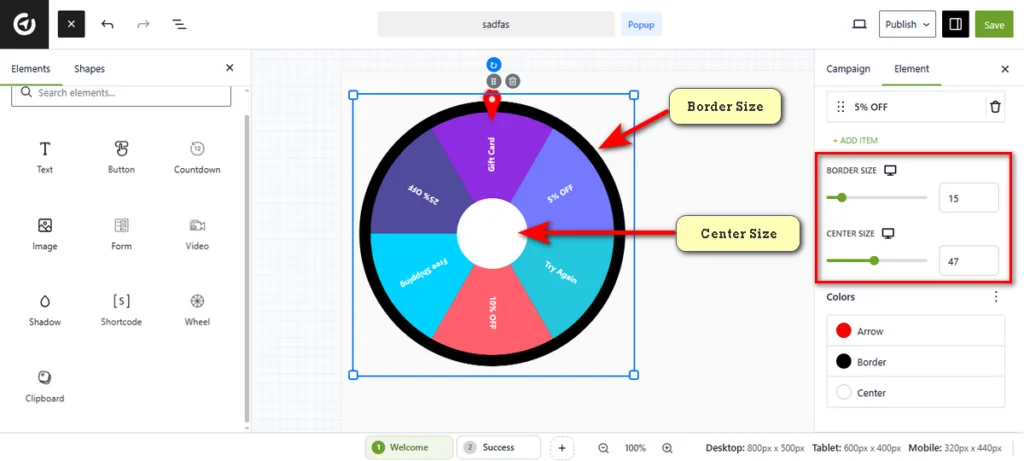
5.1 Sizes: Use the sliders to adjust the Border Size (thickness of the outer ring) and Center Size (the middle circle).
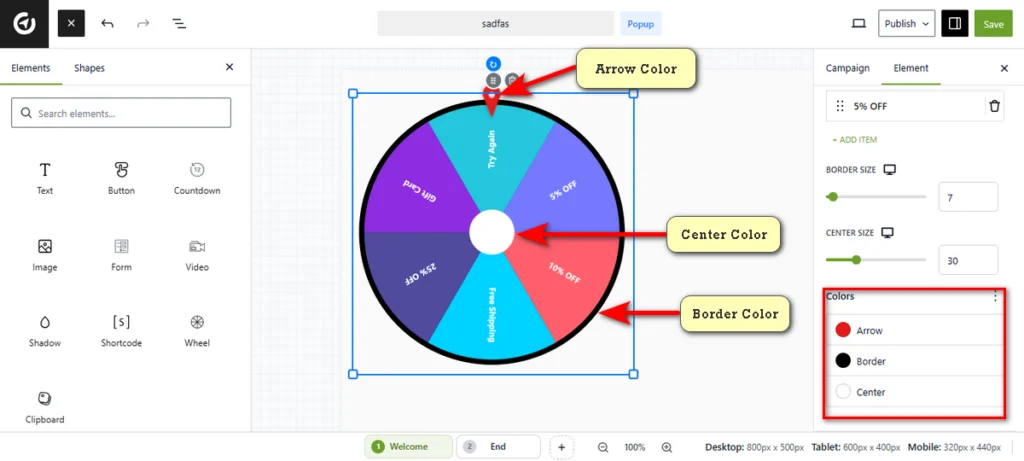
5.2 Colors: Click the Colors menu at the bottom to change the Arrow, Border, and Center colors.
6. Display the Result
Once the wheel stops, you need to show the user what they won. You must do this in the Next Step of your campaign (e.g., a “Success” view).
Read the multi-step campaign documentation to learn more about how to create a multi-step campaign with OptinCraft.
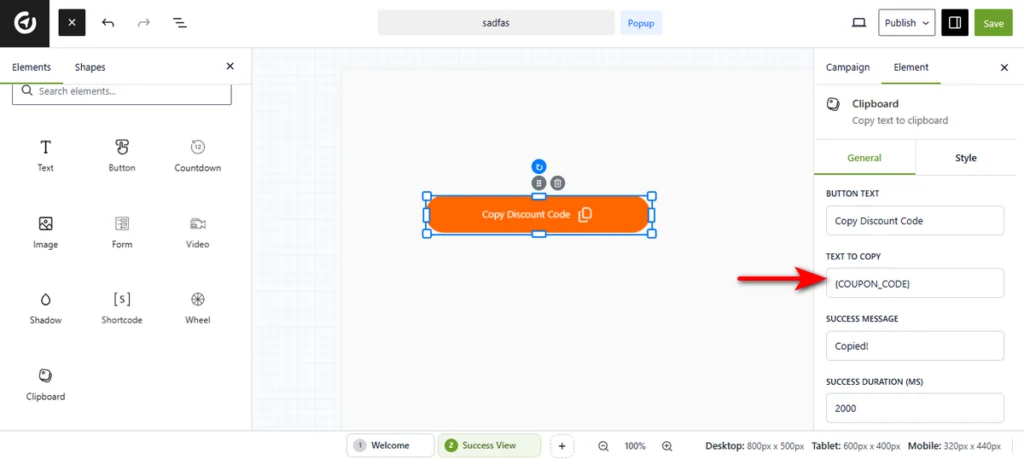
You can use the variable “{COUPON_CODE}” to display the hidden code, or “{WINNING_LABEL}” to show the prize name. Spot these variables at the top under the ‘Element’ tab.
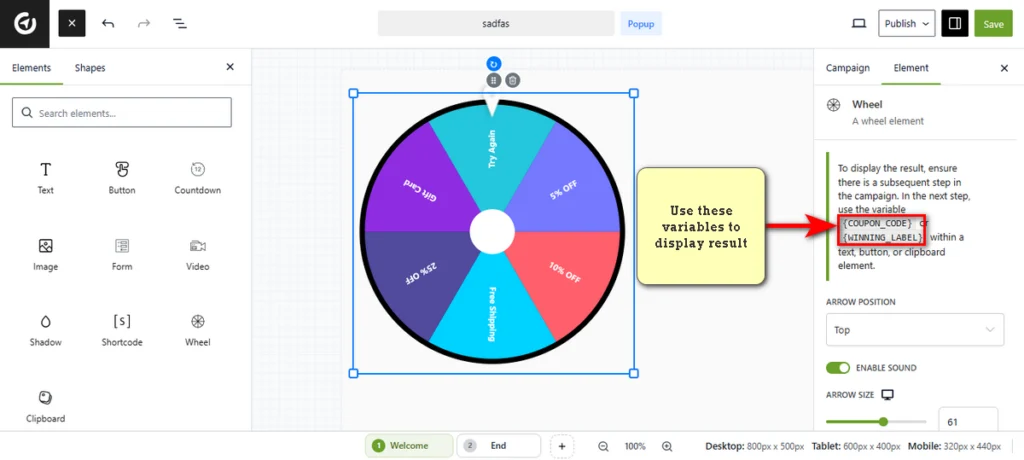
Here’s how to display a result:
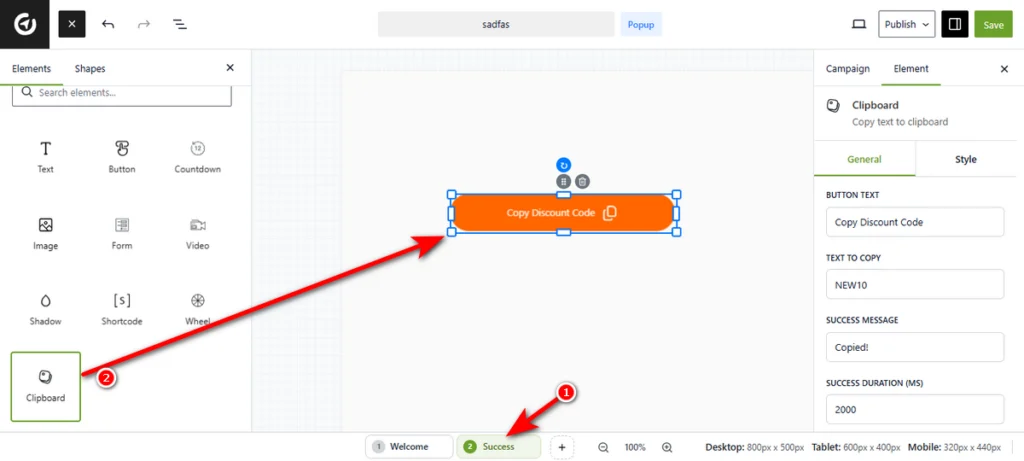
- Add a new step and name it as you wish (e.g., ‘Success’)
- Drag and drop the ‘Clipboard’ element into the canvas. Read Clipboard documentation to learn about this element.
- Copy the “{COUPON_CODE}” or “{WINNING_LABEL}” variable and paste it into the “TEXT TO COPY” field.
Finally, publish the campaign. That’s how you create a gamified experience.
Triggering the Spin
You might wonder how the visitor actually starts the game. Does the wheel spin automatically? Do they click a button?
The triggering behavior changes automatically based on the elements you place on your canvas.
1. Standalone Wheel (Click to Spin)
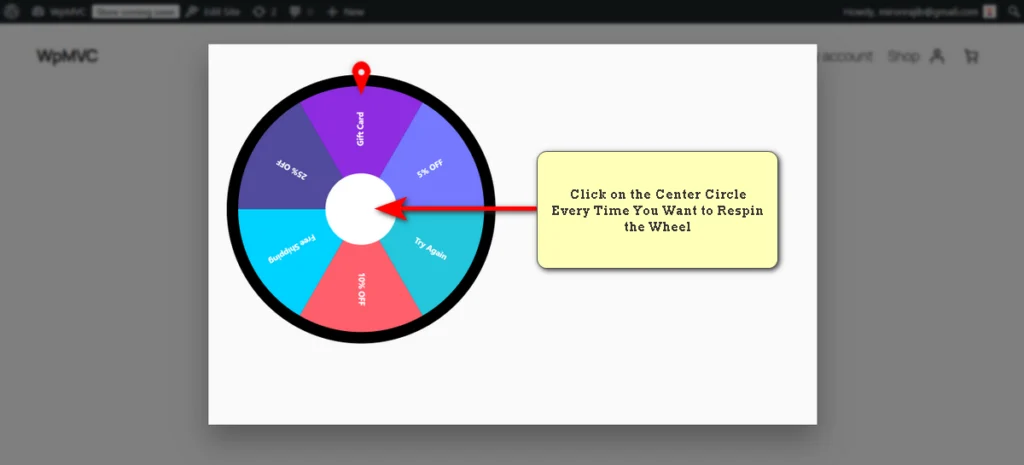
If your campaign contains only the Wheel element (without a signup form), the user interacts directly with the graphic.
- Action: The visitor must click the Center Circle of the wheel to trigger the spin.
- Use Case: This is best for simple giveaways or gamified announcements where you don’t need to capture data.
2. Wheel + Form (Subscribe to Spin)
If you drag a Form element onto the canvas alongside the wheel, OptinCraft automatically links them.
- Action: The visitor must fill in their details (e.g., Email Address) and hit the Submit/Subscribe button.
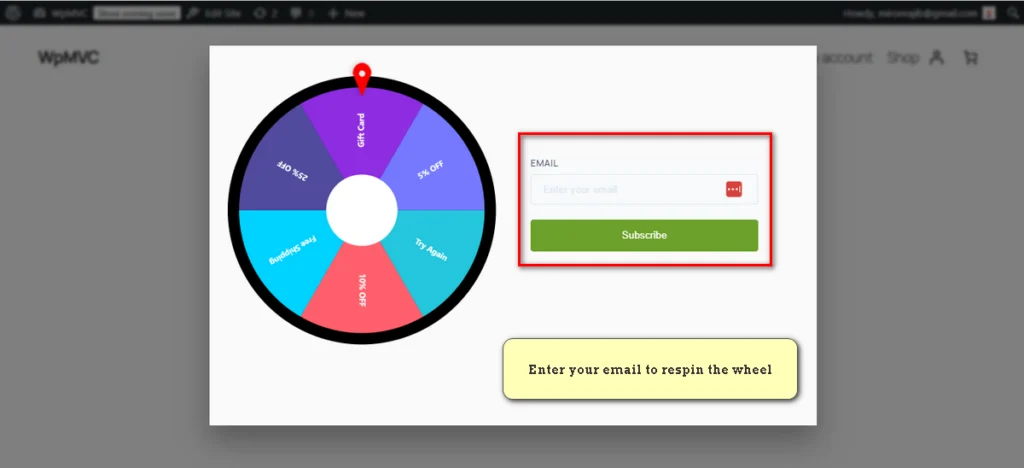
- Result: The wheel spins automatically after the form is successfully submitted.
- Use Case: This is the standard “Spin to Win” lead generation model. It ensures you get the lead before they get the prize.


