Showing the same popup on every single page is ineffective. A discount code for a specific product is useless on a Contact Us page, and a newsletter signup might annoy users who are already trying to checkout.
If you treat every visitor the same, you waste opportunities and lower your conversion rates.
The Display Conditions feature solves this by letting you pinpoint exactly where your campaigns appear. You can target specific pages or posts, or exclude certain areas entirely, to keep your messaging relevant.
Here’s how to set up display conditions for your campaign using OptinCraft.
- First, create a new campaign or edit an existing one. Read this to learn how to create or edit a campaign.
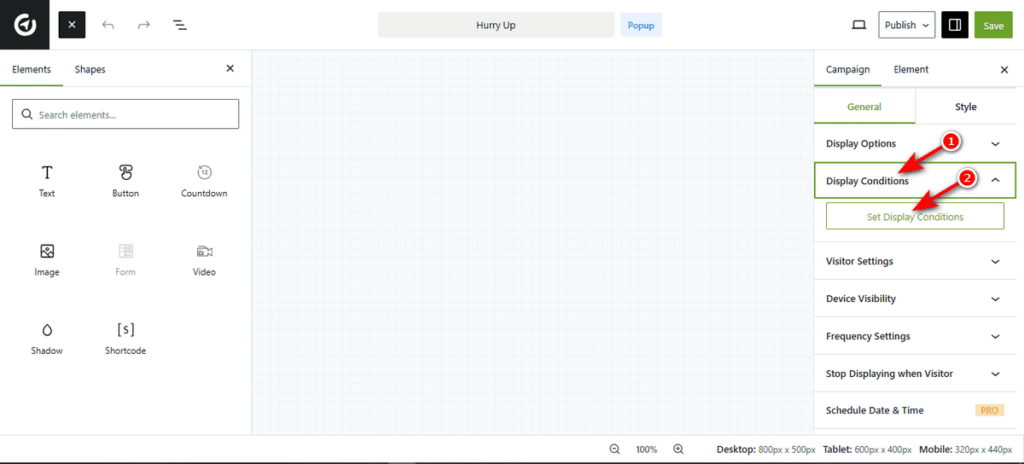
- Once you are inside the Canvas Builder, hit the “Display Conditions” tab in the right sidebar to expand the menu. Then, click the “Set Display Conditions” button to open the targeting modal.
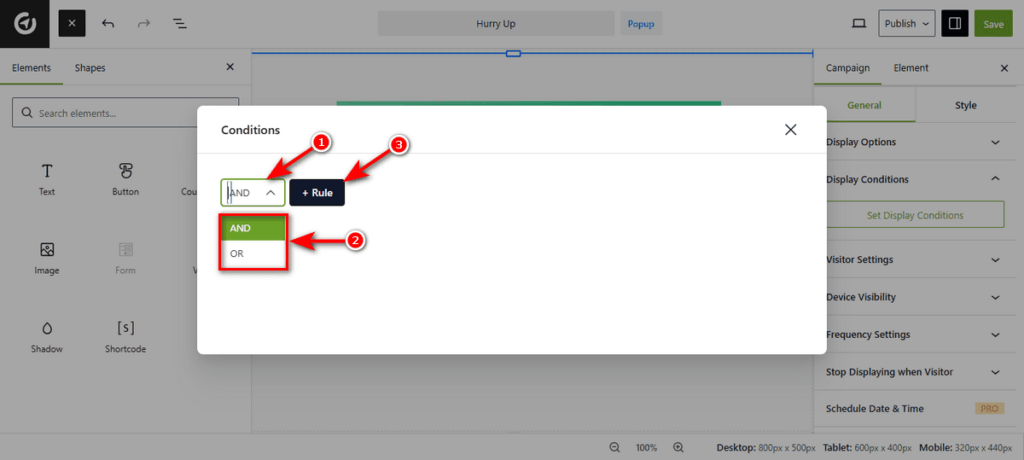
3. Now, you’ll notice a popup, where you need to define logic operators. You can create simple or complex targeting rules using the logic controls in the top-left corner.
- AND / OR: Use these operators to combine multiple rules. For example, you can set a rule to show a popup on the “Shop” page AND only if the user is logged in.
- + Rule: Click this button to add a new condition line to your setup.
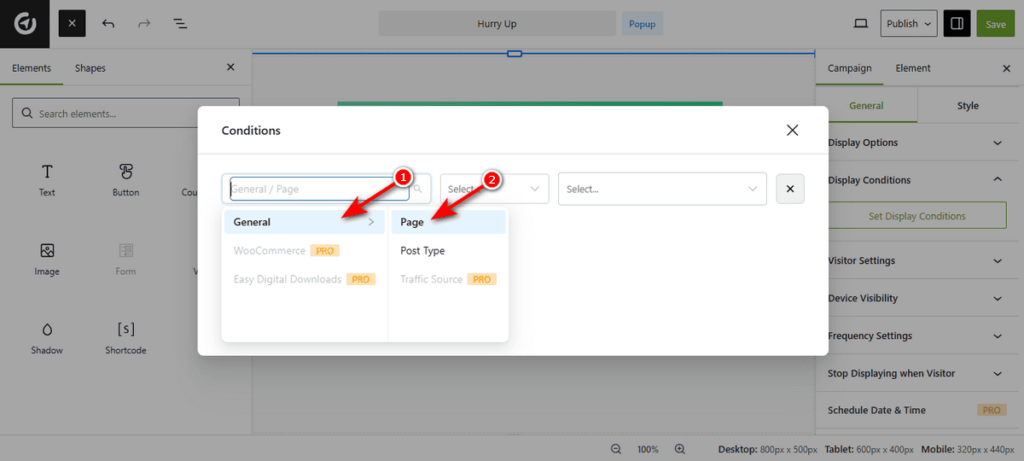
4. After selecting a logic operator and clicking the “+Rule” button, you need to choose the Category. The first dropdown menu defines the broad category for your rule.
- General: Includes standard WordPress areas like Pages and Post Types.
- PRO Options: Premium users can access specialized targeting for WooCommerce, Easy Digital Downloads, and Traffic Source.
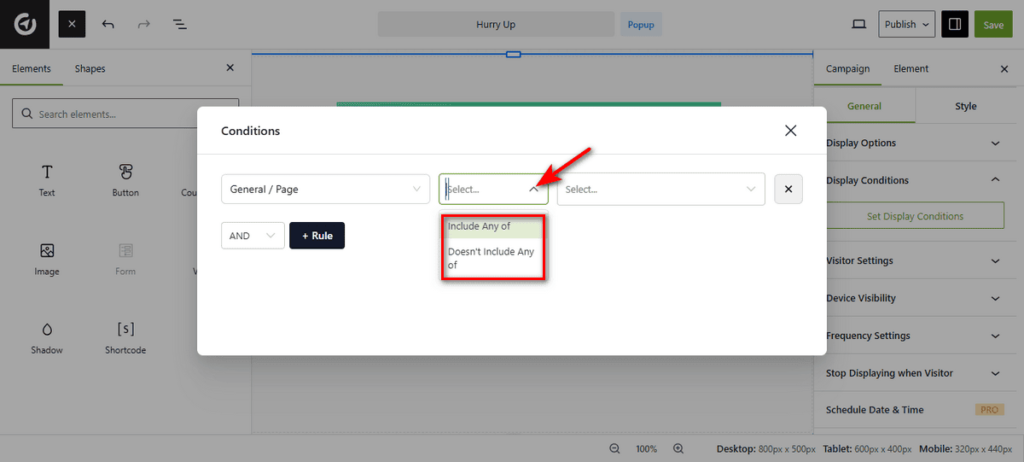
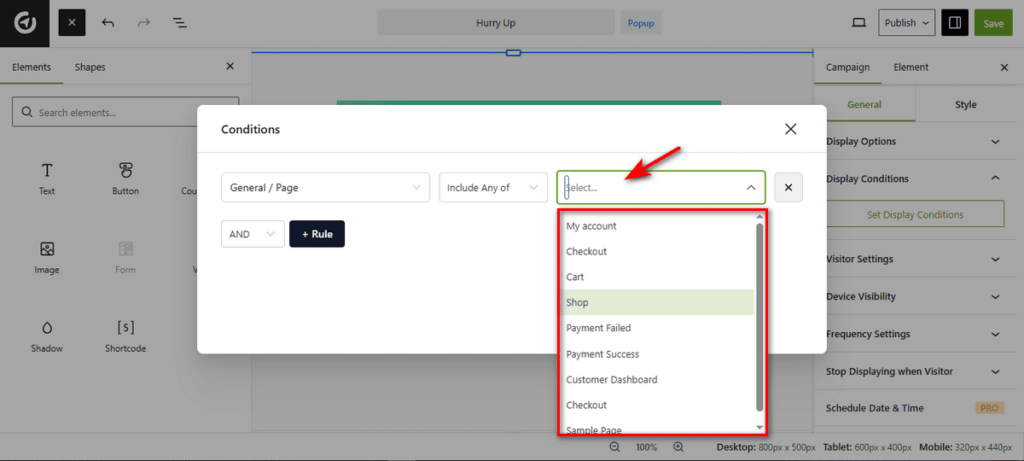
5. Set the Inclusion Logic. The middle dropdown determines how the rule applies to your selection.
- Include Any of: The popup will appear on the pages you select.
- Doesn’t Include Any of: The popup will be hidden on the pages you select. This is useful for preventing popups on sensitive pages like “Checkout” or “Privacy Policy.”
6. Now, choose specific pages. The final dropdown allows you to select the exact location for the rule.
You can scroll through the list to pick specific pages such as Shop, Cart, Checkout, or My Account.
That’s it.


