Marketing needs may change. A holiday promotion ends, or a draft needs a quick update.
The Campaigns dashboard makes it simple to modify or remove existing popups without navigating complex menus.
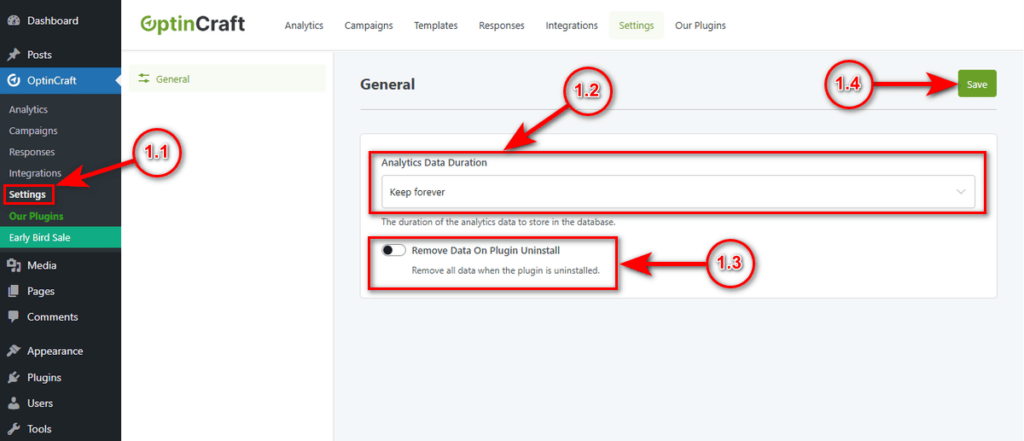
To edit or delete a campaign, follow these steps:
1. Click on the Campaigns tab in the OptinCraft sidebar.
2. Locate the specific campaign you wish to manage in the list. Click the three-dot Actions icon located on the far right side of that campaign’s row.
3. Select Option: A dropdown menu will appear with available actions.
- Edit: Click this to reopen the campaign in Canvas Builder and modify the design or settings.
- Duplicate: Click this to create an exact copy of the campaign.
- Delete: Hit this to remove the campaign from your dashboard permanently. A confirmation prompt will appear to prevent accidental deletions.
General Settings #
Keeping your database clean is essential for a fast website. Over time, analytics data accumulates and might slow down your system if left unchecked.
This Settings panel lets you manage data retention and cleanup processes to keep your site running smoothly.
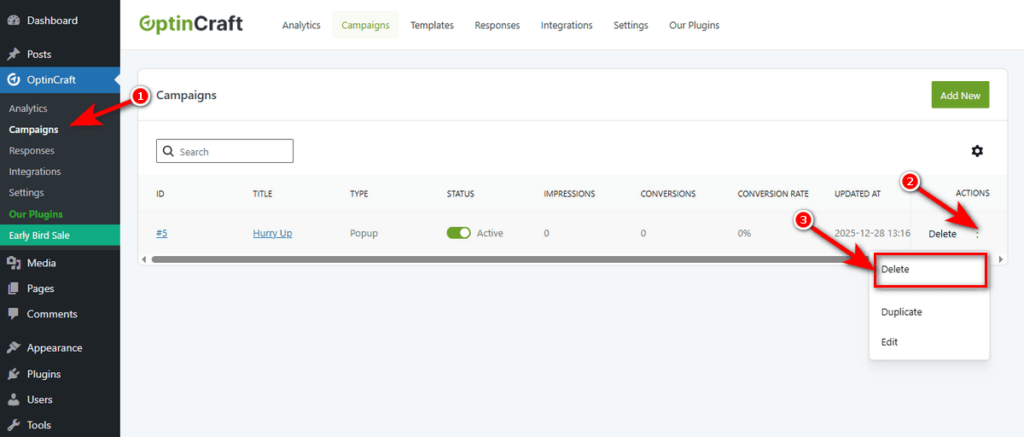
1.1 Settings Sub-Menu: Click on the Settings sub-menu in the OptinCraft sidebar menu. This is where you configure global plugin behaviors.
1.2 Analytics Data Duration: This dropdown controls how long the plugin stores visitor data in your database.
You can choose to keep data forever for long-term analysis or limit it to a shorter period to save server space.
1.3 Remove Data On Plugin Uninstall: This toggle switch determines what happens to your data if you delete the plugin.
1.4 Save: Always click the Save button at the top right corner to apply your changes.