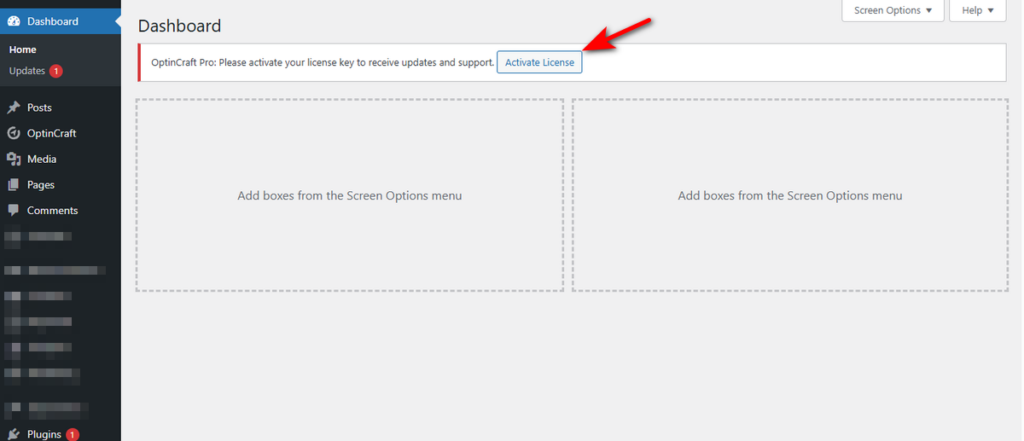
Once you install the pro version of the OptinCraft plugin, you’ll see a notification on your admin window asking you to insert a license key.
You can just click the “Activate License” button, input the license key, and hit “Activate License” button. That’s it!
Here’s another way to include the license key. Just follow the steps below:
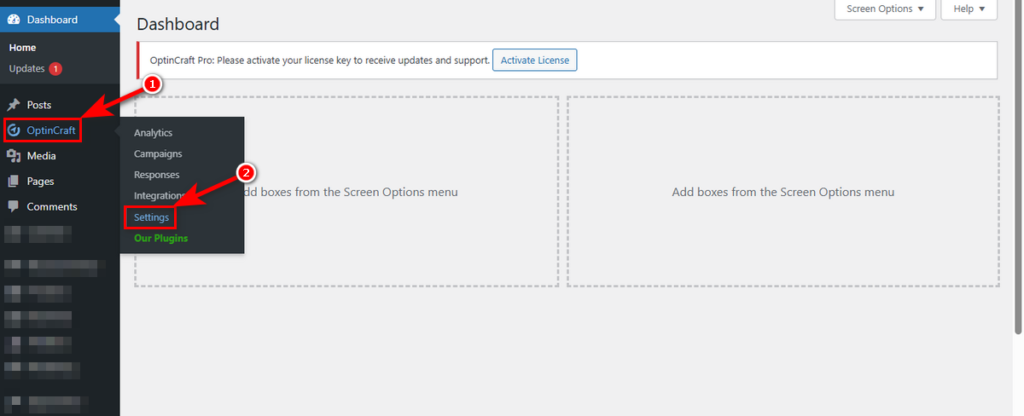
- Head to WordPress Admin Panel > OptinCraft > Settings.
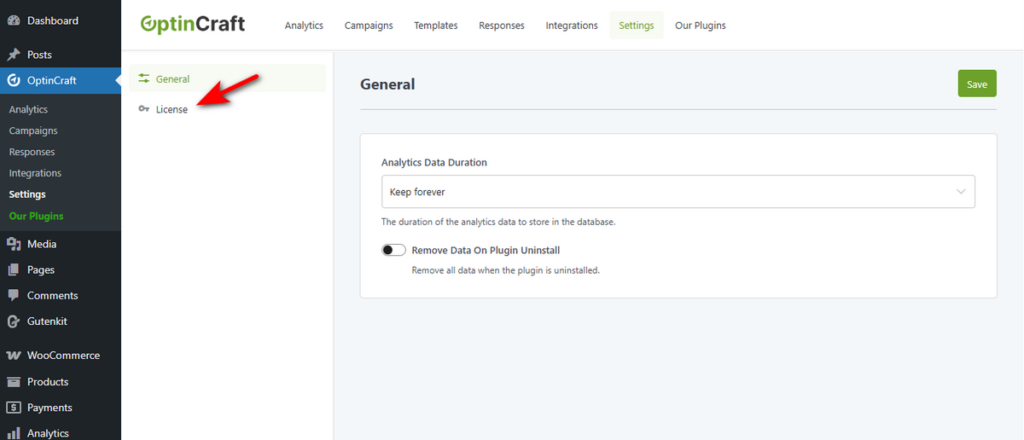
- Click ‘License’ tab of OptinCraft plugin.
- Now, type the license key you received via email or found on your My Account dashboard in the “LICENSE KEY” field, and click “Activate License” button.
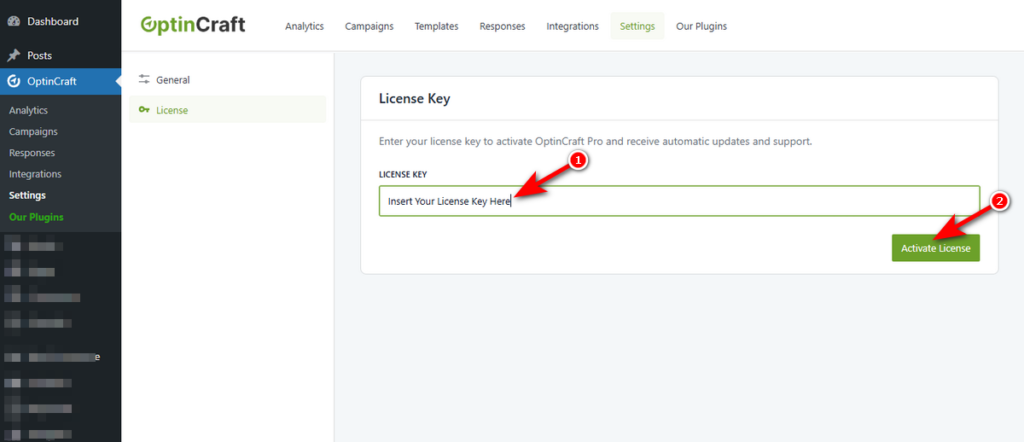
There, you’ve activated the OptinCraft Pro with a license key.


