App Showing a Blank or White Screen: Causes and Solutions

Md Hamim Khan
Md. Hamim Khan is the Co-Founder and CEO…
In this article
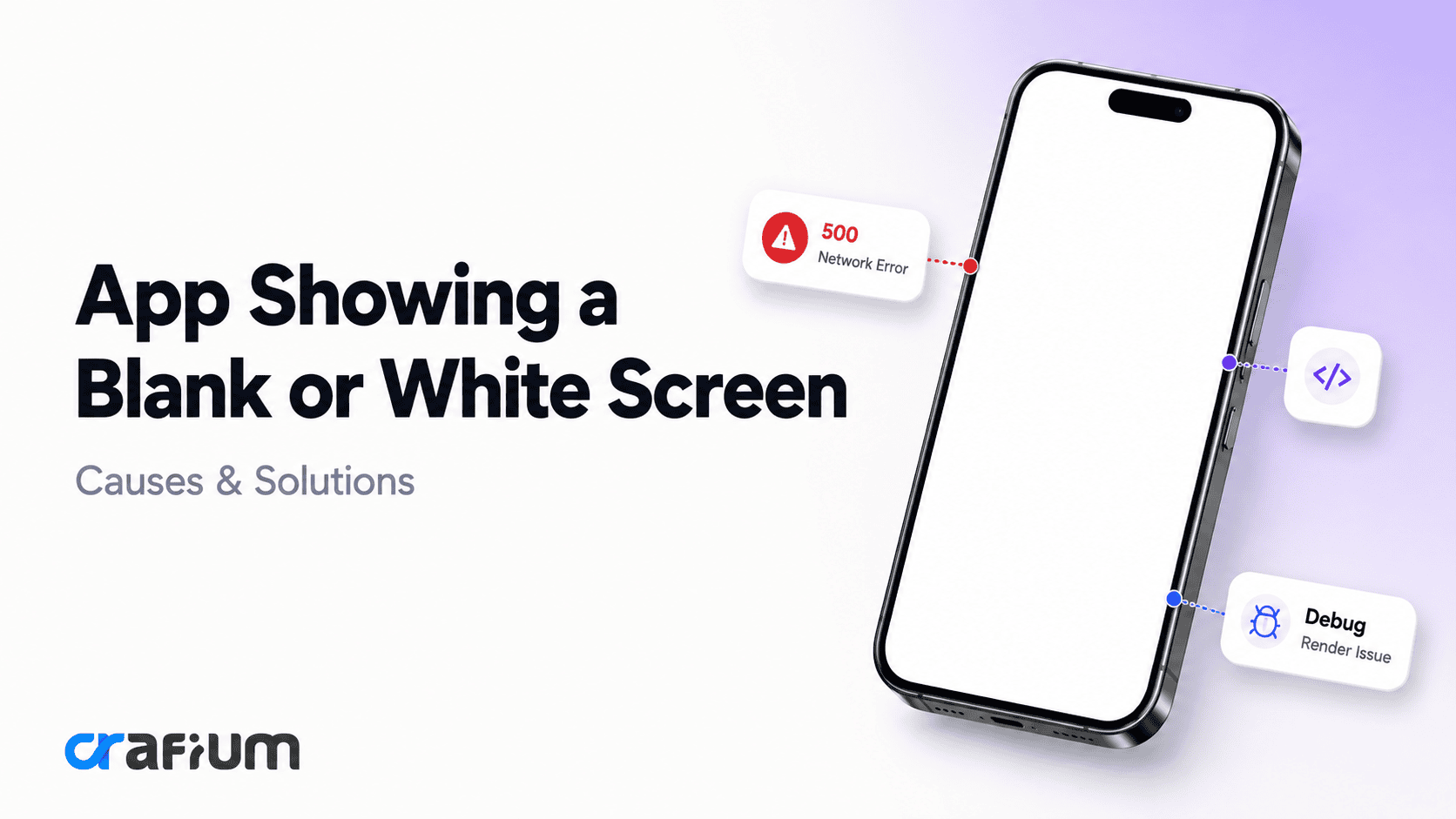
An app that opens to a blank or white screen creates a particularly frustrating experience. The customer may have launched the app successfully, but instead of seeing the home screen, login page, or requested content, they see nothing.
A blank screen does not always mean the same thing. The app may have crashed silently, failed to render the interface, become stuck while loading data, encountered a JavaScript error, failed to initialize a WebView, or reached a screen whose underlying content never loaded.
The challenge is identifying where the rendering process stopped.
In this guide, we’ll explain the most common causes of an app showing a blank or white screen, how to diagnose each one, what to check on different platforms, and how to prevent the problem from reaching users in the first place.
What Does a Blank or White Screen Mean?
A blank screen generally means that the app has launched a screen or window, but the expected user interface has not been successfully rendered.
That sounds simple, but several very different failures can produce the same visual result.
For example, an app might:
- Crash before rendering its first screen
- Render a view but fail to populate it
- Wait indefinitely for an API response
- Encounter a JavaScript error
- Fail to initialize a WebView
- Load a route that doesn’t exist
- Apply an incorrect theme or layout
- Fail during dependency initialization
- Get stuck behind a loading state
- Encounter a release-only configuration problem
From the customer’s perspective, all of these can look identical:
A white screen that does nothing.
That is why replacing the screen, restarting the app or adding a generic loading spinner may not solve the underlying problem.
Why Is My App Showing a Blank or White Screen?
The first step is to determine when the blank screen appears.
Does it happen immediately after launch?
Only after login?
When opening a particular screen?
After an app update?
Only on certain devices?
Only when the internet connection is slow?
The timing provides an important clue.
Blank screen immediately after launch
If the app shows a blank screen as soon as it opens, investigate the startup sequence first.
Potential causes include:
- Startup crashes
- Dependency initialization failures
- Incorrect configuration
- Broken navigation setup
- Theme or layout problems
- Missing resources
- Native module failures
- Invalid environment variables
- Database initialization errors
- Release build configuration problems
A failure during initialization can prevent the first meaningful screen from ever appearing.
Blank screen after navigating to a specific page
If the rest of the app works normally but one screen becomes blank, the problem is more likely isolated to that screen.
Investigate:
- Route configuration
- Screen-specific API calls
- Component rendering
- State management
- Null or undefined data
- Missing assets
- Permissions
- Screen-specific dependencies
- Conditional rendering
- Navigation parameters
This is often easier to diagnose because you can compare the broken screen with working screens in the same application.
Blank screen after an app update
A sudden increase in blank-screen reports immediately after a release is a strong signal.
Compare the affected release with the previous version.
Look for changes involving:
- Dependencies
- Build configuration
- Navigation
- API endpoints
- Authentication
- WebView behavior
- Native modules
- Environment variables
- Feature flags
- Asset bundling
If the problem began with a specific release, don’t assume it is a customer-device problem.
The release itself may have introduced the failure.
Common Causes of a Blank Screen
There is rarely one universal cause. The following categories cover the problems most teams should investigate first.
1. The app crashed before rendering
A crash is one of the first things to check.
Some app crashes are obvious because the operating system closes the application. Others can occur during initialization, leaving the user with little useful feedback.
Look at crash reporting and device logs for the exact moment the application starts.
Check whether the crash occurs:
- Before the root view loads
- During dependency initialization
- During authentication
- While loading configuration
- When creating the first screen
If you can reproduce the problem consistently, reproduce it with debug logging enabled.
The goal is to find the first meaningful error, not simply the last message recorded before the screen becomes blank.
2. A JavaScript error stops rendering
Apps that use JavaScript-based frameworks can encounter runtime errors that prevent a component tree from rendering.
A single uncaught exception can stop the application from producing the expected UI.
Common triggers include:
- Accessing a property on undefined data
- Unexpected API response formats
- Incorrect imports
- Missing modules
- Invalid component state
- Incorrect navigation parameters
- Version incompatibilities
- Code that behaves differently in production
For example, code may assume that an API always returns:
user.profile.name
But if the response temporarily contains no profile object, the component may fail before it can render.
The solution isn’t simply to hide the error.
The application should safely handle missing, delayed or unexpected data.
3. The API request never finishes
A screen can appear blank because it is waiting for data that never arrives.
Imagine this flow:
Open screen → Request API data → Wait → Render content
If the API request hangs indefinitely and the UI has no timeout or fallback state, the customer may see an empty screen forever.
Investigate:
- Request duration
- API availability
- DNS failures
- TLS errors
- Authentication failures
- HTTP status codes
- Timeouts
- Malformed responses
- Network connectivity
More importantly, design the UI for failure.
A screen should not depend on the assumption that every request succeeds.
It should have states for:
Loading
Success
Empty
Error
Retry
Those states are part of the interface, not merely technical edge cases.
4. The app has no meaningful loading state
A blank screen and a loading screen may look similar technically, but they are very different experiences.
If data takes two seconds to load, customers should understand that the app is working.
Instead of rendering an empty container, show an appropriate loading state.
For example:
Loading your account…
or a skeleton layout that reflects the content about to appear.
The customer should never have to wonder:
“Is this broken?”
5. WebView content fails to load
If your app uses a WebView, a blank screen can originate from the web content rather than the native application.
Potential causes include:
- Invalid URL
- JavaScript errors
- TLS problems
- Network restrictions
- Blocked resources
- Cookie issues
- Authentication problems
- Content security policies
- WebView configuration
- Unsupported browser features
The first debugging question should be:
Does the URL load correctly outside the app?
If it works in a normal browser but not inside the app, investigate the WebView configuration and environment.
Also check WebView console logs where available.
6. The route or navigation target is broken
A navigation problem can produce a blank screen even when the application itself is healthy.
For example, a deep link might send a customer to:
app://checkout/order/123
but the application may not correctly handle that route.
The customer arrives at a screen that doesn’t know what to render.
Test navigation through:
- Normal in-app navigation
- Deep links
- Push notification links
- Browser links
- Back navigation
- App cold starts
- App warm starts
A route that works when the app is already open may fail when the app starts from a completely closed state.
7. Environment variables are missing
A common source of production-only problems is configuration.
The development environment may contain:
- API URLs
- Authentication keys
- Feature flags
- Service endpoints
- Application identifiers
The production build may not.
The application then starts successfully but cannot initialize the services required to render the first screen.
Review the production configuration without exposing sensitive credentials in logs.
Verify that required values exist and point to the correct environment.
8. Assets are missing from the release build
Images, fonts, JSON files, localization resources and other bundled assets can behave differently between development and production.
If a screen depends on a missing resource and the application does not handle the failure gracefully, rendering can break.
Check:
- Asset paths
- Case sensitivity
- Bundle configuration
- Resource inclusion
- Build scripts
- Packaging rules
This is especially important when something works on a developer’s machine but fails in the production build.
9. A dependency is incompatible
Updating a library can introduce a blank screen without producing an obvious error in the UI.
This can happen when:
- A dependency changes its API
- A native module is incompatible
- Two libraries require conflicting versions
- A framework version changes
- A plugin expects a different platform version
If the problem appeared after updating dependencies, compare the dependency tree with the last known working version.
A rollback can be useful as a diagnostic step.
If reverting the dependency restores the screen, you have a much narrower problem to investigate.
How To Diagnose a Blank Screen Step by Step
Randomly changing code is rarely an efficient way to solve rendering problems.
Use a structured process.
Step 1: Reproduce the problem
Start by establishing exactly when the blank screen occurs.
Record:
- Device
- Operating system
- App version
- Network condition
- User state
- Screen or route
- Steps before the failure
- Whether the app was launched cold or warm
A problem that occurs only on one device and one route requires a very different investigation from a problem affecting every user immediately after launch.
Step 2: Determine whether the application is actually running
A blank screen doesn’t necessarily mean the app has stopped.
Check whether:
- Touch interactions work
- Navigation responds
- Network requests are being made
- Animations continue
- Logs are still being produced
- Background processes continue
If the application responds to interaction but has no visible content, focus on rendering.
If nothing responds, investigate crashes, deadlocks or startup failures.
Step 3: Check crash reports
Review your crash reporting system.
Look for spikes that correspond to:
- The affected app version
- The affected operating system
- The affected device
- The affected screen
- The time the problem started
Don’t only search for errors containing the words “blank screen.”
A blank screen may be the visible consequence of an entirely different underlying error.
Step 4: Inspect application logs
Logs can reveal failures that aren’t visible to the customer.
Look for:
- Exceptions
- Failed API calls
- Authentication errors
- Navigation errors
- Missing resources
- WebView errors
- Configuration failures
- Dependency initialization problems
Avoid relying on a single log line.
Follow the sequence leading up to the failure.
Step 5: Inspect network activity
If the screen depends on remote data, inspect network requests.
Ask:
- Was the request sent?
- Did the server respond?
- How long did it take?
- What status code was returned?
- Was the response valid?
- Did authentication succeed?
- Did the client process the response correctly?
A successful HTTP request does not guarantee successful rendering.
The response can still contain unexpected data that breaks the UI.
Step 6: Test without the network
This is an especially useful diagnostic step.
Temporarily test the affected screen with mocked or local data.
If the screen renders correctly with local data, the problem may be somewhere in:
Network → API → Authentication → Response parsing → State management
If the screen remains blank, investigate the rendering layer itself.
Step 7: Compare with the last working version
If you know the problem started after a release, compare the affected version with the previous working build.
Look for changes in:
- Source code
- Dependencies
- Build settings
- API configuration
- Navigation
- Authentication
- Assets
- Feature flags
This can significantly reduce the search area.
Step 8: Test production builds
A common mistake is diagnosing only a development build.
Production builds can behave differently because of:
- Minification
- Optimization
- Environment variables
- Bundling
- Permissions
- Native configuration
- Different API endpoints
- Code stripping
- Release-only compiler behavior
Always reproduce serious blank-screen issues in a build that matches what customers are actually using.
Platform-Specific Causes To Check
The exact debugging process depends on your technology stack.
i. Android apps
For Android, investigate:
- Logcat output
- Activity lifecycle
- Fragment lifecycle
- Compose rendering
- XML layout inflation
- ProGuard or R8 configuration
- Missing resources
- Network security configuration
- WebView configuration
- Android version compatibility
A release-only issue may also point toward code shrinking or resource optimization.
If a screen works in a debug build but becomes blank in release, compare the build configuration carefully.
ii. iOS apps
For iOS, investigate:
- Xcode console logs
- Crash reports
- View controller lifecycle
- SwiftUI state
- UIKit rendering
- Asset catalogs
- App Transport Security
- WebView configuration
- iOS version differences
- Release versus debug behavior
SwiftUI applications can also experience rendering problems when state changes do not behave as expected.
Pay particular attention to the data driving conditional views.
iii. React Native apps
For React Native applications, check both sides of the application.
A problem can originate in:
JavaScript → React Native bridge → Native module → Platform
or the reverse.
Investigate:
- JavaScript exceptions
- Metro output during development
- Native logs
- Navigation
- State management
- Native dependencies
- Bundle configuration
- Production JavaScript behavior
A screen that renders during development but fails in production deserves special attention.
iv. Flutter apps
For Flutter, investigate:
- Flutter error output
- Widget build exceptions
- Async operations
- Route configuration
- State management
- Platform channels
- Release builds
- Asset bundling
A widget that throws during its build process can prevent the expected interface from appearing.
Check whether the problem originates in the widget tree or in the data being supplied to it.
Blank Screen vs. Loading Screen vs. Crash
These three conditions are often confused.
Blank screen
The app shows little or no meaningful UI and gives the customer no clear indication of what is happening.
Likely areas: rendering, navigation, runtime errors, missing data or configuration.
Loading screen
The application intentionally communicates that it is waiting for something.
Likely areas: slow API response, initialization, authentication or data processing.
The problem occurs when loading never finishes.
Crash
The application stops functioning or closes.
Likely areas: fatal runtime errors, native crashes, memory issues or unsupported operations.
These conditions require different monitoring and recovery strategies.
How To Prevent Blank Screens Before Release
Fixing the problem after customers report it is expensive.
Build protection into the application before release.
1. Always design explicit UI states
Every data-driven screen should account for at least:
Loading → Success → Empty → Error
Depending on the product, you may also need:
Offline → Unauthorized → Retry → Partial data
Don’t let the absence of data automatically translate into an empty screen.
2. Add timeouts to remote requests
A request that never resolves should not leave the customer staring at a blank screen indefinitely.
Use reasonable timeout and cancellation behavior.
When a request cannot complete, transition the interface to an error or retry state.
3. Provide a recovery path
An error screen should give customers something useful to do.
For example:
We couldn’t load your account. Check your connection and try again.
Retry
A retry action is far more useful than a blank screen.
4. Use graceful fallbacks
If one part of a screen fails, don’t necessarily hide the entire interface.
Suppose a product page has:
- Product information
- Reviews
- Recommendations
If recommendations fail, the customer should ideally still be able to view the product and purchase it.
Isolate failures where practical.
This principle is often called fault isolation.
One broken component should not take down the entire experience.
5. Monitor rendering failures
Traditional crash monitoring is important, but it isn’t enough.
A customer can experience a broken screen without the application technically crashing.
Monitor signals such as:
- Screen load success
- Screen load duration
- API failure rate
- Retry rate
- Navigation failures
- WebView load failures
- Error boundary events
- Unexpected empty states
This helps you detect functional failures, not just crashes.
How Error Boundaries Can Help
For applications that support error boundaries, use them around important sections of the UI where appropriate.
An error boundary can prevent one rendering error from taking down an entire screen or application.
Instead of:
Error → blank screen
you can provide:
Error → recovery UI
The fallback should be useful and safe.
It might offer:
- Retry
- Go back
- Return home
- Contact support
Error boundaries aren’t a replacement for fixing the underlying bug.
They are a way to contain failures and give customers a better recovery path.
Don’t Hide Errors Just To Remove the White Screen
One tempting solution is to catch every error and display a generic message.
That can make the screen look better while making the underlying problem harder to diagnose.
For example:
try {
  renderScreen();
} catch {
  showNothing();
}
The customer sees a blank screen, and your monitoring loses valuable information.
Instead, capture the error and provide an appropriate fallback.
The application should do two things:
Protect the customer experience.
Preserve diagnostic information for the development team.
You need both.
What To Check When Only Some Customers See the Problem
A blank screen affecting only a subset of customers usually points toward an environmental or state-specific condition.
Compare affected and unaffected users.
Look at:
- Operating system
- Device model
- App version
- Account state
- Region
- Network
- Language
- Permissions
- Authentication status
- Feature flags
- Cached data
For example, if the issue affects only users upgrading from an older version, stale local data may be involved.
If it affects only one app version, investigate the release.
If it occurs only on poor networks, investigate request timeouts and loading states.
The pattern often tells you more than the error message.
When A Blank Screen Is Caused by Cached Data
Local storage can become inconsistent after an app update.
A customer may have data created under an older version of the application.
The new version expects a different structure.
Instead of migrating the data correctly, the app fails while reading it.
This can result in:
- Blank screens
- Repeated loading
- Navigation failures
- Authentication loops
- Crashes
If clearing the app’s local data fixes the problem, that is a strong clue.
However, asking every customer to clear their data is not a real solution.
The application should handle migrations and invalid local state safely.
When Authentication Causes a Blank Screen
Authentication failures can be surprisingly difficult to diagnose.
A customer may technically be logged in, but the session may be:
- Expired
- Partially initialized
- Missing required claims
- Invalid
- Revoked
- Out of sync with the backend
The screen then waits for authenticated data that never arrives.
Test transitions such as:
Logged out → Login → Authenticated
Authenticated → Token expires
Token expires → Refresh
Refresh fails → Reauthentication
Authenticated → Logout
Each transition needs a defined UI state.
Never let authentication uncertainty result in an indefinite blank screen.
When Feature Flags Cause the Problem
Feature flags allow teams to release functionality gradually, but they introduce another possible failure point.
Imagine a screen that expects:
feature_enabled = true
but the flag service fails to respond.
If the application has no default behavior, the screen may render nothing.
Every important feature flag should have a safe fallback.
Ask:
What does the application do if this flag cannot be retrieved?
If the answer is “nothing,” you have a reliability risk.
A Practical Blank Screen Debugging Checklist
When an app shows a blank or white screen, work through these checks.
Reproduction
- Can you reproduce the issue?
- Does it happen on launch or navigation?
- Does it affect one screen or the entire app?
- Does it happen after a fresh install?
- Does it happen after an upgrade?
- Does it happen on a specific device or OS?
Rendering
- Is the root view rendering?
- Is the component tree mounting?
- Is a runtime exception stopping rendering?
- Are required assets available?
- Are conditional rendering rules working?
- Is the screen waiting for state that never arrives?
Network
- Was the API request sent?
- Did it receive a response?
- Did the request time out?
- Did authentication succeed?
- Is the response valid?
- Does the screen work with mocked data?
Navigation
- Is the route correct?
- Are required parameters available?
- Does the route work from a cold start?
- Do deep links work?
- Does back navigation work?
Configuration
- Are production environment variables available?
- Are API endpoints correct?
- Are feature flags configured?
- Are required services initialized?
- Are release assets included?
Release
- Did the issue start after a new version?
- Does the debug build work?
- Does the production build fail?
- Did dependencies change?
- Did native configuration change?
Recovery
- Is there a loading state?
- Is there an error state?
- Is there a retry action?
- Can the customer return to a working screen?
- Is the underlying error captured for debugging?
A Better Monitoring Strategy for Blank Screens
The strongest solution is not simply better debugging.
It is early detection.
You want to know about a blank-screen problem before customers start filling your support inbox.
Track important screen-level signals.
For each critical screen, consider measuring:
Screen requested → Screen initialized → Data loaded → UI rendered → User interaction
This lets you identify where the process stops.
For example:
If screen initialization succeeds but data loading fails, investigate the API.
If data loading succeeds but rendering fails, investigate the UI.
If rendering succeeds but customers don’t interact, investigate usability.
This is much more actionable than a generic “screen failed” metric.
What Developers Should Log
Logs should provide enough context to diagnose the problem without exposing sensitive information.
Useful information can include:
- App version
- OS version
- Device class
- Screen name
- Route
- Feature flag state
- Request status
- Error category
- Timing information
- Recovery action
Avoid logging passwords, payment details, authentication tokens or other sensitive information.
Good logging answers:
What was the app trying to do?
What failed?
Where did it fail?
What state was the app in?
That is the information developers need to reproduce the problem.
How To Test Blank Screen Scenarios Before Release
Don’t test only the happy path.
Create deliberate failure scenarios.
Network tests
Test:
- No connection
- Slow connection
- Intermittent connection
- Request timeout
- Server error
Authentication tests
Test:
- Expired session
- Invalid session
- Failed token refresh
- Logout during loading
Data tests
Test:
- Empty response
- Missing fields
- Unexpected values
- Malformed response
Navigation tests
Test:
- Deep links
- Cold starts
- Back navigation
- Missing parameters
- Invalid routes
Release tests
Test:
- Production build
- Fresh install
- App upgrade
- Older devices
- Supported OS versions
Failure testing is valuable because it exposes the states your application otherwise assumes will never happen.
When To Roll Back a Release
If a newly released version causes a widespread blank-screen problem, fixing forward isn’t always the best first move.
Consider the impact.
If customers cannot access critical functionality, a rollback may restore service faster while the development team investigates the root cause.
The decision depends on:
- Number of affected users
- Severity
- Whether a workaround exists
- Whether the failure affects core functionality
- Rollback capabilities
- App-store release constraints
The key is to have a release recovery plan before a major incident occurs.
The Root Cause Is Usually One Layer Deeper
A blank screen is a symptom.
It is rarely the root cause.
The visible problem may be:
White screen
But the actual cause might be:
Unhandled API response → state remains undefined → component throws → screen doesn’t render
Or:
Missing production environment variable → API initialization fails → startup state never resolves → blank screen
Or:
Expired session → token refresh fails → authentication state remains pending → loading view never transitions
This is why the fastest debugging approach is to trace the application backward from the visible failure.
Ask:
What should have rendered?
Then:
What condition was required for it to render?
Then:
What prevented that condition from being satisfied?
Continue until you reach a concrete technical failure.
Final Words
An app showing a blank or white screen is rarely just a visual problem.
It can indicate a startup crash, rendering exception, broken navigation route, failed API request, WebView issue, missing configuration, incompatible dependency, stale local data or an application state that never resolves.
The most effective response is not to add a generic loading spinner or tell customers to restart the app.
Start by identifying exactly when and where the blank screen appears. Reproduce it on the affected device and app version. Check crash reports, application logs and network requests. Compare the failing build with the last known working release. Test production configurations rather than relying exclusively on development builds.
Then design the application so a failure does not automatically become a blank screen.
Every important screen should have clear loading, success, empty and error states. Remote requests should have sensible timeouts. Authentication failures should have recovery paths. One failed component should not necessarily take down the entire screen. Errors should be captured for developers while useful feedback is shown to customers.
Most importantly, treat the blank screen as a signal that something in the application lifecycle has failed, not as the problem itself.
Once you trace that lifecycle from startup or navigation through data loading and rendering, the white screen becomes much easier to understand, reproduce, and fix.
Share this blog:

About Md Hamim Khan
Md. Hamim Khan is the Co-Founder and CEO of Crafium, leading the company’s vision, growth, and product strategy across its digital and software ventures. With 5+ years of experience in tech and digital marketing, he focuses on building products, driving sustainable growth, and turning ideas into scalable businesses.