App Crashes After an Update: What Causes It? Common Reasons and Fixes

Tanjim Hasan
In this article
An app that worked perfectly before an update can suddenly start crashing after the latest version is installed. It may close during startup, freeze when opening a feature, or crash whenever you perform a specific action.
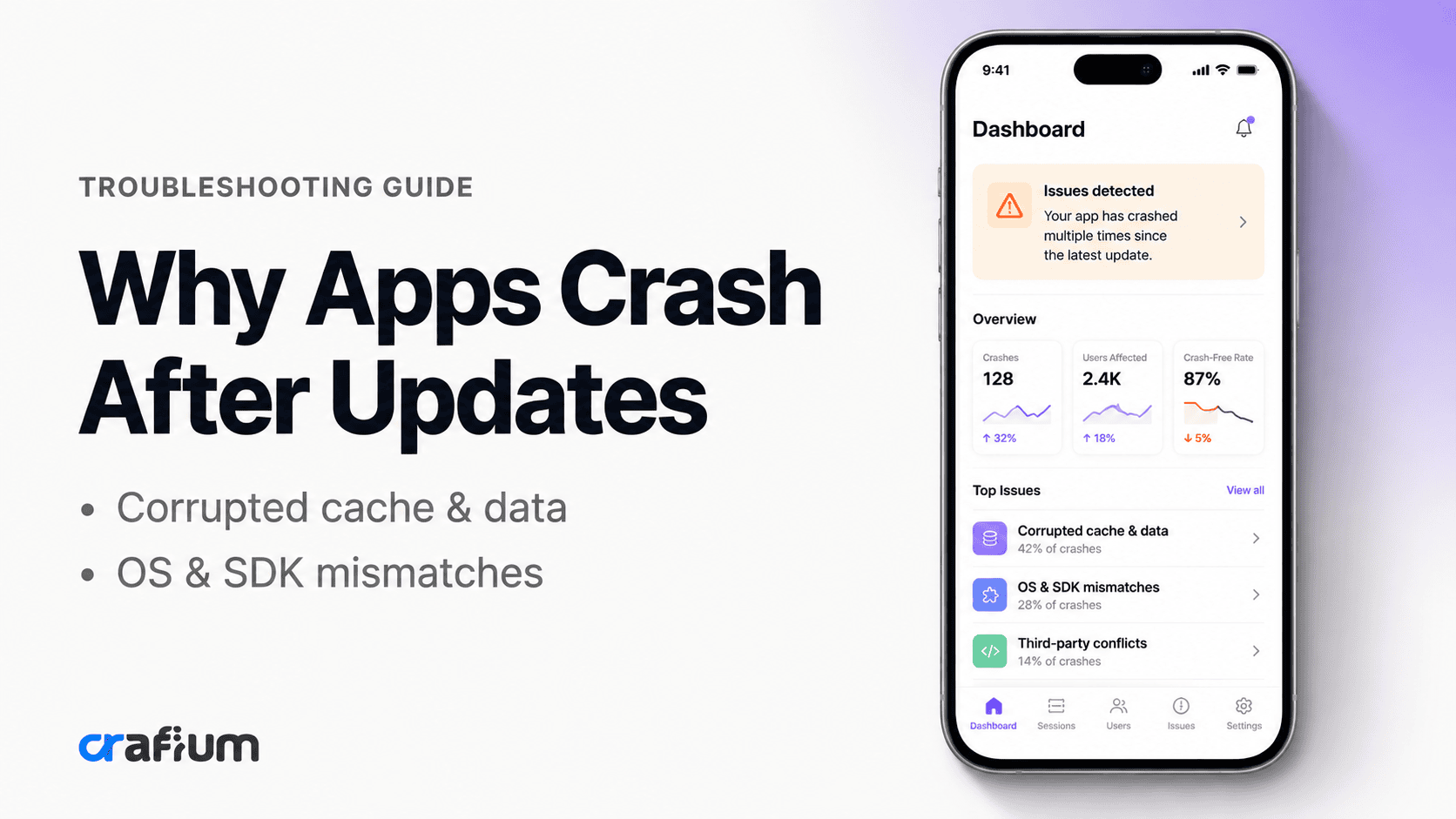
An app can crash after an update because of a new bug, OS incompatibility, broken dependencies, database migration problems, memory pressure, API changes, or corrupted app data. The challenge is finding which change is responsible.
For users, a few troubleshooting steps may restore the app. For developers, the solution requires looking at crash reports, affected app versions, devices, operating systems and recent code changes.
Common Causes of App Crashes After an Update
There is rarely one universal reason an app crashes after an update. The new release may have changed the application code, dependencies, stored data, permissions or the way it communicates with other services.
Here are the most common causes worth investigating first.
A bug was introduced in the new version
The simplest explanation is often the right one. A new release may introduce a bug that was not present in the previous version.
Even a small code change can create an unexpected condition. For example, a new feature may expect a value to exist, but some users may have an empty or missing value. If the application does not handle that condition safely, it can terminate unexpectedly.
This is especially common when developers modify existing features while adding new functionality.
The app is incompatible with the operating system
Mobile apps depend heavily on the operating system and its APIs. A new app version may use an API differently or introduce functionality that behaves differently across supported OS versions.
This can create a situation where the latest release works normally on newer devices but crashes on an older supported OS.
Apple’s crash analytics can show the app version, device and platform version associated with crashes, which helps developers identify these patterns.
A third-party SDK or library caused the problem
Most modern apps rely on third-party SDKs and libraries for services such as analytics, payments, authentication, advertising, maps and notifications.
Updating one dependency can introduce a compatibility problem even when the app’s own code appears unchanged.
Google specifically provides SDK-related crash information in Play Console because SDKs can sometimes contribute to crashes and ANRs.
If the problem started immediately after an update, developers should compare dependency versions between the last stable release and the problematic release.
A database migration failed
Database changes are one of the biggest differences between a fresh installation and an updated app.
Suppose an older version stores information using one database structure and the new version changes that structure. The application must migrate existing data safely.
If that migration fails, existing users can experience crashes while people installing the newest version for the first time may see no problem.
This is why upgrade testing is just as important as fresh-install testing.
Old app data conflicts with the new version
An update does not necessarily start with a clean environment.
Existing users may have cached files, preferences, session information, local databases and downloaded content from previous versions.
If the new release makes assumptions that are no longer compatible with that stored data, the app may crash.
This also explains why reinstalling an app sometimes appears to fix the problem. Reinstallation can remove problematic local data, although it does not fix the underlying software defect.
Memory usage increased after the update
A new feature can increase memory consumption by loading larger images, retaining more objects, processing more data or running additional background tasks.
This can be particularly noticeable on older or lower-memory devices.
Android vitals tracks low-memory kills separately and provides device and software breakdowns that can help developers identify whether memory pressure is contributing to stability problems.
On Apple platforms, developers can also investigate termination caused by memory pressure through relevant crash and diagnostic reports.
A permission flow changed
Updates sometimes introduce new permissions or change how existing permissions are handled.
Problems can occur when the application assumes that a permission was granted but the user denied it.
This can affect features involving:
- Camera
- Location
- Microphone
- Photos
- Bluetooth
- Notifications
- Biometric authentication
A denied permission should be treated as a normal state that the application knows how to handle, not as an unexpected failure.
An API change broke the app
A mobile application often depends on a backend API to retrieve user accounts, products, content or other information.
If the server changes the response structure and the new app version does not handle that change correctly, a crash can occur.
For example, the app may expect a particular field in a response. If the server removes or renames that field, code that assumes the field is always available can fail.
API compatibility should therefore be considered whenever a crash appears after an app update.
A backend change happened at the same time
Not every crash that follows an app update is caused by the app itself.
A backend deployment, API change, authentication update or remote configuration change may happen around the same time.
The timing can make the mobile update look guilty when the actual problem is server-side.
When investigating a post-update crash, developers should compare mobile releases and backend releases on the same timeline.
A device-specific issue was introduced
An update may work on most devices but crash on a specific model or hardware configuration.
Android devices have particularly broad variations in hardware, OS versions and manufacturer implementations.
Google Play provides device and software breakdowns through Android vitals, allowing developers to investigate whether crashes are concentrated around particular device models, Android versions or other attributes.
A crash affecting one device family requires a different investigation from a crash affecting every supported device.
The update was not tested with real-world conditions
An app can pass development testing and still fail after release.
Developers may test on a small number of devices with clean installations and reliable internet connections. Real users have different devices, settings, stored data and network conditions.
A production user may have:
- An older supported device
- Limited storage
- Existing app data
- A slow internet connection
- A denied permission
- An expired login session
- A large amount of saved content
- A different OS version
Production users create conditions that controlled testing cannot always reproduce.
How to Fix an App That Crashes After an Update
If an app keeps crashing after you install an update, start with the simplest troubleshooting steps before assuming the application is permanently broken.
1. Restart your device
Restarting the device is a quick first step that can clear temporary system states and background processes.
It will not repair a bug in the new app version, but it can eliminate temporary issues that appeared during or after the update.
2. Check for another app update
Developers sometimes release a follow-up version after discovering a serious problem in production.
Open the App Store or Google Play and check whether a newer version is available.
This is especially important when the crash started immediately after a major update.
3. Update your operating system
An application update may depend on newer operating system behavior or APIs.
Check whether your device is running a supported version of iOS or Android and install available system updates when appropriate.
If the application still supports your current OS, however, a crash may indicate an app-side compatibility problem rather than something you need to fix on your device.
4. Check your available storage
Very limited storage can contribute to broader device and application problems.
Check how much free space remains on your device. If storage is almost full, remove unnecessary files or unused applications and try launching the app again.
5. Clear the app cache on Android
Android users can try clearing the app’s cache if temporary cached data may be contributing to the problem.
The exact steps vary by device, but the option is generally available through the app’s settings.
Do not confuse clearing cache with clearing app data. Clearing app data can remove locally stored information and may sign you out.
6. Reinstall the app
Reinstalling can help when corrupted local data is involved.
Before uninstalling, make sure important information is synchronized with your account or cloud service. Otherwise, you could lose locally stored data.
If reinstalling fixes the crash, that is useful information, but it does not necessarily mean the developer has solved the underlying issue.
7. Contact the app developer
If the app continues crashing, report the problem to the developer.
Include the app version, device model, OS version and the action that causes the crash.
Also mention whether the problem started immediately after the update. These details can help the development team reproduce the issue faster.
How Developers Diagnose Post-Update Crashes
For developers, reinstalling the app is not a real diagnosis. The goal is to identify the exact condition that causes the application to terminate.
A good investigation starts with production data.
i. Check crash reports first
Crash reports should be the starting point rather than guesswork.
Apple provides crash analytics for App Store apps and allows developers to review crashes by app version and device type. The report also includes platform version information.
On Android, developers can use Play Console’s Crashes and ANRs section to review crash data and investigate individual crash clusters.
ii. Compare the stable and affected versions
Find the last version that worked normally and compare it with the version where the crash appeared.
Look for changes involving:
- Application code
- Dependencies
- Database structure
- API contracts
- Authentication
- Permissions
- Remote configuration
- Background services
- Memory-intensive features
If the crash appeared only in the new version, recent changes become the primary investigation area.
iii. Read the stack trace
A stack trace can show where the application failed and what was happening immediately before the crash.
Developers should look for the exception type, affected function, application module and relevant third-party library.
On Android, Play Console can provide deobfuscated and symbolicated stack traces when the appropriate mapping files or debug symbols have been uploaded.
Readable stack traces make production debugging much more practical.
iv. Identify the affected devices
A crash that affects one device model is different from a crash affecting every device.
Look for patterns across:
- Device model
- OS version
- App version
- Processor architecture
- Memory configuration
- Geographic region
- User account state
Android vitals provides breakdowns across device and software attributes, while Apple’s crash reports include device and platform version fields.
v. Check whether the crash is user-perceived
Not every crash has the same impact.
A crash while the app is running in the foreground is much more disruptive than an issue that happens during a background process.
Google’s user-perceived crash rate focuses on crashes that are likely to be noticed by users and treats it as a core quality metric for Google Play.
This helps development teams prioritize problems based on actual user impact.
vi. Investigate third-party dependencies
If a crash points toward an SDK or external library, compare the dependency version used before and after the update.
Also check whether other applications using the same SDK are experiencing similar issues.
Google Play can flag issues as potentially SDK-related, which can help developers determine whether the problem sits inside their own code or an external dependency.
vii. Reproduce the user’s environment
Once you have identified a pattern, reproduce it as closely as possible.
Use the same app version, device type, OS version and data conditions.
For migration problems, start with an older app version, populate it with realistic data, then upgrade to the affected release.
This is often much more effective than installing the newest version on a clean device.
Why an Updated App Can Work for New Users but Crash for Existing Users
This is one of the most important things to understand about update-related crashes.
A new installation starts with a clean state.
An existing installation carries information from previous versions.
That information may include:
- Local database records
- Cached files
- Preferences
- Authentication tokens
- Downloaded content
- User settings
- Feature flags
- Previously stored configuration
If the new version changes how that information is interpreted, existing users can encounter a problem that new users never see.
This is why upgrade testing needs its own test cases.
A successful clean installation does not prove that an upgrade path is safe.
App Crash vs. Freeze vs. ANR
An app crash, app freeze and ANR are related but different problems.
App crash
A crash occurs when the application terminates unexpectedly because of an error or another condition that causes the process to stop.
Developers generally investigate crashes using crash reports, exception information and stack traces.
App freeze
A freeze happens when the interface stops responding or becomes stuck.
The application may still be running, but the user cannot interact with it normally.
ANR on Android
Android uses the term Application Not Responding, or ANR, when an application fails to respond to user input within the expected time.
Google Play reports crashes and ANRs separately and groups them into clusters to help developers investigate common causes.
Understanding the difference prevents developers from using the wrong diagnostic process.
How to Prevent App Crashes After Future Updates
The best time to prevent an update-related crash is before the update reaches production.
Test upgrade paths
Do not test only fresh installations.
Test upgrades from several previous versions, particularly when changing databases, authentication, storage or major application architecture.
Test across supported devices
Use real devices where possible and include older supported hardware.
Pay particular attention to devices with lower memory, older operating systems and unusual hardware configurations.
Test failure states
Applications should be tested with realistic failure conditions.
Try denied permissions, expired sessions, missing API data, poor connectivity, empty results and interrupted operations.
An application should respond gracefully rather than assuming everything will always work.
Monitor crashes immediately after release
Do not wait for users to flood the app store with negative reviews.
Monitor stability as soon as the new version reaches users.
Google Play’s Android vitals provides crash-rate metrics and crash clusters, while Play Console can notify developers about significant changes in crash and ANR clusters.
Use staged releases when appropriate
A staged rollout can limit the number of users exposed to a new version while the team monitors its behavior.
If the crash rate suddenly increases, developers have an opportunity to investigate before the update reaches the entire audience.
Keep regression tests for previous bugs
Every production crash should teach the team something.
After fixing a crash, add a regression test that reproduces the original failure condition.
The goal is not simply to fix today’s crash. It is to make the same crash harder to introduce tomorrow.
Monitor SDK and dependency changes
Third-party dependencies should be treated as part of the application.
Before upgrading an SDK, review its release notes, compatibility requirements and known issues.
A dependency update should also go through the same testing process as a change to your own application code.
When Should Developers Roll Back an App Update?
Not every crash requires a rollback.
The decision depends on how many users are affected and how severely the crash interferes with the app.
A rollback or rollout pause deserves serious consideration when:
- Users cannot open the app
- A core feature consistently crashes
- Crash rates rise sharply after release
- A large percentage of active users are affected
- No practical workaround exists
- The problem cannot be fixed quickly
Google recommends prioritizing crash clusters with the highest number of affected users when improving crash rates.
A startup crash that prevents users from opening the application should generally receive much higher priority than an isolated crash in a rarely used feature.
A Practical Post-Update Crash Investigation Process
When an app starts crashing after an update, follow a consistent process.
Confirm when the problem started
Compare crash activity before and after the new version was released.
Identify the affected version
Determine whether the crashes are concentrated in the latest release or also affect older versions.
Find the affected users
Check device models, operating systems and other available attributes for patterns.
Group similar crashes
Look for repeated crash signatures that may have the same root cause.
Google Play groups Android crashes into clusters specifically to help developers identify issues that may share a root cause.
Inspect the stack trace
Identify the exception, failing function and relevant code path.
Review recent changes
Compare code, dependencies, database migrations, API changes and configuration between the stable and affected versions.
Reproduce the failure
Match the user’s device, OS, app version and data conditions as closely as possible.
Fix the root cause
Do not simply hide the visible error. Correct the condition that causes the application to fail.
Add a regression test
Turn the production failure into a test case so the same problem is less likely to return.
Monitor the next release
After deploying the fix, watch crash rates and affected-user counts to confirm that the problem is actually resolved.
Frequently Asked Questions
Can an App Update Cause a Crash?
Yes. An update can introduce new code, dependencies, database changes or compatibility requirements that cause failures that were not present in the previous version.
Can Clearing Cache Fix an App That Crashes After an Update?
Sometimes. Clearing cached data can resolve certain local-data problems, particularly on Android. However, it will not fix a software bug in the application itself.
Should I Reinstall an App That Keeps Crashing?
Reinstalling can help if corrupted local data is causing the problem. Make sure important data is synchronized before uninstalling the application.
How Do Developers Find Out Why an App Crashed?
Developers typically start with crash reports, stack traces, exception information, device data and operating system information. Apple and Android both provide production crash diagnostics for released applications.
How Can Developers Monitor Crashes After an Update?
iOS developers can use Apple’s crash analytics and Xcode crash reports. Android developers can use Play Console and Android vitals to monitor crash rates and investigate crash clusters.
Can a Backend API Cause an App to Crash After an Update?
Yes. If the new app version expects a particular API response and the server returns unexpected data, the application can fail unless the code handles that response safely.
Can Low Memory Cause an App to Crash?
Yes. Memory pressure can result in application termination. On Apple platforms, jetsam reports can help developers investigate termination caused by low-memory conditions.
How Can I Prevent Crashes After Releasing an Update?
Use regression testing, upgrade testing, real-device testing, staged rollouts, automated tests, crash monitoring and post-release analysis. Most importantly, test both fresh installations and upgrades from previous versions.
Final Thoughts
An app crashing after an update is frustrating, but the timing often provides an important clue.
The new version may have introduced a software bug, changed an API, updated a dependency, broken a database migration, increased memory usage or created a compatibility problem with a particular device or OS version.
For users, restarting the device, checking for another update, updating the OS, clearing cache or reinstalling the app may solve certain local problems.
For developers, the investigation needs to go deeper. Crash reports, stack traces, app-version comparisons, device patterns and recent code changes are the fastest path toward finding the root cause.
Apple provides crash analytics that can be examined by app version, device and platform version. Android developers can use Play Console and Android vitals to investigate crash clusters, affected users and device or software patterns.
The bigger lesson is that an app update is not finished simply because it has been published. A successful release is one that remains stable when real users install it on real devices with real data.
If you’re building a mobile app from an existing WordPress website, the development process matters just as much as the launch. AppNatively helps turn WordPress websites into native iOS and Android apps without building the entire mobile experience from scratch. It can be a practical option for businesses that want to extend an existing website into mobile without taking on a traditional app development project.
Share this blog: