Why WooCommerce Shows the Wrong Currency (And How to Fix It)

William Tan
William Tan is a Digital Marketer at Crafium,…
In this article
If you’ve ever opened your WooCommerce store and noticed prices showing in the wrong currency, you know how frustrating it can be. A product that should cost $20 suddenly appears as €20 or ₹20, confusing customers and hurting your sales and credibility. Currency mismatches don’t just look unprofessional, but they can lead to abandoned carts, payment errors, and lost revenue.
This issue is more common than you might think. It can be caused by misconfigured settings, caching problems, multi-currency plugins, geolocation conflicts, or even theme and payment gateway interactions. The good news? In most cases, it’s easy to diagnose and fix once you know where to look.
In this post, we’ll break down exactly why WooCommerce shows the wrong currency and walk you step-by-step through the practical solutions to get your store displaying the correct prices for every customer.
Why Correct Currency Matters for Your Store
Selling to customers in different regions means more than just shipping worldwide.
Using the correct currency can directly affect trust, conversions, and overall sales.
Builds customer trust
When customers see prices in their local currency, the shopping experience feels familiar and reliable. They immediately understand how much they are spending without needing to calculate exchange rates or second-guess the final cost.
This clarity helps build trust from the first visit and reduces hesitation at checkout. When people feel confident about pricing, they are more likely to complete their purchase and return in the future.
Reduces cart abandonment
Extra steps during checkout can quickly discourage buyers. If shoppers have to convert prices or check currency values on another site, they may lose interest or abandon their cart entirely.
Displaying the correct currency keeps the process simple and seamless. The fewer obstacles customers face, the smoother the path from browsing to buying.
Prevents surprise bank fees
Paying in a foreign currency often comes with hidden conversion charges or unfavorable exchange rates from banks. These extra costs can make the final amount higher than expected, leaving customers frustrated.
Showing prices in the local currency avoids these surprises and sets clear expectations. Transparency helps protect your reputation and reduces complaints or refund requests.
Improves pricing accuracy
Exchange rates fluctuate constantly, which can affect how much profit you actually earn on each sale. Pricing only in one currency may cause your margins to shrink without you noticing.
Local pricing allows you to adjust amounts based on each market and maintain steady profits. This approach keeps your business competitive while protecting your bottom line.
Supports better marketing
Promotions and discounts are more effective when customers instantly understand the value. Clear, local pricing makes offers easier to compare and more appealing at a glance.
When shoppers don’t need to convert numbers, they can focus on the deal itself. This leads to stronger engagement and higher conversion rates from your campaigns.
Simplifies accounting and taxes
Handling sales data becomes easier when transactions match the currency of each market. It reduces the need for constant conversions and lowers the risk of reporting errors.
Clean, organized financial records save time and make tax preparation less stressful. This allows you to focus more on growing your store instead of fixing accounting issues.
Enhances global reach
Offering multiple currencies makes your store more welcoming to international customers. It shows that you understand their needs and are prepared to serve them properly.
This small adjustment can open the door to new markets and higher sales worldwide. By removing currency barriers, you make it easier for anyone to buy from your store.
Creates a professional shopping experience
Details like correct currency symbols, formats, and localized pricing make your store look polished and well managed. Customers notice when a site feels tailored to their region.
A professional experience sets you apart from competitors who overlook localization. These small touches can leave a lasting impression and encourage repeat business.
Common Reasons WooCommerce Shows the Wrong Currency
Currency mismatches in WooCommerce can confuse customers and hurt your sales. Understanding the common causes helps you fix the issue quickly and prevent it from happening again.
1. Incorrect store currency settings
WooCommerce has a default currency set in the general settings, and if this is configured incorrectly, every product will display the wrong price format. Sometimes store owners forget to update this after installing the store or switching target markets.
Even a small oversight here can affect the entire storefront. Double-checking the base currency ensures all prices start from the correct foundation.
2. Conflicts with multi-currency plugins
Many stores use multi-currency or localization plugins to automatically switch currencies for different visitors. If two plugins try to control currency at the same time, they can conflict and display inconsistent values.
These clashes may cause prices to change randomly or show the wrong symbol. Keeping only one reliable currency plugin active usually prevents these issues.
3. Caching problems
Caching tools are designed to speed up your website by saving static versions of pages. However, they can accidentally show the same cached currency to every visitor instead of updating it based on location.
This means a user in one country might see another country’s currency. Clearing the cache or excluding dynamic pricing pages often solves the problem.
4. Geo-location errors
WooCommerce can automatically detect a customer’s location to display the right currency. If the geolocation feature is disabled or misconfigured, the system may fail to assign the correct currency.
Inaccurate IP detection can also lead to wrong results. Enabling proper geolocation settings and testing from different regions helps improve accuracy.
5. Theme compatibility issues
Not all themes fully support WooCommerce’s dynamic pricing features. Some themes override default templates and may not update currency symbols or formats correctly.
This can result in mismatched symbols or prices that don’t change when they should. Using a WooCommerce-compatible theme or updating templates usually fixes the display.
6. Manual price formatting in code
Sometimes developers hardcode currency symbols directly into theme files or custom code. This bypasses WooCommerce’s built-in currency system and prevents automatic switching.
When prices are written manually, they won’t adjust for different regions. Using WooCommerce functions instead of static text keeps everything flexible and accurate.
7. Payment gateway settings
Certain payment gateways process transactions in a specific currency regardless of your store settings. If the gateway currency doesn’t match your display currency, customers may see one price but pay another.
This mismatch can create confusion and reduce trust. Aligning your gateway currency with your store’s default helps maintain consistency from checkout to payment.
8. Outdated plugins or WooCommerce version
Running outdated plugins or an old WooCommerce version can cause bugs in how currencies are displayed. Compatibility issues may break multi-currency features or override settings unexpectedly.
Regular updates ensure your store runs smoothly and supports the latest fixes. Keeping everything current reduces errors and improves overall performance.
How to Fix the Wrong Currency Issue (Step-by-Step)
Showing the wrong currency can confuse shoppers and lower your conversions.
Follow these steps to quickly identify the cause and make sure your WooCommerce store displays the correct currency every time.
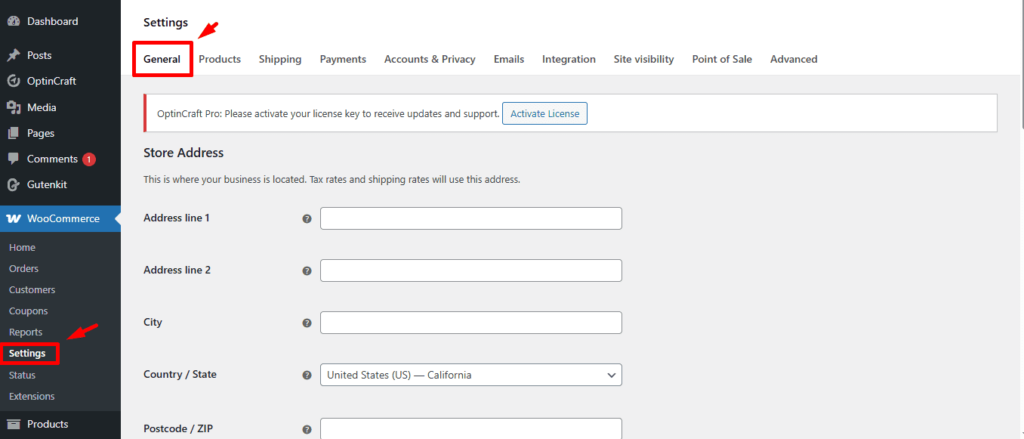
Step 1. Check your default WooCommerce currency
Start by confirming that your store’s base currency is set correctly in WooCommerce. This is the main currency all other settings depend on.
Go to WooCommerce → Settings → General
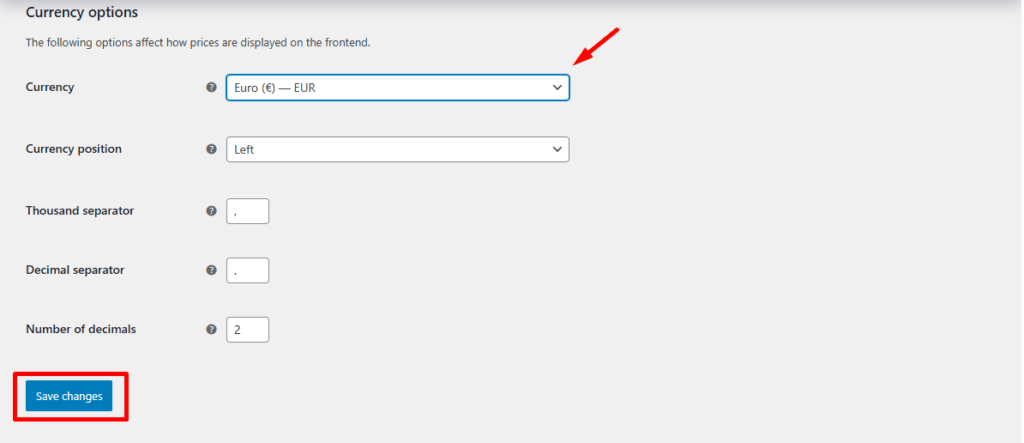
Then, navigate to Currency options and select the correct currency. Save changes and refresh your store to verify the update.
Step 2. Review your multi-currency plugin setup
If you use a currency switcher or localization plugin, review its configuration carefully. Incorrect rules or incomplete setup can force the wrong currency for certain users.
Make sure only one multi-currency plugin is active and handling conversions. Disable any duplicates to avoid conflicts and inconsistent pricing.
Step 3. Clear your website cache
Caching plugins or server-side caching can store old currency data and display it to every visitor. This often causes the same currency to appear regardless of location.
Clear your WordPress cache, plugin cache, and browser cache. After clearing, test the site again to see if the correct currency loads dynamically.
Step 4. Enable and test geolocation
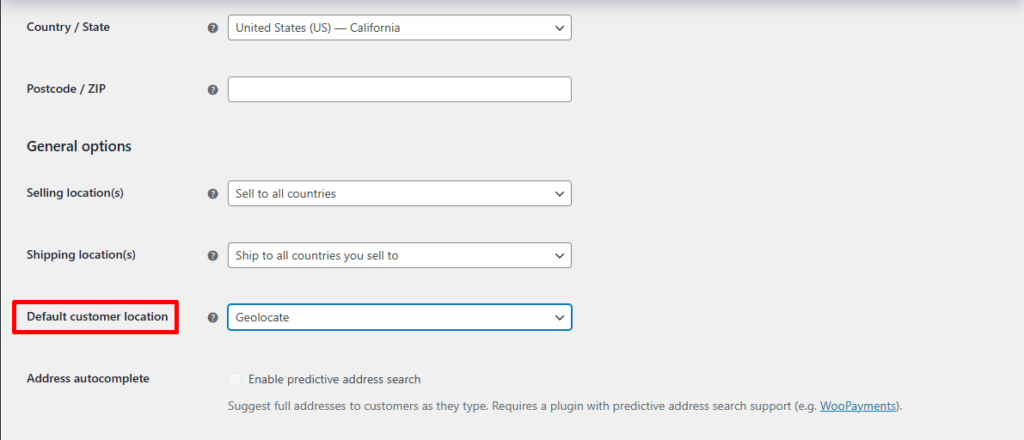
WooCommerce can automatically show the right currency based on a visitor’s location. If geolocation is turned off, prices may default to a single currency.
Go to WooCommerce → Settings → General
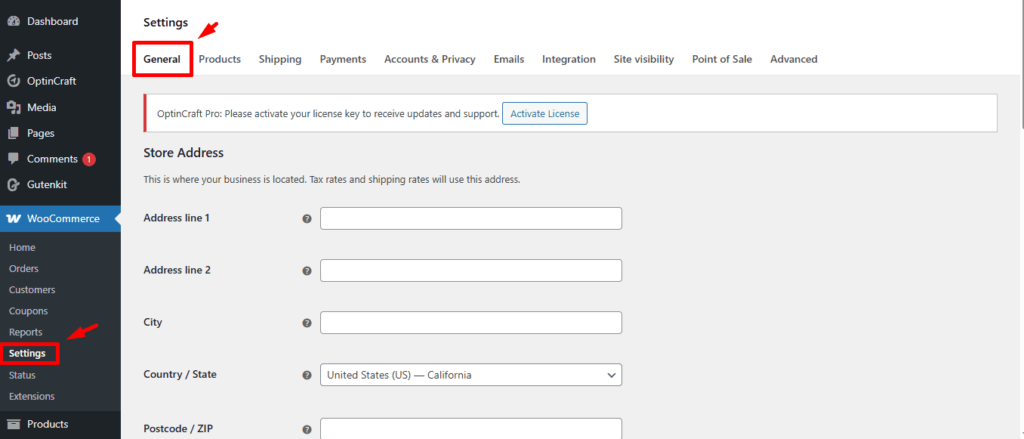
Then, navigate to Default customer location and enable geolocation. Test using different devices or a VPN to confirm accurate detection.
Step 5. Check your theme compatibility
Some themes override WooCommerce templates and may not support dynamic currency switching. This can prevent symbols or prices from updating properly.
Switch temporarily to a default theme like Storefront to test. If the issue disappears, your theme may need updates or template fixes.
Step 6. Remove hardcoded currency symbols
If you’ve customized your store, check for any hardcoded currency symbols in theme files or custom code. Static symbols stop WooCommerce from switching currencies automatically.
Replace manual symbols with WooCommerce functions so prices update correctly. This keeps formatting flexible and consistent across regions.
Step 7. Verify payment gateway currency settings
Payment gateways sometimes process payments in a fixed currency that doesn’t match your store display. This can confuse customers during checkout.
Open your gateway settings and confirm the processing currency matches your store’s default. Aligning both ensures consistent pricing from product page to payment.
Step 8. Update WooCommerce and plugins
Outdated software can cause bugs or compatibility problems with currency features. Old versions may not work properly with newer plugins or themes.
Update WooCommerce, your theme, and all related plugins to the latest versions. Regular updates help prevent technical issues and keep your store running smoothly.
Conclusion
Currency issues in WooCommerce might seem small at first, but they can quickly lead to confused customers, abandoned carts, and lost sales. When shoppers see the wrong currency or unexpected charges at checkout, it breaks trust and makes your store feel unreliable.
The good news is that most currency problems come from simple causes like incorrect settings, plugin conflicts, caching, or outdated themes. By checking your configuration step by step and using the right tools, you can fix the issue and ensure every visitor sees accurate, localized pricing.
Keeping your currency display consistent not only improves the shopping experience but also protects your profits and strengthens your brand. With the right setup in place, your WooCommerce store will feel more professional, trustworthy, and ready to serve customers anywhere in the world.
Frequently Asked Questions (FAQs)
Why is WooCommerce showing the wrong currency on my store?
WooCommerce may display the wrong currency due to incorrect base currency settings, caching issues, multi-currency plugin conflicts, geolocation errors, or payment gateway mismatches. Checking these areas usually resolves the problem quickly.
How do I change the default currency in WooCommerce?
Go to WooCommerce → Settings → General → Currency Options, select your preferred currency from the dropdown, then click Save changes. This sets the base currency for your entire store.
Can caching cause WooCommerce to show the wrong currency?
Yes. Browser, server, or CDN caching can store old price data and display outdated currencies. Clearing all caches and excluding dynamic pages like the cart and checkout from caching often fixes the issue.
Why does my currency change for different visitors?
This usually happens when geolocation or multi-currency plugins are enabled. WooCommerce may automatically switch currencies based on the visitor’s IP address or location settings.
How do I fix currency issues with a multi-currency plugin?
First, update the plugin. Then check exchange rate settings, auto-detection rules, and conflicts with other plugins. Temporarily disable the plugin to confirm whether it’s causing the problem.
Can my theme affect currency display?
Yes. Some themes hard-code currency symbols or override WooCommerce templates. Switching temporarily to a default theme like Storefront can help you identify theme-related conflicts.
Why is my payment gateway showing a different currency at checkout?
Payment gateways like PayPal or Stripe may force a specific currency or use account-level settings. Make sure your gateway settings match your WooCommerce store currency to avoid mismatches.
Does WooCommerce support multiple currencies by default?
No. WooCommerce only supports one base currency by default. To offer multiple currencies, you’ll need a dedicated multi-currency plugin.
How do I test if a plugin is causing the wrong currency?
Deactivate all plugins except WooCommerce, then reactivate them one by one. When the problem reappears, the last activated plugin is likely the cause.
Why are prices correct in the admin panel but wrong on the front end?
This often happens due to caching or JavaScript conflicts on the front end. Clearing caches and checking for script errors usually resolves it.
Can exchange rates update automatically in WooCommerce?
Yes, but only through multi-currency plugins that support automatic exchange rate updates. Make sure this feature is enabled to avoid outdated pricing.
Share this blog:

About William Tan
William Tan is a Digital Marketer at Crafium, specializing in WordPress solutions and online growth strategies. He’s passionate about helping businesses expand their digital presence through smart marketing and data-driven insights.