Running a global online store with WooCommerce means dealing with multiple currencies. Yet, one of the most common headaches for store owners is when the currency doesn’t change as expected despite updating settings or installing plugins. This can confuse customers, disrupt checkout, and even affect sales.
In this guide, we’ll explore the fixes to the “WooCommerce currency is not changing” issue. So, without further ado, let’s dig deeper.
WooCommerce Currency Not Changing: Step-by-Step Fix Guide
Follow these steps in order. Test your store after each step to see if the issue is resolved.
Step 1: Clear all caches (Most Common Fix)
Caching is the #1 reason currencies don’t update.
Old cached pages may still display the previous currency even after changes.
What to clear:
- Browser cache (or test in Incognito mode)
- WordPress cache plugins
- Hosting/server cache
- CDN cache (if using Cloudflare or similar)
How:
- Clear cache inside your caching plugin dashboard
- Clear hosting cache from your hosting control panel
- Hard refresh with Ctrl + F5
Then test your store again.
Step 2: Check WooCommerce currency settings
Sometimes the issue is simply incorrect configuration.
Verify this:
- Go to WooCommerce → Settings → General
- Check Default Currency
- Confirm currency position and formatting
- Save changes again (this refreshes settings)
If using multi-currency, also verify:
- Exchange rates
- Enabled currencies
- Auto-detect settings
Step 3: Test for plugin conflicts
Plugins often interfere with currency switchers.
How to test:
- Deactivate all plugins except WooCommerce and your currency plugin
- Test currency switching
- Reactivate plugins one by one
- Identify which plugin breaks it
Once found:
- Replace the plugin
- Update it
- Or contact support
Step 4: Check theme compatibility
Some themes override WooCommerce templates and break dynamic pricing.
Try this:
- Switch temporarily to a default WordPress theme (like Twenty Twenty-Five)
- Test currency switching
If it works:
- Your theme is the problem
- Update the theme or contact the developer
Step 5: Update everything
Outdated software can cause currency features to fail.
Update:
- WooCommerce
- WordPress
- Currency switcher plugin
- All related plugins
- Your theme
After updating, clear cache again and test.
Step 6: Fix geolocation issues
If you use automatic currency detection by location, geolocation might not be working.
Check:
- WooCommerce → Settings → General
- Default Customer Location
- Select Geolocate (with caching support)
Then:
- Test using a VPN
- Or use an online IP testing tool
If customers still see the wrong currency, your cache may be blocking location detection.
Step 7: Use a reliable currency switcher plugin
Not all plugins handle multi-currency well. Poor-quality plugins cause many issues.
Look for plugins that offer:
- Automatic exchange rates
- Geolocation support
- Cache compatibility
- Regular updates
After installing:
- Configure properly
- Place switcher widget/shortcode correctly
- Test multiple currencies manually
Advanced troubleshooting (If It Still Doesn’t Work)
If none of the above fixes solve it:
Try these:
Enable Debug Logs
Go to:
WooCommerce → Status → Logs
Check for errors related to pricing or currency plugins.
Remove Custom Code
If you added snippets in:
- functions.php
- Custom plugins
Temporarily disable them.
Contact Support
Reach out to:
- Currency plugin developer
- Theme developer
- Hosting provider
They may detect conflicts you can’t see.
Meet X-Currency: The Best Currency Switcher Plugin for WooCommerce
If your WooCommerce store serves customers from around the world, displaying the right currency at the right time can make a huge difference in user experience and conversions.
Enter X-Currency, the most powerful and user-friendly currency switcher plugin built specifically for WooCommerce.
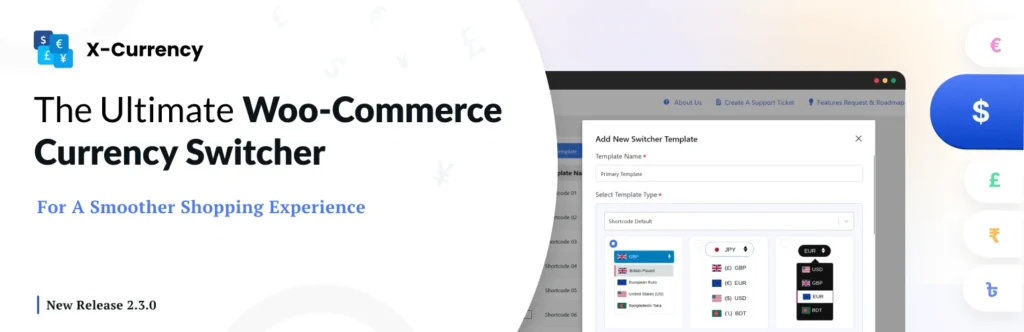
Whether you want to automatically detect a shopper’s location and show prices in their local currency, offer a currency selector dropdown, or manage multiple exchange rates easily: X-Currency delivers all of this and more with minimal setup.
It’s designed to be fast, reliable, and compatible with most themes and caching systems, so you won’t run into the common “WooCommerce currency not changing” issues that trap so many store owners.
Here’s why X-Currency stands out from the rest:
Why X-Currency is the best choice for WooCommerce
- Automatic geolocation detection
X-Currency can automatically detect where your visitor is located and display pricing in their local currency, no guesswork needed. - Reliable exchange rate management
Set your own rates or sync automatically with trusted currency rate services to keep your prices accurate and up to date. - Multiple display options
Choose from widget, shortcode, or menu display for your currency switcher — customize placement to match your store design. - Smooth compatibility with caching
Unlike many other currency plugins, X-Currency is built to work with popular caching plugins and server caches, preventing stale prices. - Highly customizable
Style your currency switcher to match your theme, choose which currencies to show, and control formatting down to the smallest detail. - Excellent support & updates
Regular updates ensure compatibility with the latest WooCommerce and WordPress versions, and dedicated support helps you troubleshoot quickly.
Quick Setup — No coding required
With X-Currency, you can get up and running in just a few steps:
- Install the plugin from your WordPress dashboard.
- Select the currencies you want to support.
- Configure automatic detection or manual switcher options.
- Place the switcher in your header, footer, sidebar, or anywhere you choose.
- Save and test!
Even first-time WooCommerce users will find X-Currency intuitive and fast to configure.
For further clarification, visit the documentation.
Real results you can rely on
Stores using X-Currency often see:
✔ Fewer abandoned carts
✔ Higher international conversion rates
✔ Less customer confusion
✔ Better perceived pricing transparency
Plus, customers enjoy seeing prices in familiar terms, making their shopping experience smoother and more trustworthy.
Final Thoughts
Currency switching problems in WooCommerce are frustrating but rarely complex. In most cases, clearing the cache or fixing a plugin conflict solves it within minutes.
By following this step-by-step guide, you’ll ensure your store always shows the correct currency, leading to better trust, smoother checkouts, and more international sales.