How to Integrate Google Sheet with a Popup Plugin

William Tan
William Tan is a Digital Marketer at Crafium,…

In this article
Popup forms collect valuable data, but managing those submissions can quickly become disorganized and time-consuming.
When data stays trapped inside plugins or requires manual exports, leads get delayed, missed, or lost, hurting follow-ups and productivity.
By integrating Google Sheets with a popup plugin, form submissions are sent automatically to a spreadsheet in real time, keeping your data organized, accessible, and easy to manage.
In this article, we’ll show you how to seamlessly integrate Google Sheets with a popup plugin like OptinCraft.
Prerequisites
- A WordPress website
- A popup plugin with Google Sheets integration (e.g., OptinCraft)
- A Google account
- Basic access to the WordPress Admin Panel
How to Integrate Google Sheet with OptinCraft
OptinCraft provides powerful integration options that allow you to connect Google Sheets and automatically send data from every new subscriber directly to your spreadsheets.
Follow these steps to link your Google account with OptinCraft. Before that, make sure you have already installed OptinCraft Free and Pro versions.
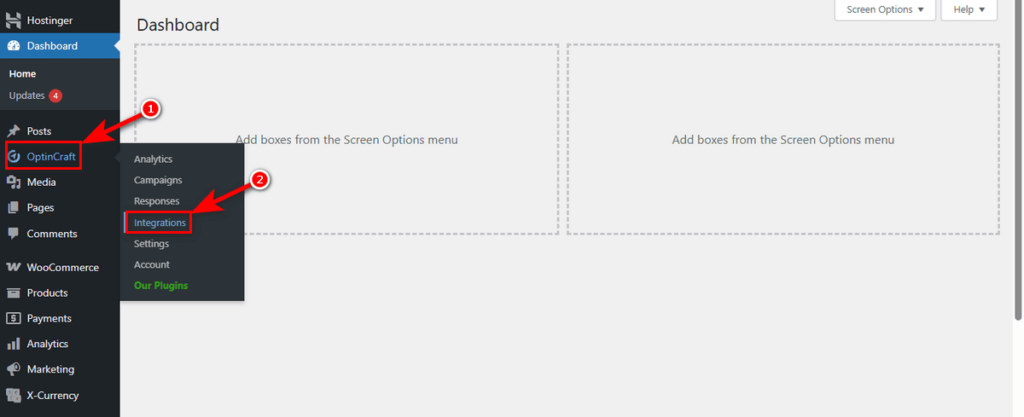
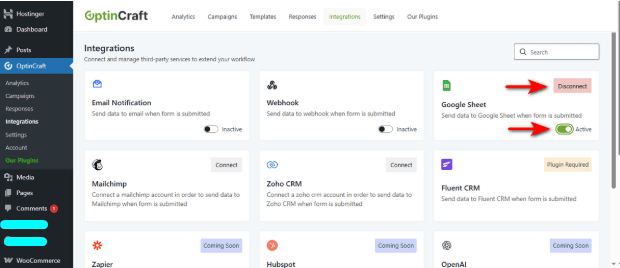
From your WordPress Admin Panel, find OptinCraft in the sidebar and click on the Integrations submenu.
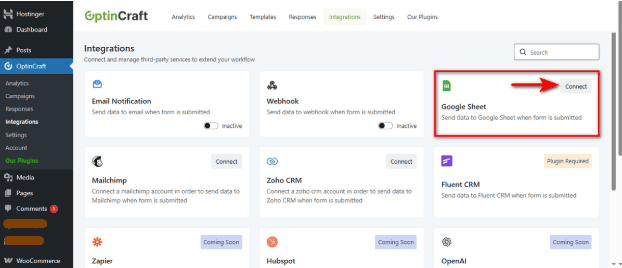
You’ll see a dashboard with various third-party services. Find the Google Sheet card and hit the ‘Connect’ button.
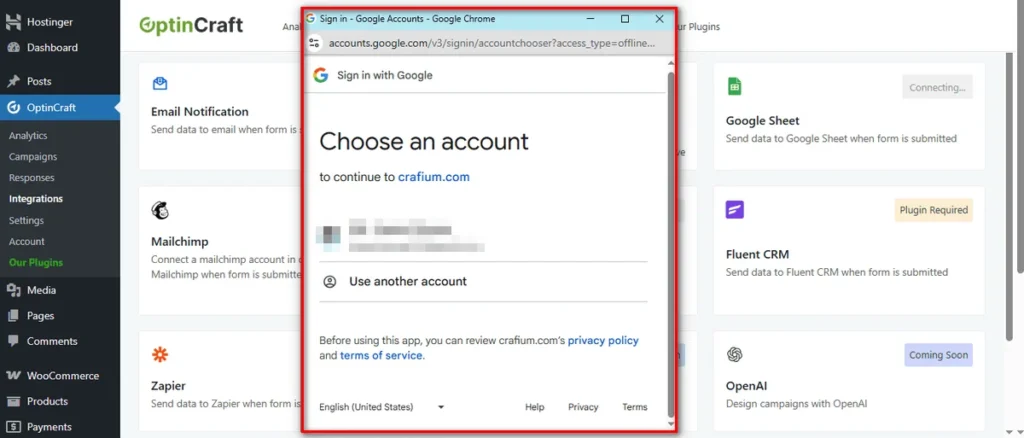
Now, a secure popup window will open. Select the Google Account where you want to store your lead data.
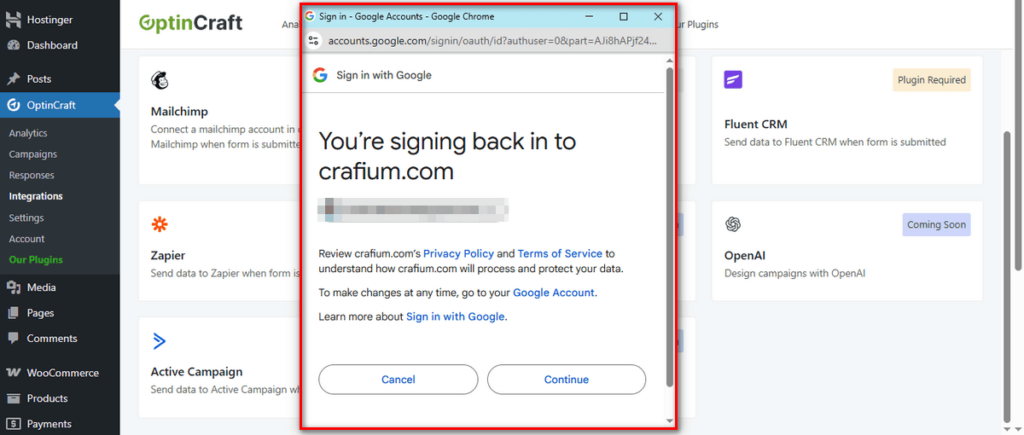
Google will ask you to confirm access. Review the prompt and hit the Continue button to allow OptinCraft (via Crafium) to write data to your sheets.
That’s it! Google Sheets is now connected to OptinCraft.
If you need to pause the integration, use the Active toggle to enable or disable Google Sheets without deleting your account details.
To completely remove the integration, click the Disconnect button in your OptinCraft settings.
Why Integrate Google Sheets with a Popup Plugin: Step-by-Step Guide
Integrating Google Sheets with a popup plugin helps you collect, manage, and analyze leads more efficiently. Instead of manually exporting data, every popup submission is automatically saved to your spreadsheet in real time. Here’s why this integration is so valuable:
- Automated lead collection: New subscriber data is instantly sent to Google Sheets, eliminating manual entry.
- Real-time access: View and update your data as soon as users submit a popup form.
- Better organization: Keep all leads neatly structured in one centralized spreadsheet.
- Easy collaboration: Share spreadsheets with your team and work together seamlessly.
- Improved tracking and analysis: Filter, sort, and analyze data to measure campaign performance.
- Time-saving workflow: Reduce repetitive tasks and focus on optimizing your marketing efforts.
By connecting Google Sheets with a popup plugin, you create a streamlined, data-driven workflow that makes lead management faster, simpler, and more effective.
Final Thoughts
Integrating Google Sheets with a popup plugin like OptinCraft is a simple yet powerful way to streamline lead collection and data management. Once connected, every new subscriber is automatically sent to your spreadsheet, giving you real-time access to organized data without any manual effort.
This integration not only saves time but also helps you track, analyze, and manage your leads more efficiently. By following the steps outlined above, you can ensure a smooth setup and maintain full control over your integration, making your popup campaigns more effective and data-driven.
Share this blog:

About William Tan
William Tan is a Digital Marketer at Crafium, specializing in WordPress solutions and online growth strategies. He’s passionate about helping businesses expand their digital presence through smart marketing and data-driven insights.