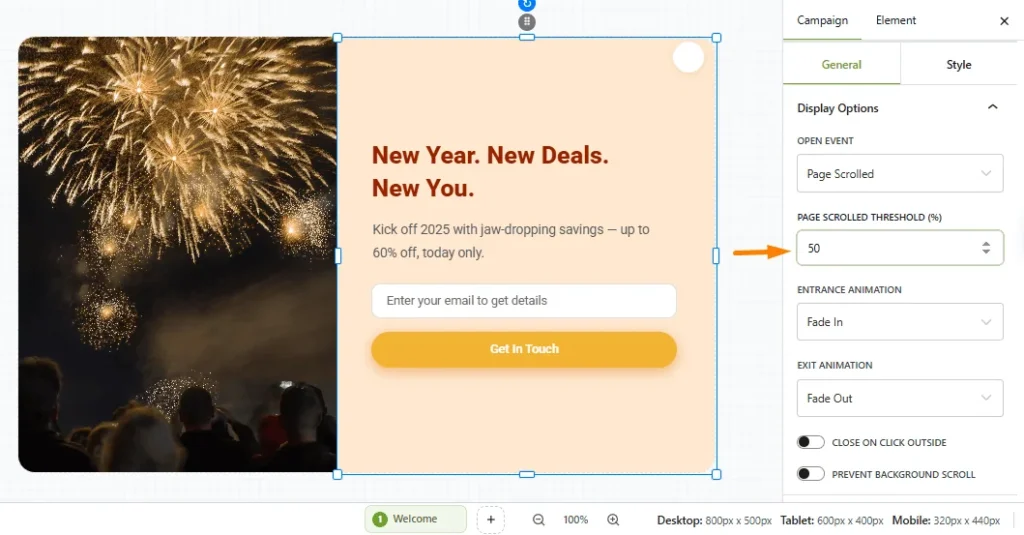
The Page Scrolled trigger in OptinCraft allows you to display a popup when a visitor scrolls down a specific percentage of your webpage. This behavior-based targeting method is highly effective because it appears only after users show real engagement with your content, making them more likely to interact with your offer.
Before getting started, ensure that OptinCraft Free and Pro versions are installed and activated on your WordPress website.
Create a Page-Scrolled Popup #
Follow the steps below to create a popup that appears based on scroll behavior:
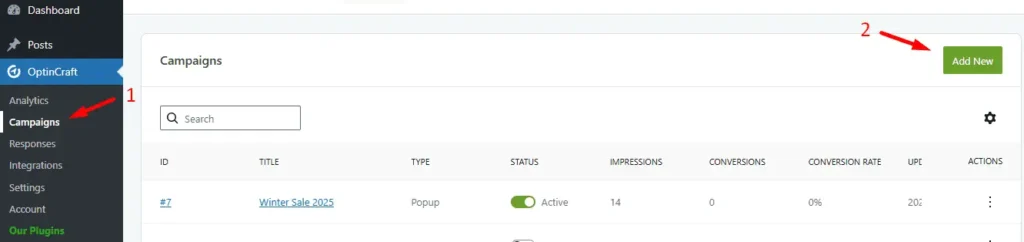
To access Campaigns, go to your WordPress dashboard and navigate to OptinCraft > Campaigns. Click Add New.
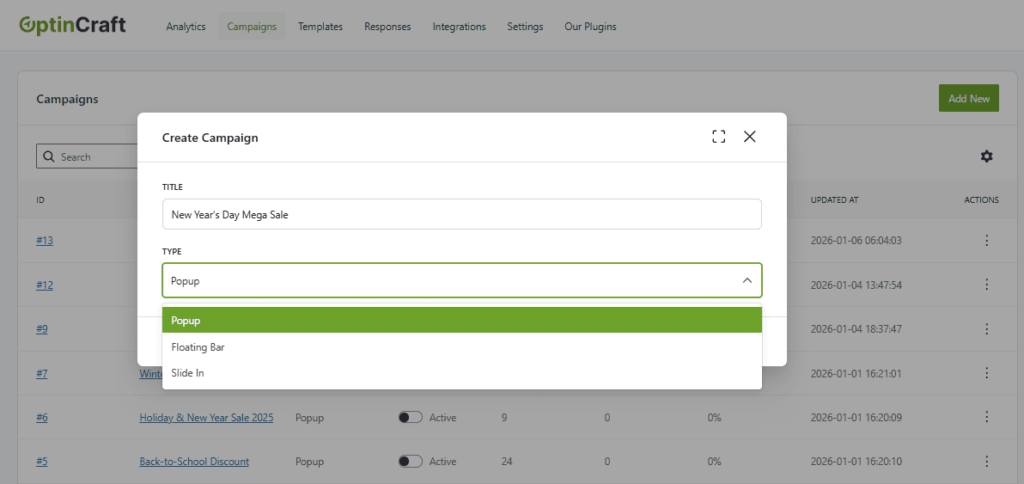
Create a New Campaign
- Enter a title for your campaign.
- Select Popup as the campaign type.
- The OptinCraft editor will load automatically.
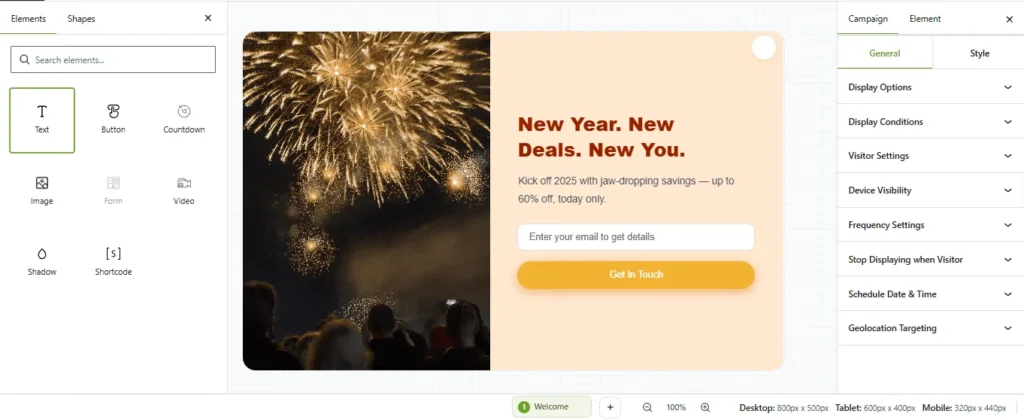
Choose a Popup Design
In the editor, click on Texts to explore and select from the available popup templates and design elements.
Configure Display Settings
After selecting your popup design:
- Open Campaign Settings.
- Navigate to Display Options.
- Choose Page Scrolled as the Open Event.
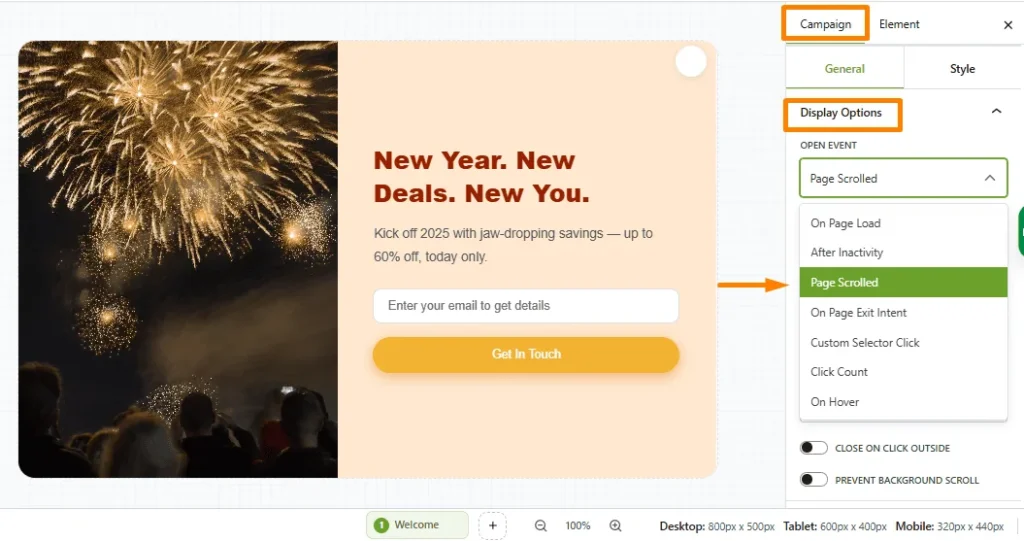
Set Scroll Trigger Percentage
- Specify the Scrolled Percentage (%) to define when the popup should appear.
- For example, setting it to 50% triggers the popup once the visitor has scrolled halfway down the page.