The Custom Selector Click trigger allows you to display a pop-up when a visitor clicks on any element on your site that you specify using a CSS selector. This gives you complete control over turning any button, link, image, or text into a pop-up launcher without modifying your site’s code.
The Free & Pro version of OptinCraft should be installed and activated on the WordPress site.
Build a Custom Selector Click Popup #
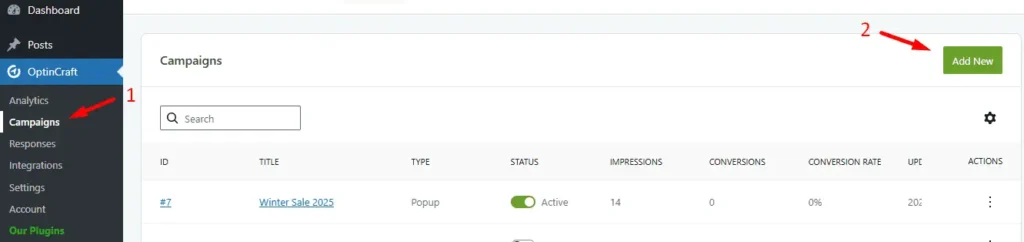
Go to your WordPress dashboard and click on OptinCraft > Campaigns. After landing on the campaign page, click Add New.
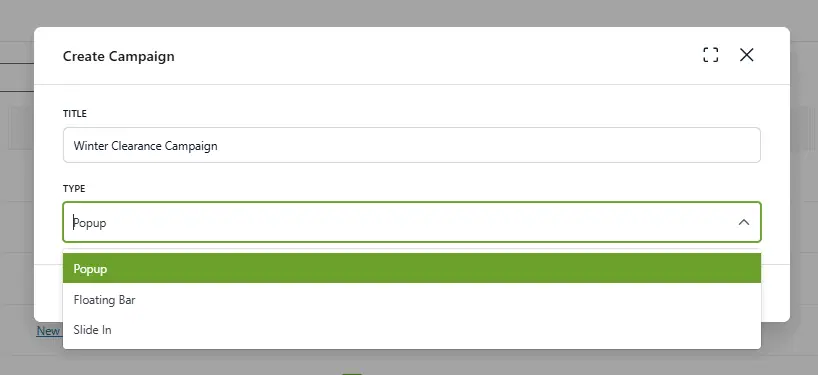
Write the title of your campaign> Select ‘popup’ from the type of campaign.
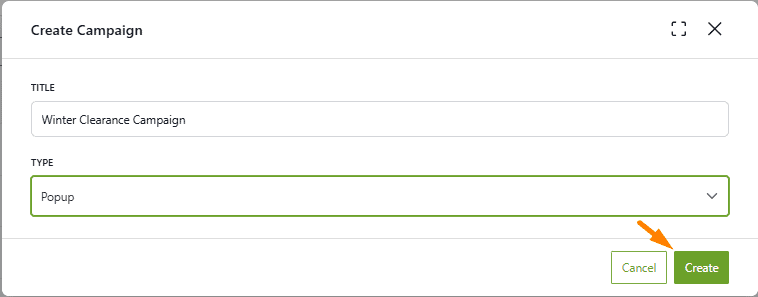
Then hit the Create button.
Go to the campaign settings, then
- Click on the Display Options
- Select “Custom Selector Click” from the “open event” dropdown.
- Enter the selector of the clickable element, whether with “.class” or “#id”.
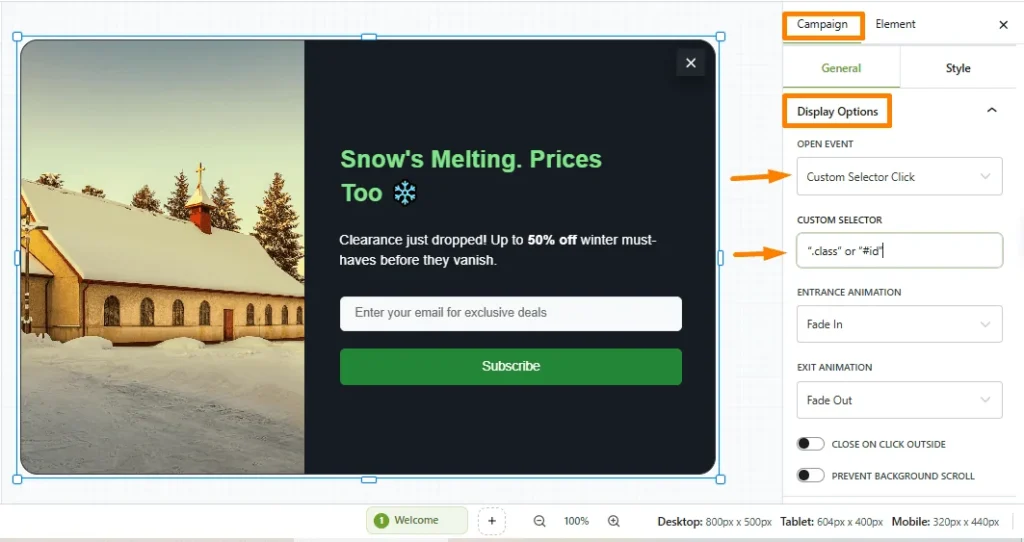
When using the Custom Selector Click trigger in OptinCraft, you need to specify which element on your website should open the pop-up when clicked.
To do this, OptinCraft uses CSS selectors—specifically, Class selectors and ID selectors.
These selectors help OptinCraft identify the exact button, link, or element on your site that should trigger the pop-up.
Frequently Asked Questions (FAQs) #
1. What is the Class of Custom Selector Click? #
A class is an attribute used to identify one or more elements.
To target a class in OptinCraft, you use a dot (.) before the class name, for example: .coupon-button. Multiple elements can share the same class.
2. What is the ID of the Custom Selector Click? #
An ID is a unique attribute used to identify one specific element on a page.
To target an ID in OptinCraft, you use a hash (#) before the ID name, for example: #signuplink. IDs must be unique; only one ID per page.
3. How to find the CSS selector? #
- Right-click the button or element.
- Select Inspect (Any browser).
Look for:
- ID (e.g., id=”signup-button”)
- Class (e.g., class=”btn subscribe-btn”)


