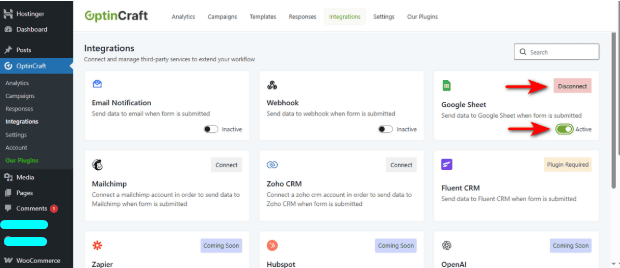
OptinCraft offers robust integration capabilities. It lets you connect Google Sheets so you can receive data on every new subscriber directly into your Spreadsheets.
Follow these steps to link your Google account with OptinCraft. Before that, make sure you have already installed OptinCraft free and Pro versions.
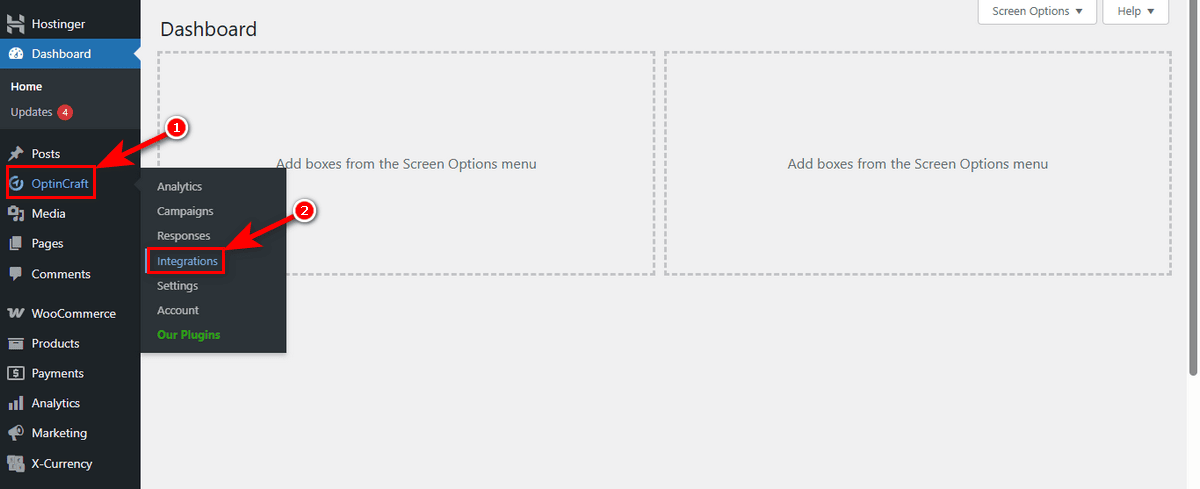
Go to your WordPress Admin Panel. Locate ‘OptinCraft’ in the sidebar and click on the ‘Integrations’ sub-menu.
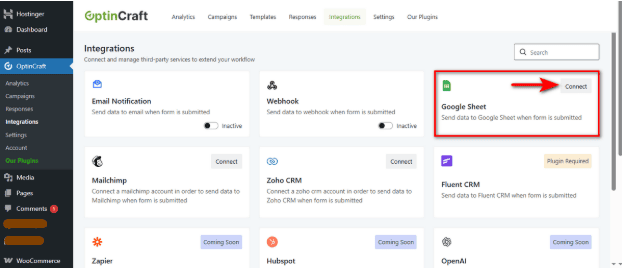
You’ll see a dashboard with various third-party services. Find the Google Sheet card and hit the ‘Connect’ button.
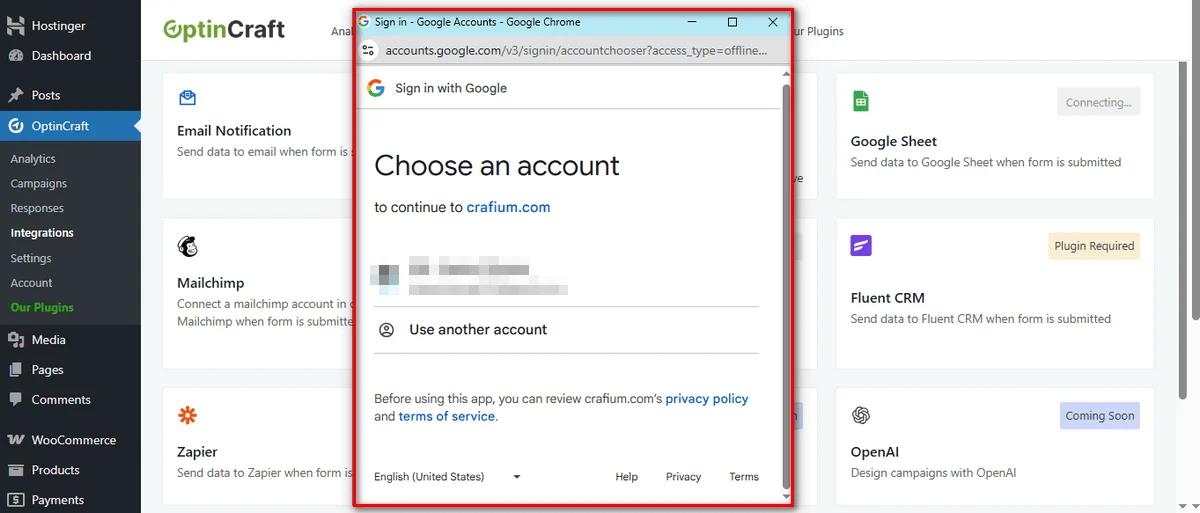
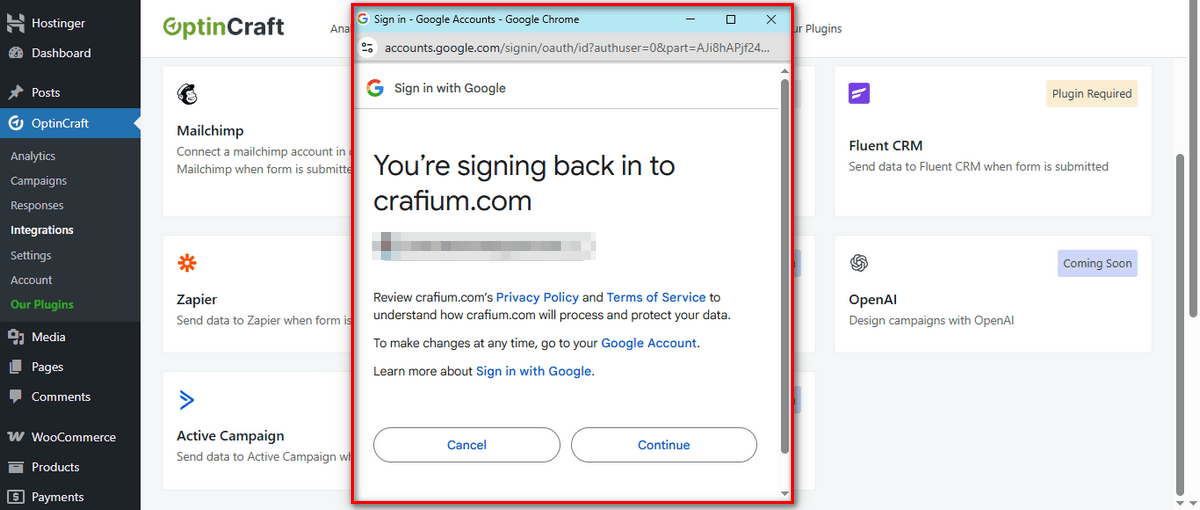
Now, a secure popup window will open. Select the Google Account where you want to store your lead data.
Google will ask you to confirm access. Review the prompt and hit the Continue button to allow OptinCraft (via Crafium) to write data to your sheets.
Voila! You’ve connected Google Sheets with OptinCraft.
If you want to disconnect or deactivate Google Sheets, use the ‘Active’ toggle switch to temporarily enable or disable the integration without removing your account details.
Or click the ‘Disconnect’ button to remove the integration from your OptinCraft settings.