Table of Contents
The Text Element in OptinCraft is a core content block you add to your popup or opt‑in form to display written content, like headlines, descriptions, instructions, or persuasive copy that encourages user action. It’s one of the fundamental elements used to communicate your message and context inside your popup design
How to Use Text Element in OptinCraft #
Here’s a step-by-step guide on how to use the Text Element in OptinCraft:
1. Open OptinCraft Editor #
- Log in to your WordPress dashboard.
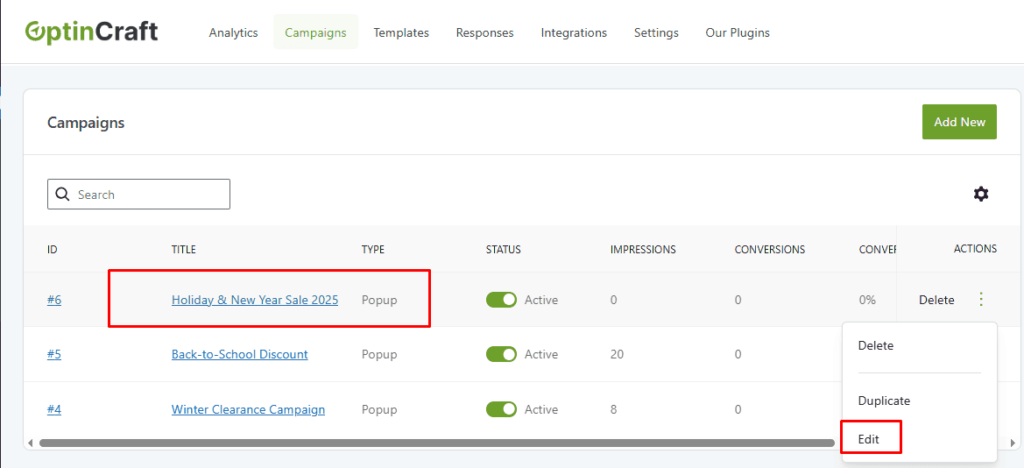
- Navigate to OptinCraft > Campaign.
- Select an existing campaign or create a new one.
- Click Edit to open the drag-and-drop editor.
2. Add the Text Element #
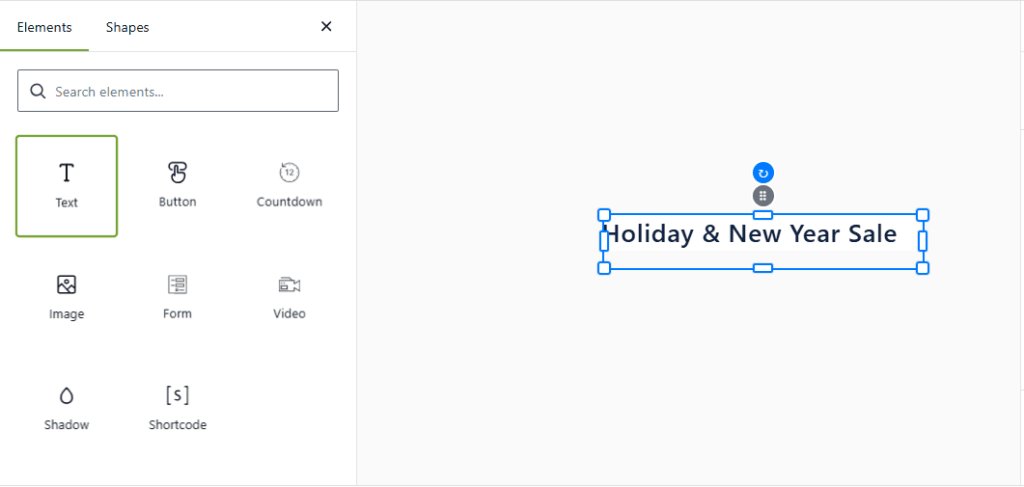
- In the left-hand Elements panel, find Text element.
- Drag and drop it onto your popup canvas wherever you want your text to appear.
3. Edit Text #
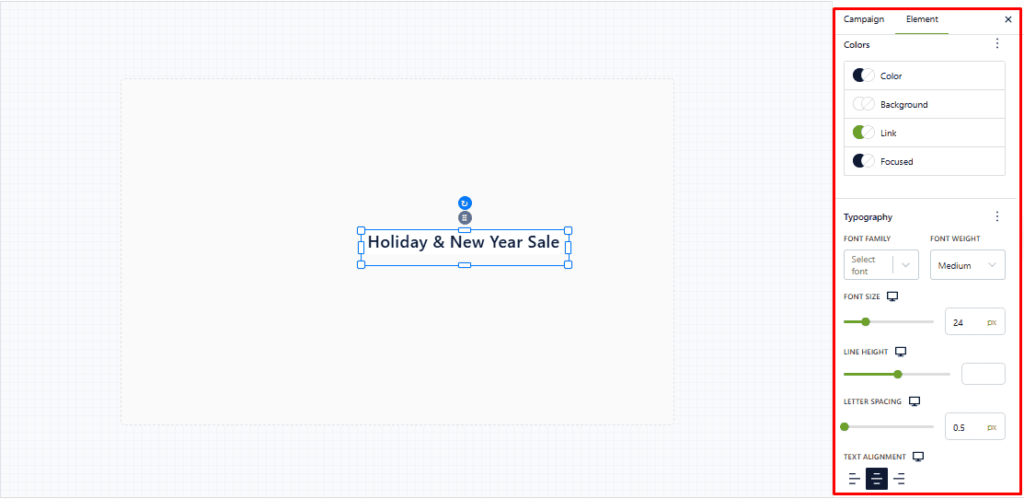
- Use the inline text editor toolbar to:
- Change font family and size
- Adjust color
- Set bold, italic, or underline
- Align text (left, center, right)
- Line height and letter spacing for readability
- Add links if needed
- Background color (optional)
4. Style the Text Element #
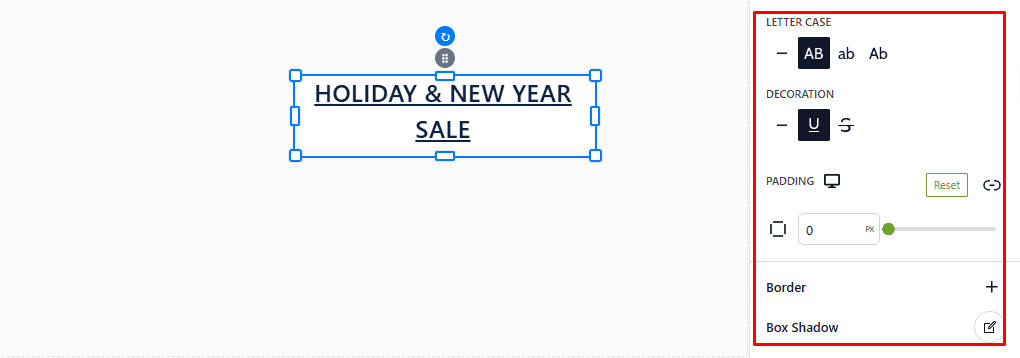
- Customize:
- Padding and margins to control spacing
- Borders or shadow for emphasis
- LETTER CASE
- DECORATION
5. Position and Resize #
- Drag the Text Element to reposition it.
- Resize by dragging the corners or edges to fit your popup design.
6. Save and Preview #
- Click Save to store your changes.
- Use Preview to see how the text looks on desktop and mobile.
- Adjust styling if necessary for readability and visual appeal.
Tips for Effective Text Use #
- Keep it short and clear—popups need concise messages.
- Use headlines to grab attention.
- Highlight benefits or offers in bold or color.
- Ensure readability on all devices.


