The Countdown Element in OptinCraft is a customizable timer you can add to your popups, banners, or other campaign designs to show a live countdown to a specific deadline or event. It helps create urgency and scarcity, encouraging website visitors to take action (like subscribing, buying, or signing up) before time runs out.
⏳ How to Use the Countdown Element in OptinCraft #
The Countdown Element lets you display a live timer inside your popup or campaign to create urgency and encourage faster user action.
Step-1. Create or Edit a Campaign #
- Go to your WordPress Dashboard → OptinCraft.
- Click Create New Campaign or edit an existing one.
- Choose your campaign type (Popup, Floating Bar, Slide-in, etc.).
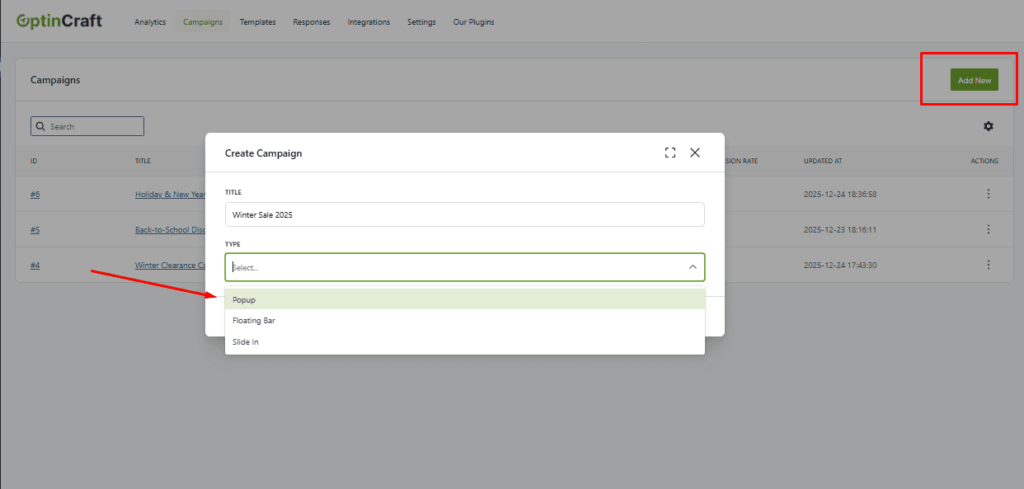
Finally, open the visual editor.

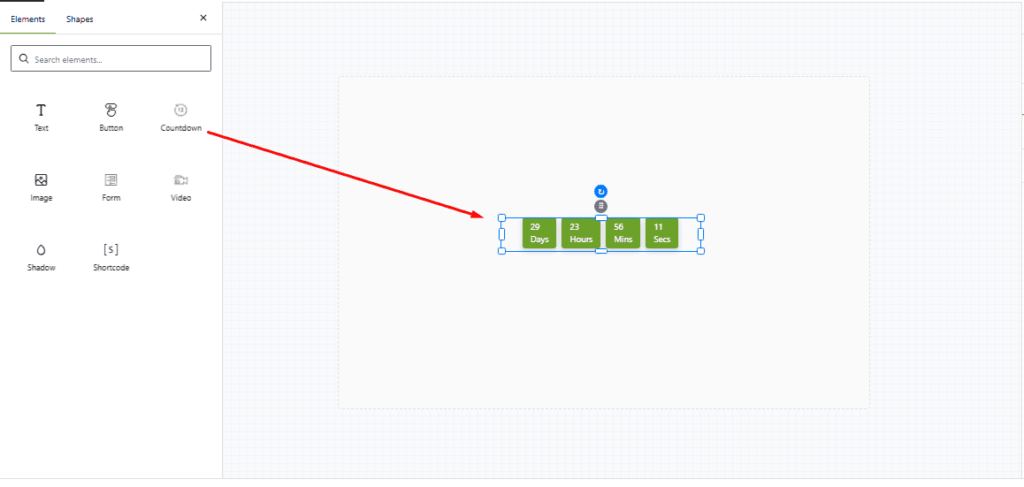
Step-2. Add the Countdown Element #
- In the editor’s element panel, find Countdown.
- Drag and drop the Countdown Element into your design.
- Place it where it’s most visible (usually near the headline or CTA button).
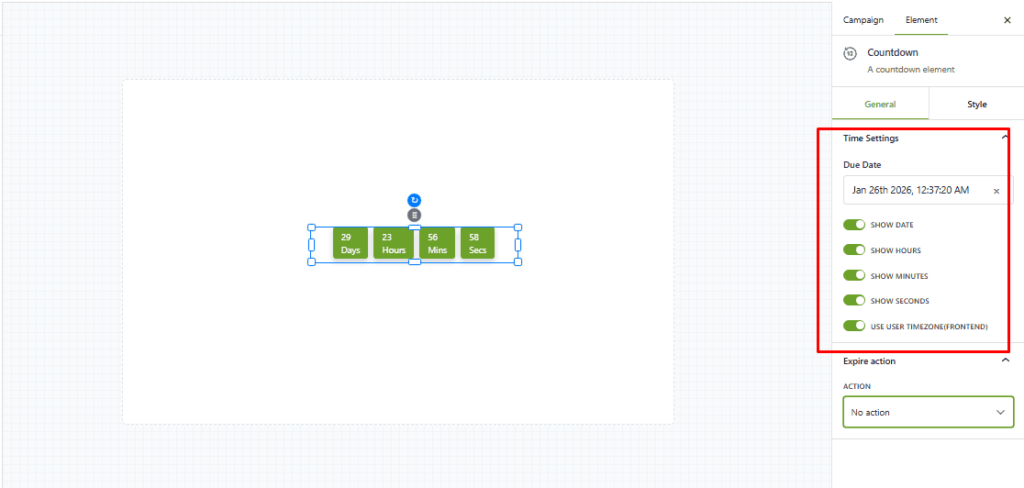
Step-3. Configure the Countdown Timer #
After selecting the Countdown Element, adjust its settings:
Show or hide days, hours, minutes, seconds
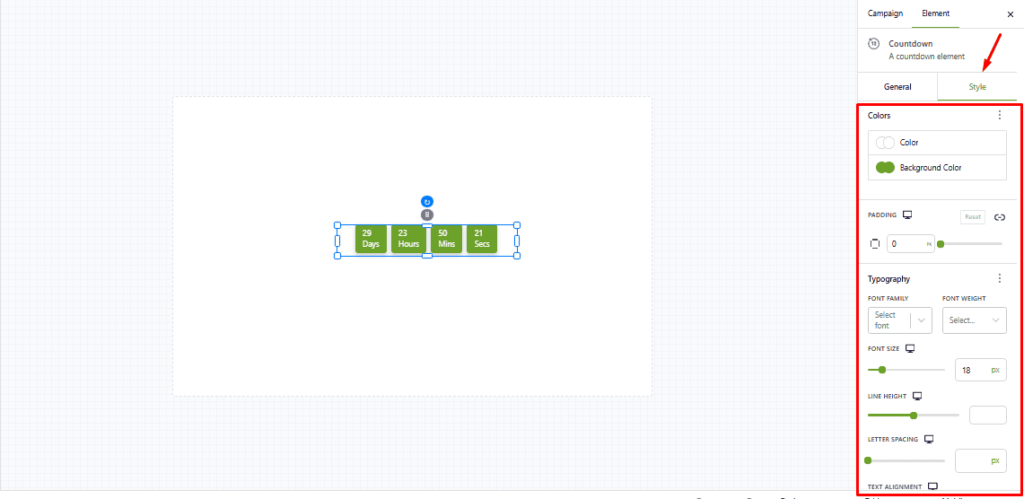
Step-4. Customize the Design #
Use the style options to match your branding:
- Change colors (numbers, labels, background)
- Adjust font size and font family
- Line Height, Letter Spacing
💡 Tip: Bigger numbers = stronger urgency.
Step-5. Set What Happens When Time Ends #
Depending on your OptinCraft version, you can:
- Hide counter
- Show a message
- Redirect to a URL
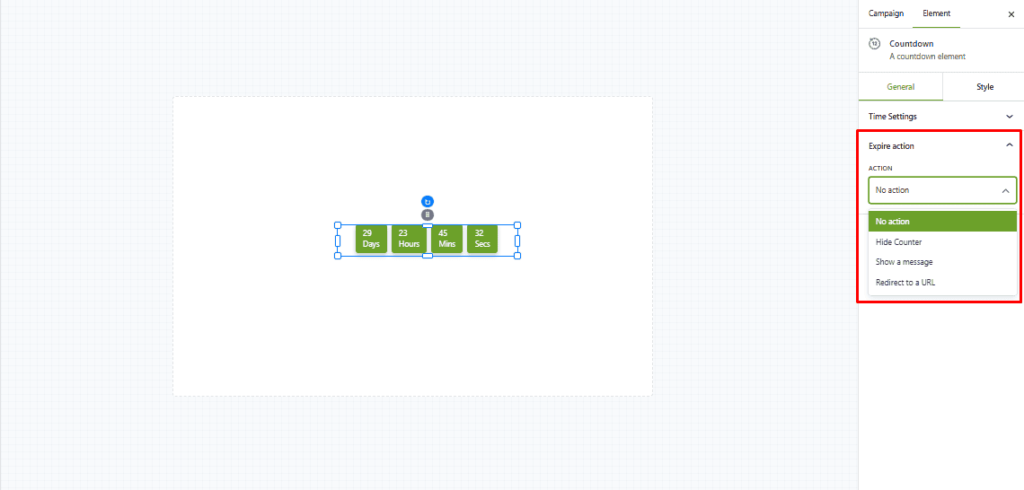
This prevents users from seeing expired offers.
Step-6. Save & Publish #
- Click Publish.
- Click Save.
- Test the countdown on the front end to ensure it runs correctly.
✅ Best Practices #
- Use countdowns for real deadlines (sales, webinars, product launches).
- Pair with a strong CTA (e.g., “Claim Offer Now”).
- Avoid overusing timers — urgency works best when it’s credible.
- Test different placements and durations for higher conversions.
🔥 Common Use Cases #
- Flash sales
- Limited-time discounts
- Webinar registrations
- Product launches
- Email opt-in deadlines


