Seeing the same popup repeatedly is frustrating. If a visitor closes your offer, showing it again five seconds later will likely drive them away rather than convert them. This “popup fatigue” increases bounce rates and hurts your brand reputation.
The Frequency Settings give you control over how often your campaign reappears to the same user. By setting strict time limits, you ensure your marketing remains polite and non-intrusive.
Follow these steps below to set the display frequency:
1. Open an old campaign in the Canvas Editor. Click the Frequency Settings tab in the right sidebar to reveal the options.
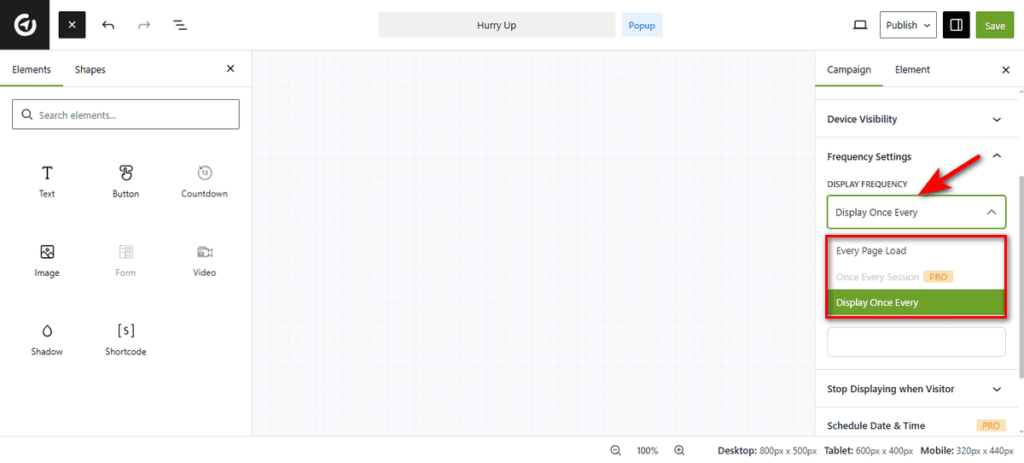
2. Select Display Frequency. The Display Frequency dropdown determines the primary rule for showing the popup. You can choose from the following behavior patterns:
- Every Page Load: The popup appears every single time the user visits or refreshes a page. This is aggressive and usually best for critical alerts.
- Once Every Session (PRO): The popup appears only once per browser session. If the user closes the browser and returns later, they will see it again.
- Display Once Every: This option allows you to set a specific time gap before the popup shows again to the same user.
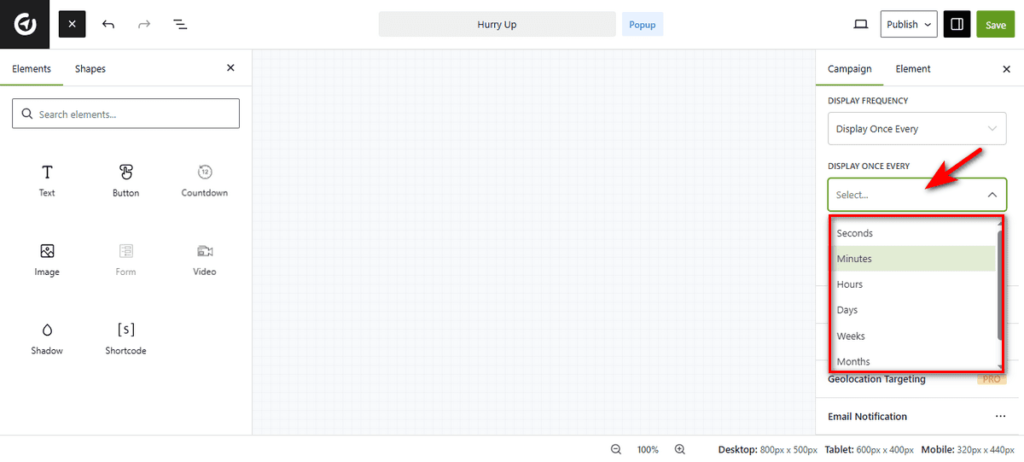
3. Set Time Interval. If you select “Display Once Every,” a second dropdown menu titled Display Once Every appears. This lets you define the exact cooldown period.
You can select the time unit that fits your strategy:
- Seconds
- Minutes
- Hours
- Days
- Weeks
- Months
For example, you can select ‘Days’ and enter ‘7’ to ensure that once a user closes the popup, they won’t see it again for a full week.