A popup that appears too aggressively can annoy visitors, while one that seems too late might be missed entirely.
The Display Options settings give you precise control over exactly how and when your campaign appears on the screen, ensuring a smooth user experience.
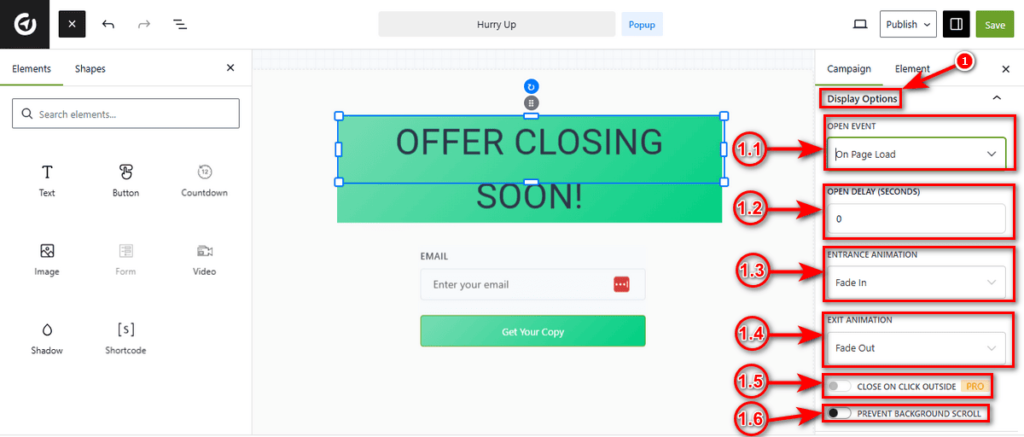
1. Display Options Panel: Click on the Display Options tab in the right sidebar to reveal the behavior settings for your campaign.
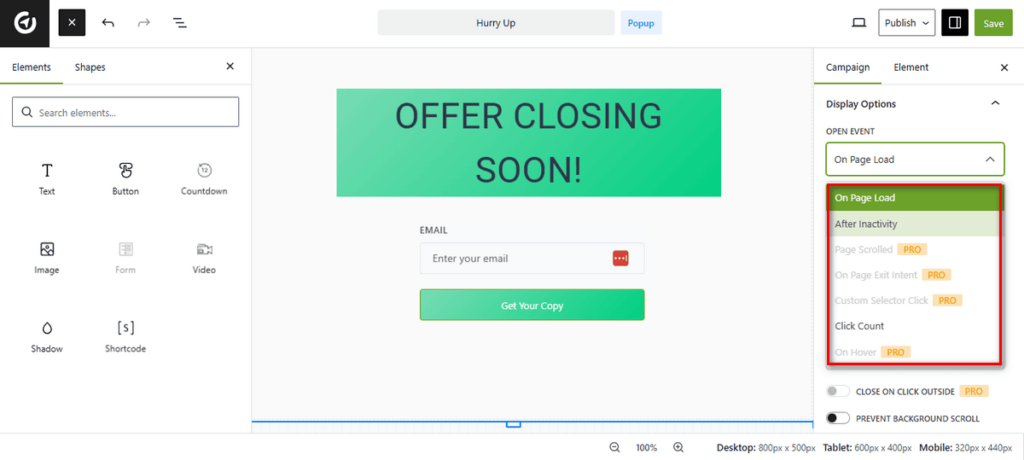
1.1 Open Event: This determines the specific user action that triggers your popup. You can select from the following triggers:
On Hover (PRO): The popup triggers when a user hovers their mouse over a specific element.
On Page Load: The popup appears automatically when the visitor arrives.
After Inactivity: The popup triggers when the user stops interacting with the page for a set time.
Page Scrolled (PRO): The popup appears after the user scrolls down a certain percentage of the page.
On Page Exit Intent (PRO): The popup detects when a user’s mouse leaves the browser window (signaling they are about to leave) and triggers immediately.
Custom Selector Click (PRO): The popup opens when a user clicks a specific HTML element on your site.
Click Count: The popup shows after the user clicks a specific number of times anywhere on the page.
1.2 Open Delay (Seconds): This setting adds a pause before the campaign appears. You can enter a value in seconds to give visitors time to settle on the page before seeing your offer.
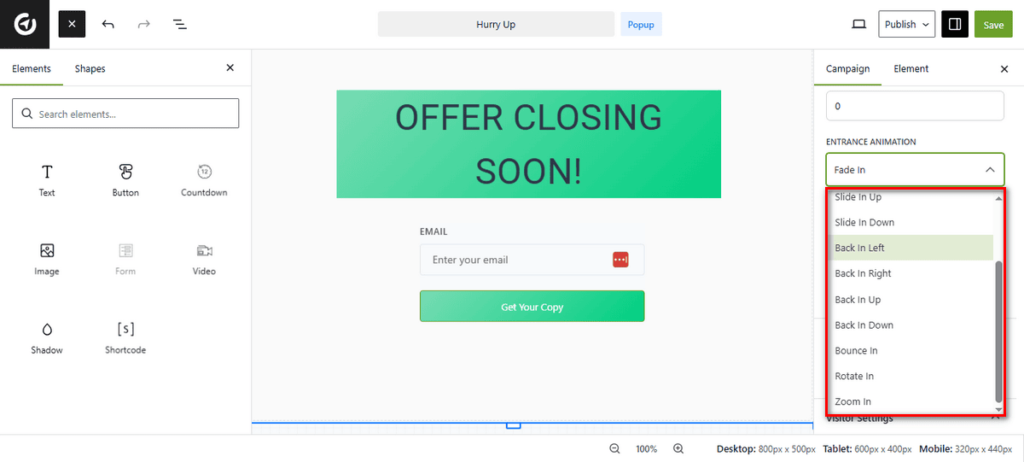
1.3 Entrance Animation: This controls how your popup visually enters the screen. The available effects are:
- Fade In
- Slide In Left
- Slide In Right
- Slide In Up
- Slide In Down
- Back In Left
And more
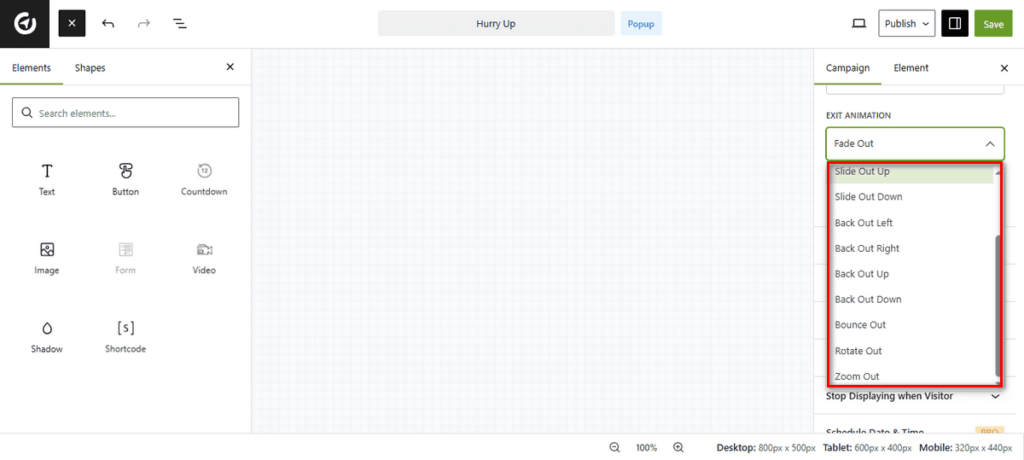
1.4 Exit Animation: This determines how the popup disappears when a user closes it. The available effects are:
- Fade Out
- Slide Out Left
- Slide Out Right
- Slide Out Up
- Slide Out Down
- Back Out Left
- Back Out Right
- Back Out Up
And more
1.5 Close on Click Outside (PRO): This premium feature allows users to close the popup simply by clicking anywhere on the background overlay, rather than having to find the “X” button.
1.6 Prevent Background Scroll: This toggle stops the main webpage from scrolling while the popup is active. By enabling it, you can keep the visitor’s focus entirely on your message.


