Allows users to switch the displayed currency on your site for easier international shopping.
To create a new switcher, go to X-Currency > Switchers > Add New Switcher.
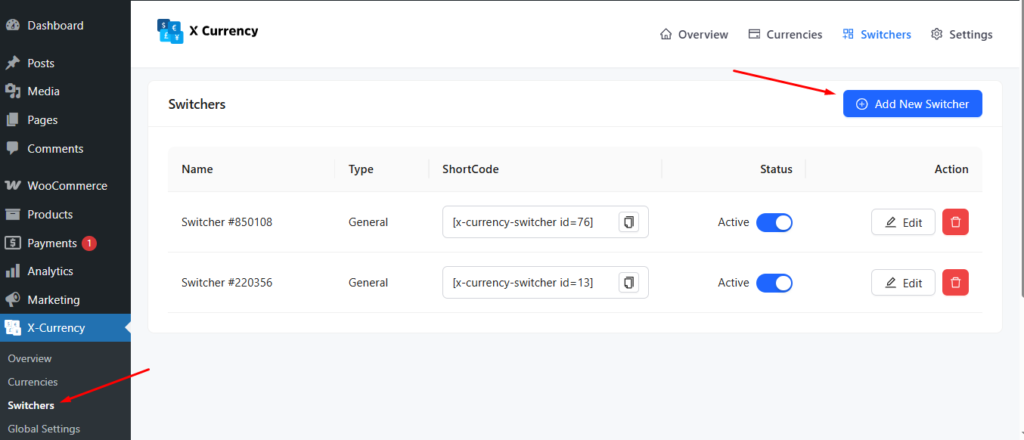
Then, it looks like
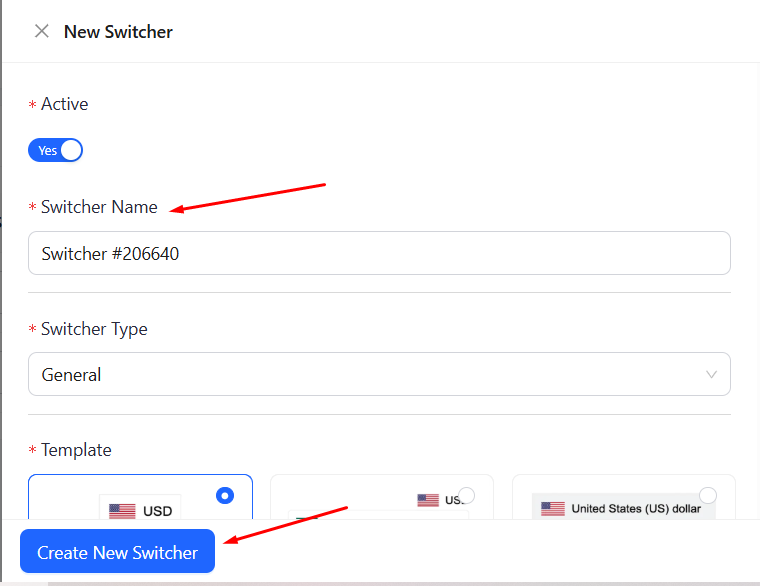
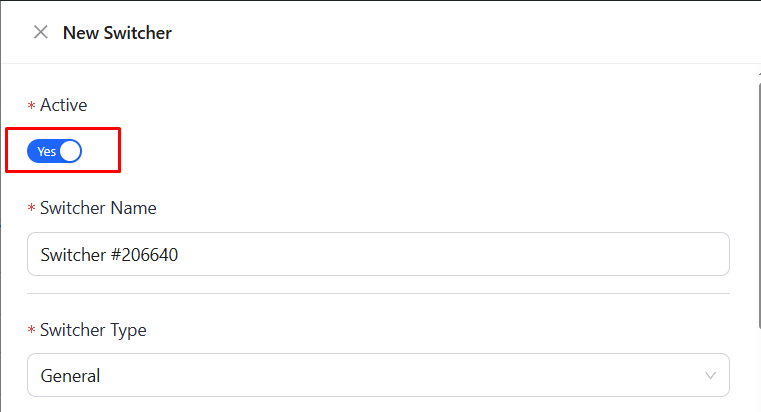
You can toggle the switcher On or Off to enable or disable it.
You can also edit/update the Switcher
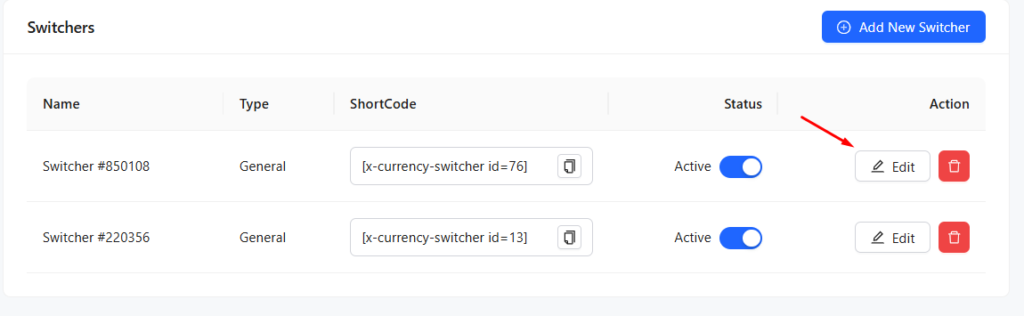
Once you hit the Edit option, you will go to the next page like below
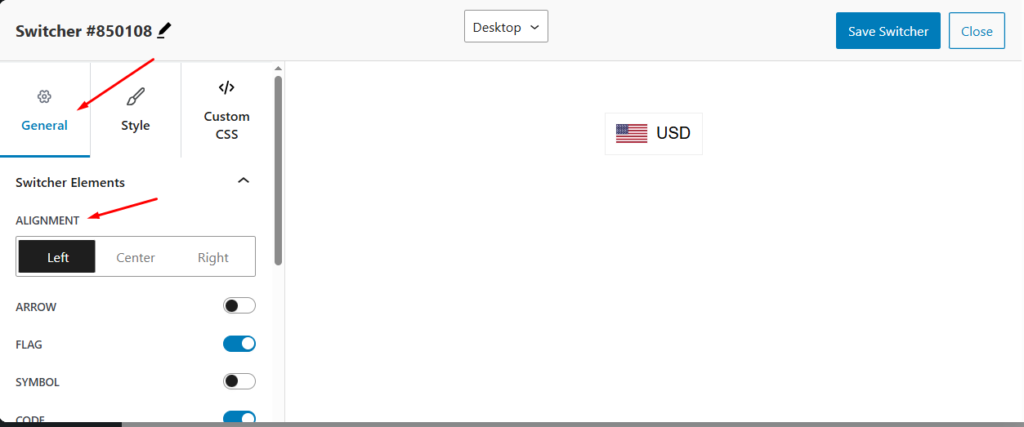
To set the switcher alignment, go to General > Switcher Elements > Alignment and choose Left, Center, or Right.
To adjust the dropdown elements alignment, navigate to General > Dropdown Elements > Alignment and select Left, Center, or Right
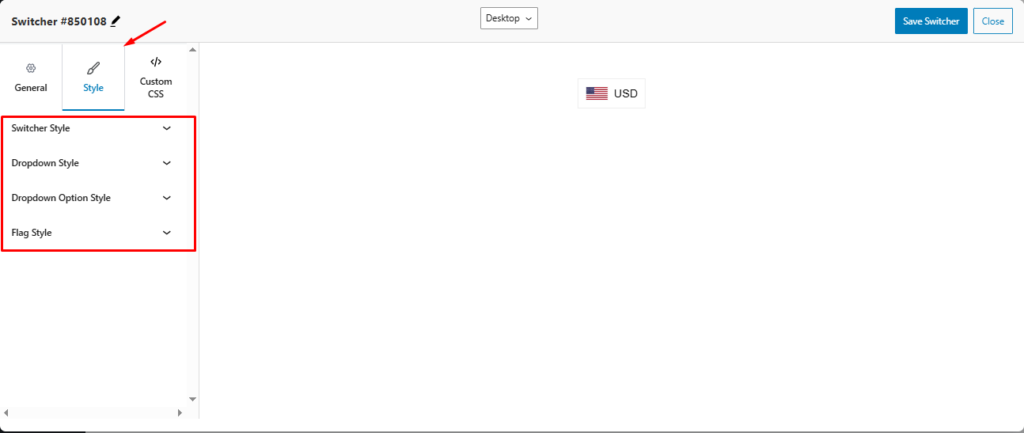
You can customize the Switcher Style, Dropdown Style, Dropdown Option Style, and Flag Style
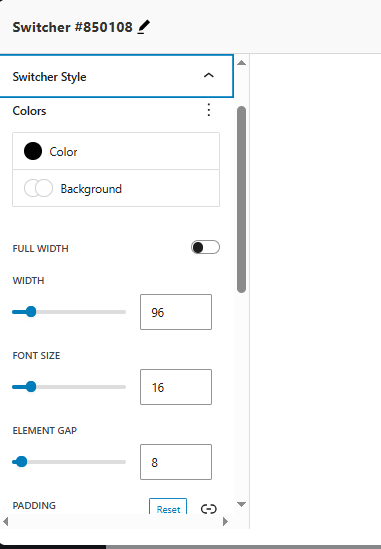
In Switcher Style, you customize Colors, Width, Font Size, Element Gap, Padding etc.
In the Dropdown Style, you can customize Background Color, Width, Max Height, Gap From Switcher, Horizontal Position, Padding, Border Radius, etc.
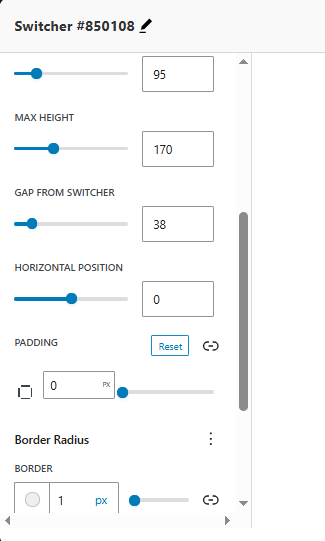
In the same way, you can customize Dropdown Option Style and Flag Style
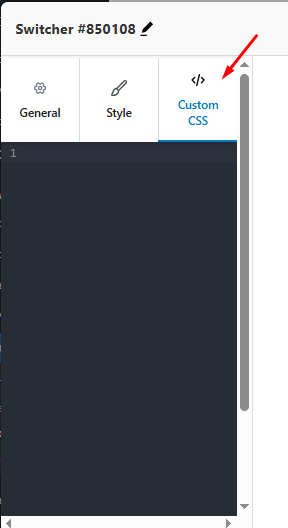
Moreover, you can write the Custom CSS
Once you finish editing the Switcher, hit the Save Switcher button, or else Close it.
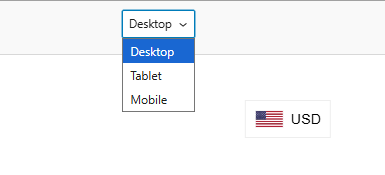
Note: You can preview in different modes.


