Why Currency Switcher Shows Wrong Exchange Rate in WooCommerce Checkout

William Tan
William Tan is a Digital Marketer at Crafium,…

In this article
You set up a sleek WooCommerce store, added a currency switcher, and expected smooth international pricing. But at checkout, something breaks—the exchange rate suddenly changes, totals don’t match, and customers are left confused by inconsistent pricing.
This isn’t just a minor glitch. Every wrong conversion silently eats into your profits or drives customers away. One moment your store looks globally optimized, the next it feels unreliable—cart abandonment rises, trust drops, and support tickets start piling up with the same frustrating question: “Why is the price different at checkout?”
The good news? This issue is not random. It comes from specific causes like caching conflicts, plugin mismatches, or gateway-side conversions. Once you understand what’s really happening behind the scenes, you can fix the exchange rate inconsistency and restore accurate, trustworthy pricing across your entire WooCommerce checkout flow.
How WooCommerce Currency Conversion Works
WooCommerce currency conversion is the process of automatically or manually changing product prices from your store’s base currency into another currency for customers. It usually happens through plugins or built-in settings, and it relies on exchange rates and pricing rules.
Here’s how it works in practice:
1. Base currency is set in your store
In WooCommerce, every store has a default (base) currency—for example, USD, GBP, BDT, EUR, INR, etc. All product prices are originally stored in this currency in your database.
2. Exchange rates are applied
To show prices in another currency, WooCommerce needs an exchange rate (e.g., 1 USD = 122 BDT). This rate can come from:
- Manual input (you set it yourself)
- Automatic APIs (like Open Exchange Rates, Fixer, or bank feeds via plugins)
3. Currency switcher decides what the customer sees
Most stores use a currency switcher plugin. It detects or lets users choose a currency using:
- Location (geo-IP detection)
- Browser language
- Manual dropdown selector
When a customer selects a currency, WooCommerce recalculates displayed prices on the frontend.
4. Price conversion happens on the fly
Example:
- Base price: $10 USD
- Exchange rate: 1 USD = 122 BDT
- Displayed price: 1220 BDT
Some systems:
- Convert dynamically at runtime (real-time calculation)
- Or pre-calculate and store converted prices (faster but less flexible)
5. Checkout currency handling
At checkout, the system must decide:
- Whether to charge in the selected currency (multi-currency checkout), or
- Convert everything back to the store’s base currency before payment (common setup)
Payment gateways (Stripe, PayPal, etc.) also need to support the selected currency.
6. Rounding, fees, and margins
Many stores adjust conversions using rules like:
- Rounding (e.g., 1097 → 1099 BDT)
- Markup (adding 2–5% buffer for volatility)
- Fixed pricing per region (instead of live conversion)
7. Plugins make it possible
WooCommerce itself doesn’t fully manage multi-currency complexity. Popular plugins handle this, such as:
- Multi-currency switchers
- Automatic exchange rate updaters
- Geo-based pricing tools
Major Reasons Why Currency Switcher Shows Wrong Exchange Rate in WooCommerce Checkout
If your WooCommerce checkout is showing the wrong exchange rate, it’s usually not a “WooCommerce bug” but a mismatch between how rates are fetched, cached, or applied. Here are the major real-world reasons this happens.
Cached exchange rates (most common issue)
Many currency plugins store rates temporarily to improve performance.
So what happens is:
- Rate updates in the API (e.g., 1 USD = 110 BDT → 112 BDT)
- Your site is still using an old cached value (110)
- Checkout shows outdated conversion
This cache can exist in:
- WordPress transients
- Plugin cache layer
- Server cache (Redis, Varnish, LiteSpeed)
Different rates for frontend vs checkout
Some plugins apply conversion in two different systems:
- Product page uses live/dynamic conversion
- Checkout uses stored cart values or base currency conversion
Result:
👉 Product page price ≠ checkout price
Cart stored in base currency (important WooCommerce limitation)
WooCommerce often:
- Stores cart totals in base currency
- Converts only for display
So at checkout:
- It may reconvert using a different rate source or timing
- Leading to mismatches
Multiple currency plugins conflicting
If you use more than one:
- WooCommerce multi-currency plugin
- Payment gateway currency tools
- GeoIP currency switchers
They can override each other’s rates.
Typical conflict signs:
- Rate correct on product page
- Wrong only at checkout or payment page
Payment gateway currency conversion override
Gateways like Stripe or PayPal may:
- Force their own exchange rate
- Convert again internally
So WooCommerce shows one rate, but gateway applies another.
Geo-location changes currency mid-session
If your store uses location-based currency:
- User enters site in one region
- Switches network / VPN / mobile data
- Currency recalculates at checkout
This causes sudden rate changes.
Rounding or markup rules applied only at checkout
Some plugins apply:
- Extra % fee at checkout (conversion buffer)
- Rounding rules (e.g., 1097 → 1099)
- Dynamic tax recalculation in base currency
This makes it look like the rate is “wrong,” but it’s actually adjusted pricing logic.
Session/cart persistence issues
WooCommerce relies on sessions.
If sessions are unstable:
- Currency changes mid-cart
- Old rate persists in cart session
- Checkout uses outdated session values
Common causes:
- Cache interfering with sessions
- Load balancers without sticky sessions
API rate mismatch or fallback rates
If your exchange rate API fails:
- Plugin may switch to fallback/default rate
- That fallback might be outdated
Decimal precision or rounding differences
Small but real issue:
- Product page shows rounded rate
- Checkout uses full precision calculation
This can create small but noticeable differences.
Impact of Wrong Exchange Rate on WooCommerce Stores
Wrong exchange rates in WooCommerce may seem like a minor technical issue, but they can seriously affect revenue, customer trust, and payment accuracy. Here’s a clear breakdown of the real impact on WooCommerce stores.
i. Direct revenue loss (or Hidden Profit Leakage)
If your exchange rate is wrong, you are literally mispricing your products.
Example:
- Correct rate: 1 USD = 110 BDT
- Wrong rate: 1 USD = 100 BDT
Impact:
- You lose ~9% revenue per order if underpriced
- Or overcharge customers if reversed → sales drop
Even a small 2–5% error compounds heavily over hundreds of orders.
ii. Customer trust issues
Customers notice price inconsistencies quickly.
Common problems:
- Product page price ≠ checkout price
- Currency suddenly changes at payment step
- “Why did the price increase?” complaints
Result:
- Cart abandonment increases
- Negative reviews
- Reduced repeat purchases
iii. Cart abandonment at checkout
Checkout is the most sensitive point.
If users see:
- Different currency conversion than expected
- Unexpected total increase due to wrong rate
They often:
👉 abandon cart immediately
Even a 1–3% discrepancy can significantly hurt conversion rates.
iv. Payment Gateway mismatches
Wrong exchange rates can cause issues with:
- Stripe
- PayPal
- local gateways
Problems:
- Gateway recalculates at its own rate
- WooCommerce shows a different total
- Payment fails or gets adjusted
This leads to:
- Failed transactions
- Refund requests
- Double conversions
v. Profit margin distortion
If rates are wrong consistently:
- You may think you’re making profit
- But actual margin is lower (or negative)
This is especially dangerous for:
- High-volume stores
- Low-margin products
- International dropshipping businesses
vi. Pricing imbalance across countries
Geo-based stores suffer heavily:
- Region A sees cheaper pricing
- Region B sees inflated pricing
This creates:
- Market unfairness
- Loss of competitiveness in certain countries
vii. Refunds, disputes, and chargebacks
Customers may:
- Dispute unexpected charges
- Request refunds due to price mismatch
- File chargebacks if conversion feels “incorrect.”
This can also affect:
- Merchant account health
- Payment processor trust score
viii. Inventory planning errors
If revenue data is based on incorrect conversions:
- Sales reports become unreliable
- Profit forecasting becomes wrong
- Restocking decisions are affected
ix. Marketing & Ad campaign waste
Ads running in multiple currencies:
- Show misleading product value
- Attract wrong audience expectations
Result:
- Lower ad ROI
- Higher CPA (cost per acquisition)
x. Brand perception damage
Even if the store is technically working:
- Inconsistent pricing feels “unprofessional.”
- Customers assume the system is unreliable
- Brand credibility drops
Step-by-Step Fix for Currency Switcher Issues
Here’s a clear, step-by-step fix guide for WooCommerce currency switcher issues, especially when exchange rates are wrong, inconsistent, or changing at checkout.
1. Identify the Source of Currency Handling
First, confirm which system controls currency:
Check in:
- WooCommerce settings
- Active plugins list
Look for:
- Currency switcher plugin (X-Currency.)
- Payment gateway currency settings (Stripe/PayPal)
- Geo-location tools
👉 Goal: Make sure ONLY ONE system controls exchange rates.
2. Remove Conflicting Currency Plugins
Conflicts are the #1 cause of wrong rates.
Do this:
- Deactivate extra currency plugins
- Keep only ONE currency switcher active
- Disable gateway currency conversion (if plugin handles it)
3. Set WooCommerce Base Currency Properly
Go to:
WooCommerce → Settings → General
Check:
- Base currency is correct (e.g., USD, BDT)
👉 This is the “source of truth” for all conversions.
4. Enable or Fix Exchange Rate Source
Inside your currency plugin:
Choose rate source:
- Manual rates (stable, recommended for control)
- API-based rates (auto-update)
If using API:
- Verify API key
- Check update frequency (hourly/daily)
- Ensure API is working
5. Clear All Cache Layers
Cached rates are a major problem.
Clear:
- WordPress cache plugin (LiteSpeed / WP Rocket / W3TC)
- Server cache (if available)
- CDN cache (Cloudflare, etc.)
- WooCommerce transients
👉 Then refresh checkout test again.
6. Sync Cart Currency Behavior
Check how your plugin handles cart:
Look for settings like:
- “Convert cart to base currency.”
- “Lock currency on first visit.”
- “Recalculate at checkout.”
Recommended:
- Lock currency after selection
- Avoid mid-cart currency changes
7. Configure Payment Gateway Currency Rules
Go to:
- Stripe / PayPal / gateway settings
Check:
- Supported currencies
- Whether gateway converts again
Fix options:
- Match gateway currency to WooCommerce currency
- Disable gateway auto-conversion if possible
8. Fix GeoIP Currency Switching Issues
If using location-based switching:
Check:
- GeoIP accuracy enabled
- VPN or IP mismatch handling
- Country-to-currency mapping rules
Fix:
- Disable auto-switch temporarily for testing
- Ensure correct country mapping
9. Force Sync Exchange Rates
Most plugins allow manual refresh.
Do:
- “Update exchange rates now.”
- Re-save plugin settings
- Re-test product → checkout flow
10. Test Full Checkout Flow
Always test:
- Product page price
- Cart page price
- Checkout total
- Payment gateway final amount
Test with:
- Different currencies
- Different devices (mobile + desktop)
- Guest + logged-in user
11. Enable Debug Mode (if issue persists)
Turn on:
- WooCommerce logging
- Currency plugin debug mode
Check logs for:
- rate fetch errors
- fallback rate usage
- conversion mismatches
Why Choose X-Currency for WooCommerce Multi-Currency Management
If your WooCommerce store is struggling with inconsistent exchange rates, checkout mismatches, or unreliable currency conversion, X-Currency is built to solve exactly these problems with a stable, conversion-accurate, and performance-optimized system.
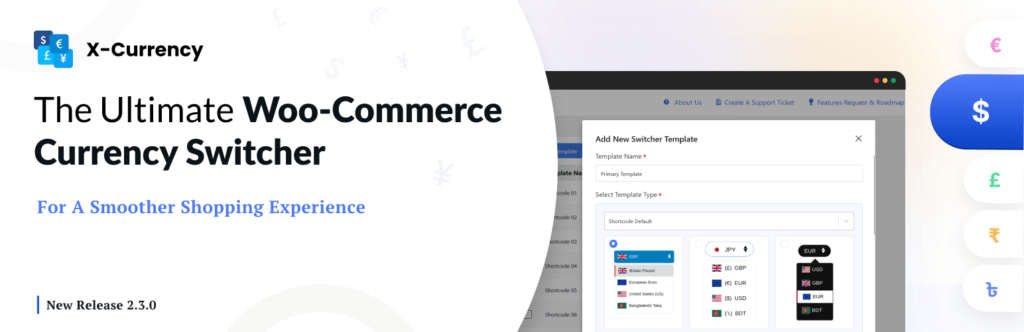
X-Currency helps store owners eliminate the common issues that cause wrong exchange rates at checkout, such as caching conflicts, API delays, and payment gateway overrides, by providing a more controlled and consistent currency conversion layer inside WooCommerce.
Key Benefits of X-Currency
- Real-time exchange rate synchronization for accurate pricing
- Smart currency switching without checkout price fluctuations
- Lightweight performance optimized for high-traffic stores
- Better compatibility with major payment gateways
- Consistent pricing from product page to checkout
Why It Solves the “Wrong Exchange Rate” Problem
Most WooCommerce currency issues happen because multiple systems recalculate prices separately. X-Currency reduces this inconsistency by:
- Standardizing conversion logic across the store
- Preventing double conversion at checkout
- Keeping session-based currency stable during checkout flow
This makes it especially useful for global stores where pricing trust directly impacts conversion rates.
Conclusion
WooCommerce currency switcher issues usually come down to misconfigured exchange rates, caching problems, or plugin conflicts rather than WooCommerce itself. When multiple systems (currency plugins, payment gateways, and caching layers) try to control pricing at the same time, exchange rates can become inconsistent, especially at checkout.
To keep things stable, the key is to:
- Use one reliable currency switcher system
- Ensure exchange rates are updated and not cached incorrectly
- Prevent payment gateways from re-converting prices
- Lock currency behavior during the customer’s session
When properly configured, WooCommerce multi-currency setups can work smoothly and provide accurate pricing across all regions.
Frequently Asked Questions (FAQs)
Why is the exchange rate different at checkout in WooCommerce?
This usually happens because of cached rates, cart recalculation, or payment gateway conversion, which overrides the displayed rate.
Can WooCommerce handle multi-currency by default?
No. The core WooCommerce does not fully support dynamic multi-currency. You need a currency switcher plugin for that.
Why do product prices and checkout totals not match?
Because product pages often show display conversions, while checkout recalculates based on cart or base currency values.
Do payment gateways affect exchange rates?
Yes. Gateways like PayPal or Stripe may apply their own conversion if not configured properly, causing differences from WooCommerce rates.
What is the biggest cause of currency switcher issues?
The most common cause is plugin conflict or multiple systems controlling currency at the same time.
Share this blog:

About William Tan
William Tan is a Digital Marketer at Crafium, specializing in WordPress solutions and online growth strategies. He’s passionate about helping businesses expand their digital presence through smart marketing and data-driven insights.